
- Printer driver issues on Windows 11 stem from outdated, missing, or corrupted drivers.
- Solutions range from updating or reinstalling drivers to using generic drivers or troubleshooting tools.
- Brand-specific steps and Windows updates both play essential roles in fixing compatibility problems.
- Regular maintenance reduces the chances of future printer driver errors.
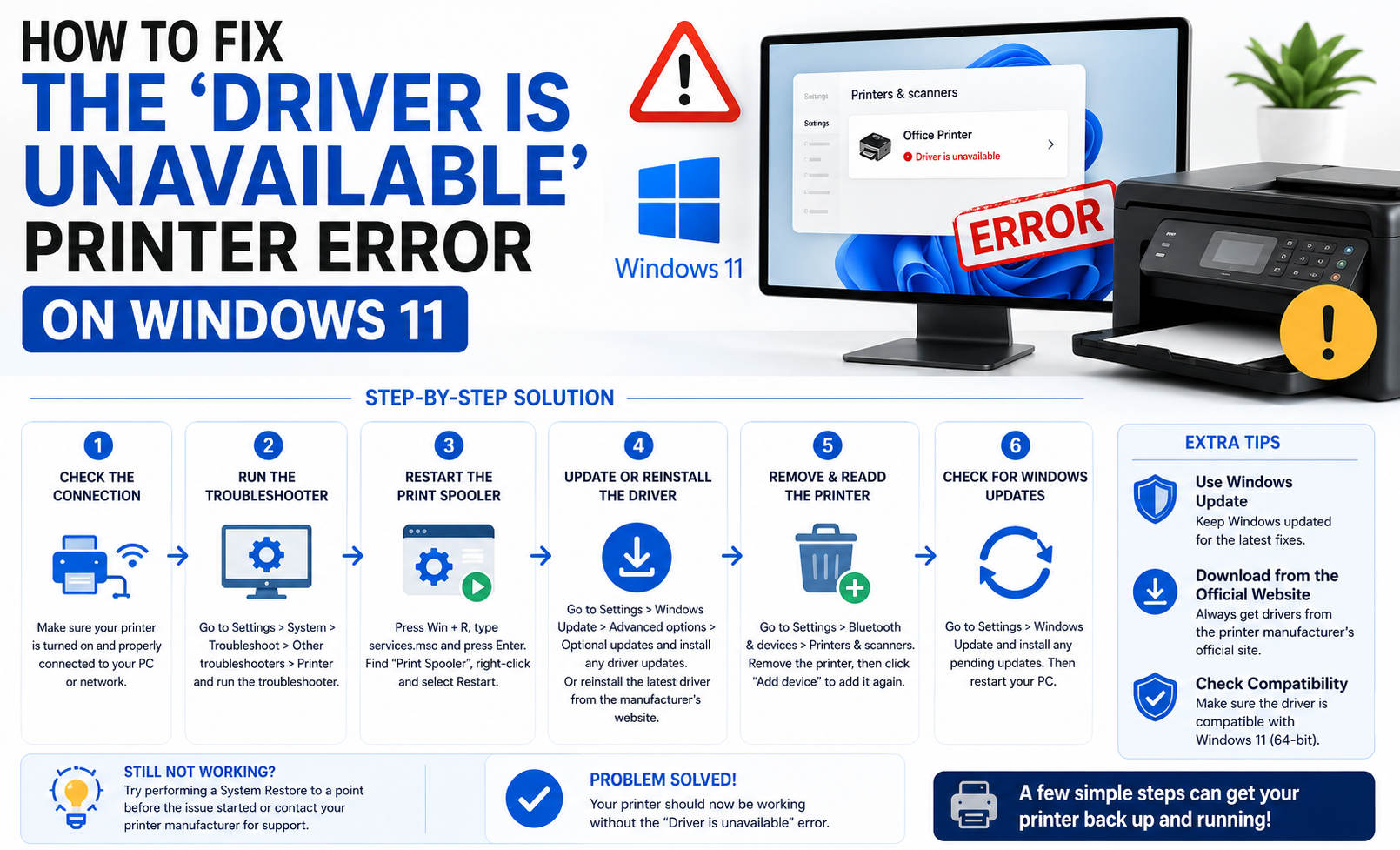
The ‘Driver is unavailable’ error on Windows 11 has been a recurring headache for countless users trying to use their printers for everything from work documents to family photos. If you’re here, you’ve probably already tried plugging and unplugging your printer, downloading every driver you can find, or even asking everyone you know for tips – all to no avail. You’re not alone: this is one of the most common printer woes on Windows systems, especially after updates or when setting up new devices.
Let’s delve deep into what this cryptic message actually means, why it keeps cropping up (sometimes even after following manufacturer advice), and—most importantly—how you can squash this bug for good. Whether you’re using HP, Brother, Canon, Epson, or another brand, you’ll find a toolkit of solutions below: from basic troubleshooting to advanced fixes, automatic and manual methods, covering everything the top sources advise and more.
When Windows 11 pops up with the ‘Driver is unavailable’ message, it’s essentially saying it can’t find, recognize, or properly communicate with the software (driver) that acts as a bridge between your PC and your printer. This breakdown typically happens because:
- The required driver isn’t installed at all,
- The currently installed driver is out of date,
- The driver is corrupted (sometimes after crashes or failed updates),
- The driver isn’t compatible with Windows 11,
- Recent Windows or driver updates introduced bugs or incompatibility,
- Permissions issues mean Windows can’t use the driver,
- Other system or connection hiccups (like a bad internet connection or misconfigured printer),
- The print spooler (the Windows system that manages print jobs) is acting up.
This problem can affect any printer brand, and many users report that it is particularly common with HP printers, especially after certain Windows updates, although Epson, Brother, and Canon devices are also susceptible. It often appears after switching computers, upgrading to Windows 11, or installing major Microsoft patches.
Common Scenarios and User Experiences
User reports reflect a shared sense of frustration: You may be able to print without any issues from a phone but receive the ‘Driver is unavailable’ message on a Windows 11 PC. The device may appear correctly under ‘Devices and Printers’ but still refuse to print. Even after repeatedly removing and reinstalling it, the problem may persist, and common measures such as disabling the firewall or resetting the network do not always work. In some cases, manufacturer support tools, such as HP Print and Scan Doctor, are no longer available, making the issue even more difficult to resolve.
1. Update Your Printer Drivers
One of the most effective solutions is simply to update the drivers. Manufacturers frequently release updates to ensure compatibility with the latest versions of Windows and fix known bugs: see our guide to downloading and installing printer drivers.
- Automatic updates using driver updater tools: Tools such as Avast Driver Updater or AVG Driver Updater scan your PC against a large database to find outdated or incorrectly installed drivers. You simply click “Scan” and allow the software to download and install the appropriate drivers, reducing the risk of manual errors.
- Manual updates through Device Manager: Open the Start menu, type “Device Manager,” and expand the ‘Printers’ or ‘Print queues’ section. Right-click your printer, select “Update driver,” and follow the instructions to automatically search online for the latest version.
For brand-specific drivers: Visit the manufacturer’s official website, enter the exact printer model, and download the latest version available for Windows 11, such as from the HP driver support page.
2. Roll Back the Printer Driver After a Faulty Update
If the error appeared after a recent driver update, the new version may contain bugs. You can revert to a previous version using Device Manager:
- Open the Start menu, type “Device Manager,” and press Enter.
- Locate your printer, right-click it, and select “Properties.”
- Under the ‘Driver’ tab, select “Roll Back Driver.”
- Restart your PC.
If the rollback option is grayed out, you may not have a previous driver version stored on your system. In that case, uninstall the current driver and reinstall the recommended version from the manufacturer’s website.
3. Uninstall and Reinstall the Printer and Its Drivers
If your driver is beyond repair or the installation has become disorganized, a complete cleanup may resolve the problem.
- Open Settings > Bluetooth & devices > Printers & scanners.
- Select your printer and choose ‘Remove device.’
- Optional: In Device Manager, remove any remaining entries under ‘Printers’ or ‘Print queues.’
- Restart your computer.
- Reconnect the printer, either by USB or Wi-Fi, and allow Windows to detect and install it automatically.
- If Windows does not automatically detect the driver, see this tutorial on how to connect your printer wirelessly.
Tip: If your printer connects through Wi-Fi, make sure both the PC and the printer are connected to the same network. An incorrect network configuration may prevent Windows from detecting the appropriate drivers.
4. Use the Built-In Windows Printer Troubleshooter
Windows includes automatic tools that can often detect and fix basic problems:
- Open Settings > System > Troubleshoot > Other troubleshooters.
- Find ‘Printer’ and click ‘Run.’
- Follow the instructions. Windows may repair missing drivers, connectivity problems, or permission issues.
Alternatively, you can launch the advanced troubleshooter by pressing Windows+R, typing msdt.exe /id PrinterDiagnostic, and clicking OK.
5. Install the Generic Printer Driver as a Last Resort
If none of the other solutions work, installing a generic driver may be a valid option. Although you may lose advanced features such as duplex printing or scanning, basic printing functions usually work properly. To install it:
- In Device Manager, right-click the problematic printer.
- Select ‘Update driver’ > ‘Browse my computer for drivers’ > ‘Let me pick from a list of available drivers on my computer.’
- Select ‘Generic printer driver’ and complete the installation.
6. Restart Your Devices and Print Spooler
Sometimes the problem is not caused by the driver, but by Windows or the printer itself. Turning the devices off and back on, including the printer, can clear temporary errors.
To restart the Print Spooler service:
- Open the Start menu, type ‘Services,’ and launch the application.
- Find ‘Print Spooler,’ right-click it, and select ‘Restart.’
- Try printing again.
Disconnecting and reconnecting the printer can also help Windows detect and configure the device correctly again, which is particularly useful for print queue or network-related errors.
7. Double-Check Permissions and Administrative Access
Drivers interact with core parts of the operating system, so installations or updates may fail silently if you do not have administrator permissions. Make sure you are signed in with an administrator account and run any installer as an administrator by right-clicking it and selecting “Run as administrator.”
8. Update Windows 11
The operating system itself may also be responsible for some errors. Pending Windows updates can affect compatibility. Always check for and install the latest available updates:
- Go to Start > Settings > Windows Update.
- Click ‘Check for updates’ and install any available updates, as even minor releases may include fixes for printing problems.
Note: If an update caused the error, temporarily uninstalling it may restore normal operation until Microsoft or the printer manufacturer releases a patch.
Brand-Specific Troubleshooting and Resources
HP Devices
HP users are particularly likely to encounter this error after Windows updates.
- Use HP Smart to download or manage drivers, as HP Print and Scan Doctor is no longer widely available.
- If you are still experiencing problems, consult HP’s support resources for model-specific instructions and downloads.
- Try using the HP Universal Print Driver if the standard driver cannot be installed or produces errors.
- If rolling back the driver does not help, completely remove the previous HP software before installing a new version.
Brother, Epson, and Canon Devices
- Brother printers may sometimes require you to remove old drivers from the print spooler directory before reinstalling them, especially if several different printers have previously been connected to the computer.
- For Epson and Canon printers, always download the latest drivers directly from their official support portals, making sure to select Windows 11 as the operating system to avoid installing outdated drivers.
- Canon offers an account-based support system with personalized assistance, while Epson also provides step-by-step instructions through its support portals.
Why Do These Errors Happen? Detailed Causes Explained
The underlying causes of printer driver errors range from simple problems to less obvious system issues:
- Outdated or faulty drivers: Manufacturers frequently release updates to maintain compatibility and fix vulnerabilities. Failing to stay up to date can cause problems, particularly after major Windows updates.
- Corrupted drivers: Faulty downloads, incomplete Windows updates, malware, or system failures can damage driver files. The error appears when Windows cannot verify or load the required files.
- Incorrect versions or improper installations: Installing the wrong driver, even one intended for a similar printer model, may fail completely or result in errors and limited functionality.
- Outdated operating system: New drivers often require recent versions of Windows. If your operating system is outdated, they may not be compatible. Likewise, newer Windows updates may break old, unsupported drivers.
- Network or connection problems: On HP+ models and cloud-connected devices, an unstable connection may prevent the driver from registering and activating correctly.
- Print spooler errors: If the service crashes or shuts down incorrectly, it can prevent effective communication between Windows and the printer.
- Insufficient permissions: Performing installations without administrator privileges may leave drivers incomplete or incorrectly configured.
Additional Power-Troubleshooting Tips
- Run the Windows troubleshooter again after each major step to check for remaining problems.
- Remove any additional printer software and old drivers before performing a fresh installation to avoid conflicts.
- If the problem persists, contact the manufacturer’s support team with your printer model and system details, as some devices may require specific solutions.
- Do not underestimate the value of restarting every device involved, including your router, computer, and printer.
Preventative Maintenance for Future Printing Bliss
A little preventative maintenance can help keep your printer working smoothly in the future:
- Keep Windows and your printer drivers updated: Schedule regular checks for new updates.
- Avoid installing unnecessary software: Download software only from official websites and keep track of the versions you install.
- Run antivirus scans regularly: Malware can corrupt system files and drivers.
- Back up your drivers using tools such as Avast or AVG so you can quickly restore a previous version if a new update causes problems.
A persistent error such as ‘Driver is unavailable’ in Windows 11 can be extremely frustrating, but with the right information and a little patience, it can almost always be fixed without replacing the printer. Follow the recommendations above, combining automatic tools with manual troubleshooting steps, and consult the support resources provided by your printer manufacturer. Keep your system updated, and if the issue continues, contact official support. In many cases, a new update or a less obvious configuration change can resolve the problem and restore trouble-free printing.