
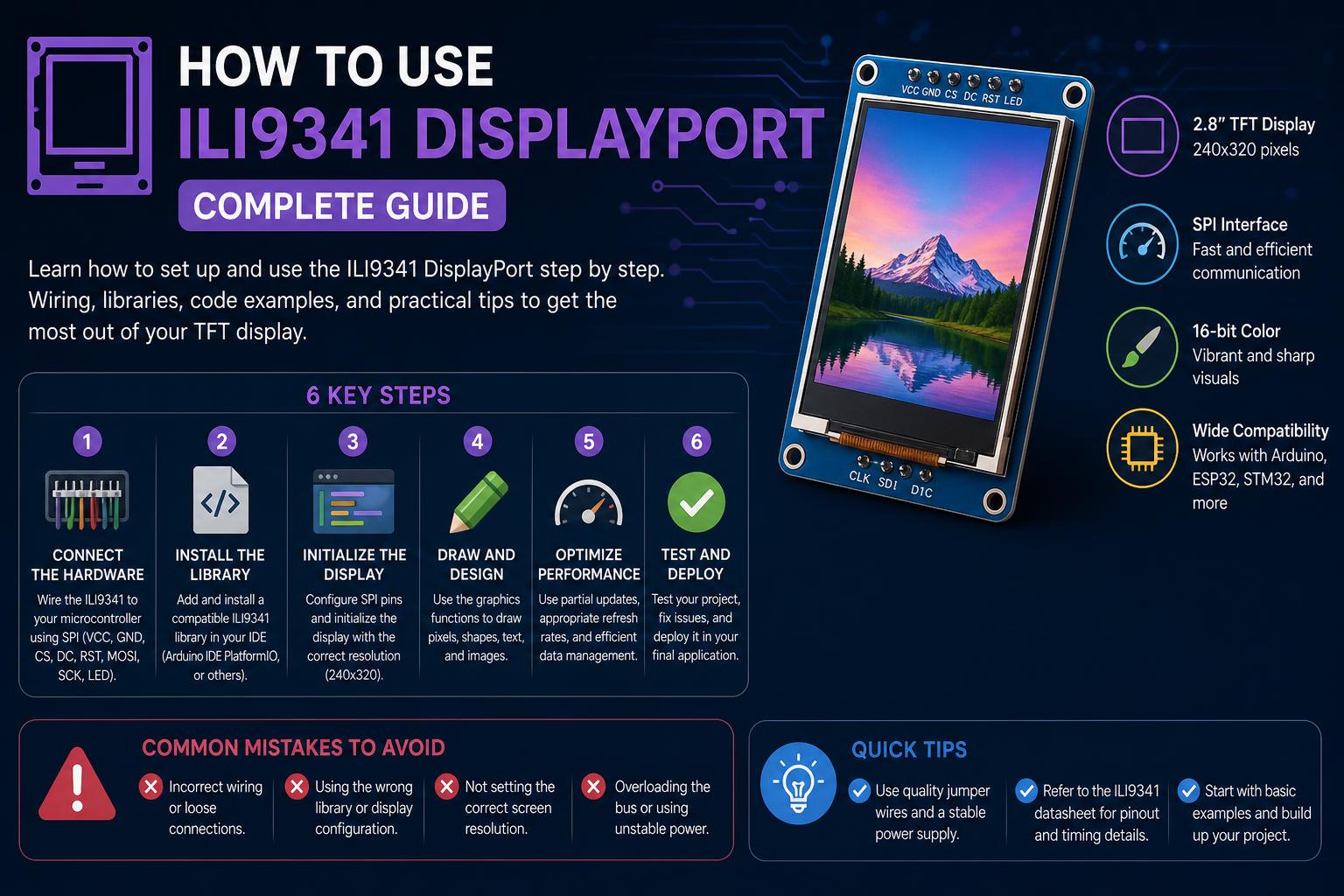
- The ILI9341 is a versatile SPI-based TFT display controller offering vibrant colors, resistive touch options, and SD card support, commonly used in DIY electronic projects with microcontrollers like Arduino, ESP32, and STM32.
- Interfacing the ILI9341 with platforms such as Arduino and STM32 requires precise wiring, appropriate voltage handling, and initialization sequences, often relying on robust libraries (e.g., Adafruit_GFX, Arduino_GFX) to simplify graphics programming.
- When using these displays with microcontrollers, understanding pinouts, voltage requirements, and efficient communication protocols like SPI is crucial for reliable and crisp color rendering and touch functionality.
- Existing tutorials cover Arduino, ESP32, and STM32 integrations, detailing step-by-step schematics, code snippets, and best practices for display setup, drawing routines, and troubleshooting.
If you’ve ever tinkered with microcontrollers or DIY electronics, you’ve likely encountered the ILI9341-based TFT displays – popular for their rich color output and versatility. These affordable, vibrant modules pop up everywhere, from simple Arduino dashboards to sophisticated embedded GUIs. Because integrating them requires navigating voltage quirks, SPI intricacies, and sometimes even touch or SD-card add-ons, a one-stop, exhaustive reference is worth its weight in gold, especially when connecting these displays to platforms like Arduino, ESP32, or STM32.
Consider this your definitive guide to the ILI9341 display universe. We’ll take you step by step through everything: distinguishing ILI9341 modules, understanding their pinouts, handling delicate voltage levels, wiring for various microcontrollers, initializing them in code (with and without libraries), pushing pixels, and even troubleshooting when things go awry. Let’s get your graphics up and running the reliable way!
The ILI9341 TFT Display: Features and Anatomy
The ILI9341 is a widely-used TFT (Thin-Film Transistor) display controller, found in 2.2″ to 3.2″ modules, driving screens with a crisp 240×320 pixel resolution in color depths from 16-bit (65k colors) up to 18-bit (262k colors). Designed for SPI (Serial Peripheral Interface) communication, these displays are a favorite for embedded projects and quick prototypes. The module may also include extras like resistive touchscreen panels or onboard SD card slots, streamlining project requirements.
- Display Resolution: 240 x 320 pixels (portrait or landscape)
- Color Depth: Typically 16 or 18 bits
- Interface: 4-wire SPI (sometimes parallel in rare modules)
- Power Supply: Operates natively at 3.3V logic and power, though some modules provide a 5V input with onboard regulator
- Additional Features: Touchscreen capability (usually with XPT2046 controller); SD card socket in some variants; white LED backlight (sometimes software-controllable)
Why is the ILI9341 so popular? Its low cost, consistent quality, and broad software support make it a preferred choice for hobbyists and engineers alike. Compatibility with peripherals (especially for SPI) and vibrant graphics open up a world of applications: weather dashboards, oscilloscopes, control panels, and even handheld games.
Examining the ILI9341 Pinout: What Goes Where?
Before connecting your ILI9341, carefully check the module’s silkscreen to verify the pin labels; although most are similar, some modules, especially those with extra features, might rearrange or rename pins. Here is a summary of the standard SPI-based pinout for these modules:
- VCC: Module power supply – accepts 3.3V (always safe), and some modules accept 5V (verify with the LDO regulator)
- GND: Ground
- CS (Chip Select): Active low; indicates when the display should listen to the SPI bus
- RESET (or RST): Puts the display into a reset state
- D/C (Data/Command, sometimes DC or RS): High for data, low for commands sent to the display
- MOSI / SDI (Master Out Slave In / Serial Data In): SPI data to the display (MCU output)
- SCK (Serial Clock): SPI clock
- MISO / SDO (Master In Slave Out / Serial Data Out): Not necessary for basic operation; display output for bidirectional SPI (usually left unconnected unless reading from the screen)
- LED (Backlight): Powers the backlight; sometimes with direct 3.3V, other times via a transistor with PWM for brightness control
For modules with touchscreens, you might also find:
- T_CLK, T_CS, T_DIN, T_DO, T_IRQ: These connect to the resistive touchscreen controller (commonly XPT2046) over a separate SPI bus.
If your module includes an SD card slot:
- SD_CS, SD_MOSI, SD_MISO, SD_SCK: Separate SPI lines for SD access, usually connected in parallel with the microcontroller’s SPI lines alongside the display.
Handling Voltage: Avoiding a Smoked Display!
Most ILI9341 displays are NOT 5V tolerant on their signal lines – only on VCC if a regulator like the XC6206P332MR is present.
Connecting 5V logic pins directly to an ILI9341 controller powered only by 3.3V can quickly damage the controller. When using 5V microcontrollers (like the classic Arduino Uno), always step down the SPI signals to 3.3V.
Best practice: use simple resistor dividers (typically 2.2k and 3.3k Ohm on each line) or a logic level converter on every control line going from 5V to the 3.3V level. Some modules help with built-in protection, but check before assuming it’s safe. Modules with a jumper labeled “J1” sometimes allow bypassing the internal regulation—at your own risk.
Wiring the ILI9341 to Your Microcontroller
With Arduino (Uno or Compatible)
Schematics: You will need five voltage dividers (or a level converter): for CS, RESET, D/C, MOSI, and SCK, connected from the Arduino’s GPIOs to the corresponding pins on the display.
- CS → Arduino Digital 8 (with divider)
- RESET → Arduino Digital 9 (with divider)
- D/C → Arduino Digital 10 (with divider)
- MOSI → Arduino Digital 11 (with divider)
- SCK → Arduino Digital 13 (with divider)
- VCC → Arduino 5V (if the module accepts it, otherwise 3.3V)
- GND → Arduino GND
- BL (LED) → Arduino 5V (if needed for the backlight)
- MISO → not connected (unless you want to read from the display)
This schematic ensures safe logic levels for the sensitive display controller.
With ESP32
Great news! The ESP32 runs natively at 3.3V—no dividers are needed to connect the ILI9341. Just align your chosen pins with those of the display, define those values in your code, and you’re good to go.
With STM32 (e.g., STM32F0, STM32L0, Blue Pill, Nucleo)
The STM32 platform offers highly flexible alternate function mapping, allowing you to select various SPI-compatible pins. Typical connection (example: STM32F031K6 / STM32L031K6):
- MOSI → PB5
- SCK → PB3
- D/C → PB4 (often used as a GPIO instead of SPI)
- CS → PA12
- RESET → PA15
- VCC → 3.3V (Never to 5V on STM32 I/O!)
- GND → GND
Getting Up and Running: Libraries and Initialization
Most users rely on libraries to speed up development and maximize device compatibility:
- Arduino: Use the Adafruit_ILI9341 library along with Adafruit_GFX. Both can be installed from the Arduino IDE Library Manager.
- ESP32 in Arduino Core: Libraries like Arduino_GFX (Arduino_GFX_Library) provide cross-platform abstractions and fast SPI operations, simplifying sketches with multiple devices.
- STM32 (bare-metal or STM32duino): You will often work at the register level, sending direct commands to GPIO and SPI, or adapting Arduino-style libraries. For bare-metal code, peripheral programming offers greater control.
Installing Libraries (Arduino/ESP32)
- Open the Arduino IDE
- Go to Sketch → Include Library → Manage Libraries
- Search for “ILI9341” (choose Adafruit ILI9341 by Adafruit)
- Search for “Adafruit GFX” (for basic graphics primitives)
- (ESP32 only) search for “Arduino_GFX_Library”
Display Initialization Sequence
The ILI9341 requires a series of commands to be sent before displaying anything other than the white LED background. Libraries generally handle this, but for advanced control (especially on STM32), it is useful to understand what happens under the hood:
- Send a hardware reset (pull RST low for at least 100ms, then high for 100ms)
- Transmit a list of configuration commands over SPI (like in Adafruit_ILI9341::begin or official datasheets)
- Set pixel format, frame control, power settings, gamma corrections
- Exit sleep mode (command 0x11), wait more than 100ms
- Turn on the display (command 0x29)
On STM32, this requires direct register manipulation. For example, activating GPIO pins and writing bytes to the SPI peripheral using memory-mapped structures (functions like hspi_w8, hspi_w16, and hspi_cmd). Byte order and delays matter, especially on ARM with little-endian. Check out this guide by Vivonomicon for register-level details.
Example: Drawing Graphics with ESP32 and Arduino
Below is a typical workflow example on ESP32 using Arduino-style code and the Arduino_GFX library:
- Connect the pins (as explained above), assigning variables in your code that match your wiring
- Install and include the Arduino_GFX and Arduino_ILI9341 libraries
- Declare constants for the pins used (e.g., DC, CS, SCK, MOSI, MISO, RESET)
- Create instances of Arduino_ESP32SPI (for bus abstraction) and Arduino_ILI9341 (the display):
// Pin constants
#define TFT_DC   2
#define TFT_CS   15
#define TFT_SCK  18
#define TFT_MOSI 23
#define TFT_MISO 19
#define TFT_RST  4

Arduino_DataBus *bus = new Arduino_ESP32SPI(TFT_DC, TFT_CS, TFT_SCK, TFT_MOSI, TFT_MISO);
Arduino_ILI9341 *tft = new Arduino_ILI9341(bus, TFT_RST);
- Initialize the display in setup():
tft->begin();
tft->fillScreen(WHITE); // Background- Set the cursor and write text (configurable fonts and sizes):
tft->setCursor(20, 20);
tft->setTextSize(2);
tft->setTextColor(BLUE);
tft->print("Hello world");
With this, you have the basics for a quick “Hello World” on the screen.
STM32: Advanced Control with Direct SPI
For maximum efficiency and learning, you can program the ILI9341 directly on the STM32, manually controlling every SPI transfer and GPIO state. The recommended strategy:
- Enable GPIOA and GPIOB via the RCC register
- Configure MOSI and SCK in alternate function mode (high speed, push-pull, no pull-up or pull-down)
- Configure CS, DC, and RESET as normal GPIO outputs
- Set initial states: chip select high, DC high, SCK high; hold reset low, delay, then pull high for the reset sequence
- Configure the SPI peripheral, adjusting polarity and phase as needed
- Build helper functions:
- hspi_w8: wait for the buffer to empty and send 8 bits
- hspi_w16: write 16 bits with the proper byte order for little-endian ARM
- hspi_cmd: pull D/C low, send command, pull D/C high
- Send the initialization command sequence
The main drawing routine involves defining the area (SET_COLUMN_ADDR, SET_PAGE_ADDR), activating memory write (MEMORY_WRITE), and sending 76,800 16-bit color values for a full screen update.
Example:
hspi_cmd(SPI1, 0x2A); // Set column
hspi_w16(SPI1, 0x0000);
hspi_w16(SPI1, 0x00EF); // 239
hspi_cmd(SPI1, 0x2B); // Set row
hspi_w16(SPI1, 0x0000);
hspi_w16(SPI1, 0x013F); // 319
hspi_cmd(SPI1, 0x2C); // Memory write
for (int i = 0; i < 320*240; ++i) {
    hspi_w16(SPI1, COLOR);
}
This will fill the screen with the color specified in COLOR. For adaptations, check out .
Working with Touch and SD Card Features
Many ILI9341 displays include a resistive touchscreen, usually with an XPT2046 controller, and an SD card slot for extra storage.
For touch input:
- A separate SPI bus is used for the touch controller; connect T_CLK, T_CS, T_DIN, T_DO, T_IRQ following the documentation
- On Arduino/ESP32, use libraries like XPT2046_Touchscreen to interact with and detect touch events
- On STM32, you will need to manage SPI and GPIO directly
For the SD card:
- If the SD pins are separate, use your SD library (SdFat or SD for Arduino, FatFS on STM32)
- If the SD and TFT share the SPI bus, ensure the CS lines do not collide (only activate one peripheral at a time)
Practical Tips, Troubleshooting, and Performance Boosts
Common issues (and how to fix them):
- Completely white screen? This could mean the display is stuck in reset or the code hasn’t initialized correctly (check wiring or code)
- Incorrect colors or corrupted pixels? Check the byte order in your code and ensure you are sending 16 bits per pixel as the screen expects
- Touch not responding? Confirm that you have properly connected the touch controller to the correct pins; a bad connection or incorrect voltages can cause failures
- Flickering, freezing, or slow drawing? Always use hardware SPI if possible, and minimize delays between buffer calls; on STM32 and ESP32, using DMA can drastically increase speed
- SD card not detected? Lower the SPI speed and double-check the SD_CS definition; avoid SPI bus conflicts with the display
For advanced graphics, use primitives like drawLine, drawRect, fillScreen, setTextSize, and setTextColor, included in libraries like Adafruit_GFX or Arduino_GFX_Library. These abstract the pixel addressing, but also allow direct access if needed.
Code, Community Projects, and Additional Resources
If you want to go further and experiment with real projects, explore:
- Simple Circuit’s in-depth tutorial on Arduino and ILI9341 – detailed schematic
- ESP32 “Hello World” on TechTutorialsx – ideal for beginners (includes code and schematic)
- – for those who enjoy coding close to the hardware
- Arduino_GFX and Adafruit_ILI9341 libraries on GitHub (keep versions updated for maximum compatibility)
- Ready-to-use projects and code on GitHub
By mastering voltage management, connections, and libraries, you can take full advantage of these displays and turn your projects into high-impact graphical interfaces with vibrant colors and fluid response, ideal for monitoring systems, portable gadgets, or interactive dashboards.
Everything You Need to Know About Ubuntu 25.10 “Questing Quokka”: Features, Changes, and Expert Insights