
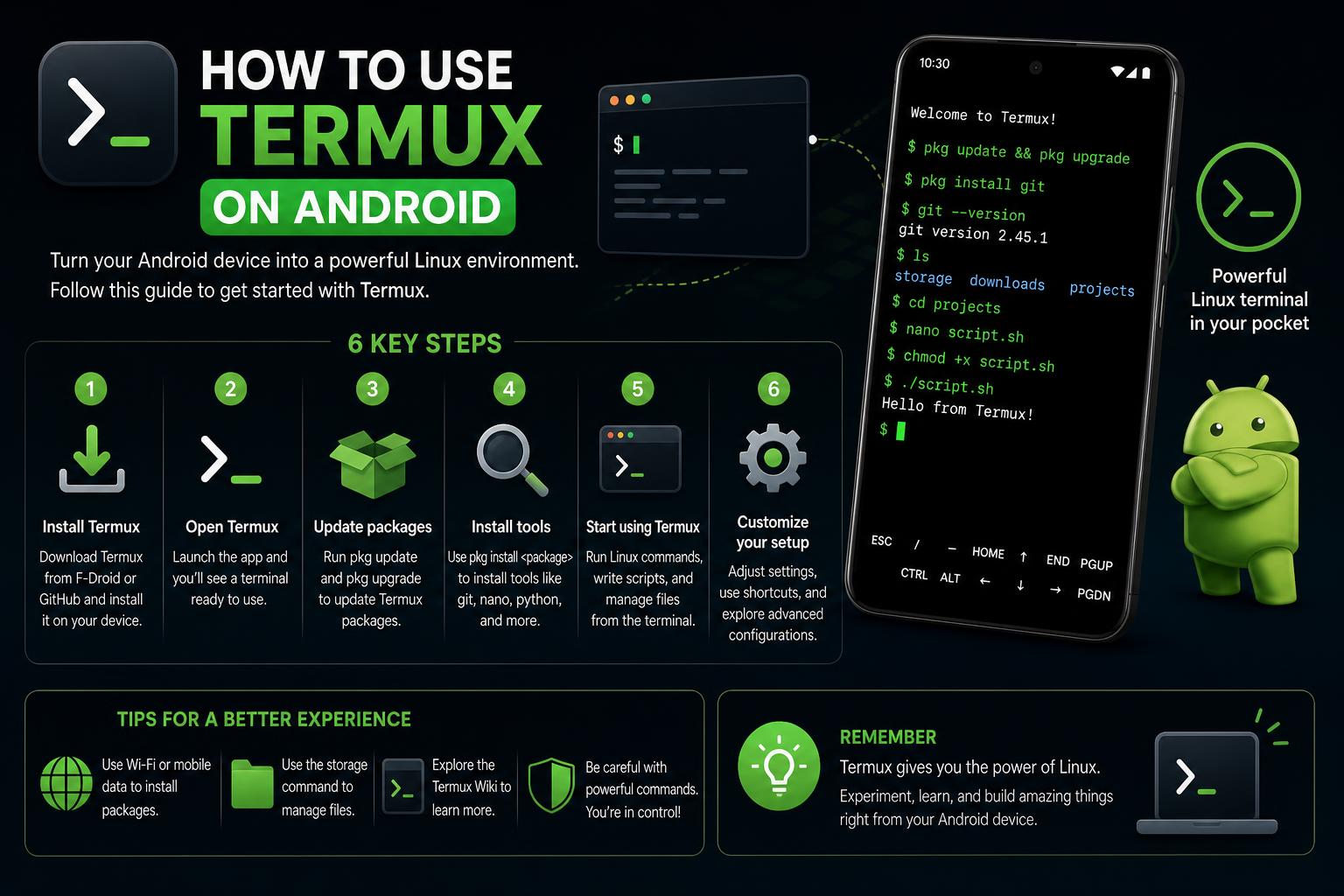
- Termux turns your Android device into a versatile Linux environment with extensive features and no need for rooting.
- Official sources like F-Droid and GitHub provide the most stable and feature-rich builds and should be favored for installation and updates.
- Combining Termux packages with the Android ecosystem enables powerful scripting, development, server management, and automation from any location.
Looking to unlock the true potential of your Android device by turning it into a portable Linux powerhouse? Termux could be your gateway to a new realm of productivity, coding, and system management on the go. If you’ve ever wondered how to seamlessly run Linux commands, script automations, or even set up lightweight development environments right from your phone—without root—this article will be your all-in-one companion.
Termux is an unexpectedly powerful app that merges terminal emulation with a comprehensive Linux environment, and it’s changing how users leverage Android for much more than just entertainment and communication. Whether you’re a curious beginner or a seasoned developer keen on maximizing your device, the journey from installation to advanced usage is surprisingly accessible. Stick around as we break down exactly how to use Termux on Android—covering everything from initial setup, packages, and project ideas to essential tips, community highlights, and expert troubleshooting.
What Is Termux and Why Is It Unique?
At its core, Termux serves as both a terminal emulator and as a full-fledged Linux environment for Android devices. Unlike classic Android terminal emulators that provide just a command shell, Termux brings in a broad selection of open-source Linux packages and tools that extend what your device can do. No root access or complicated setup is required; it all operates within Android’s user space, installing a minimal base system initially and letting users expand from there.
The flexibility means you can start small—with classic file management or calculators in the shell—and move up to complex development workflows, system automation, or remote server management. Termux essentially bridges the gap between Linux users and Android power users, allowing you to use many of the same tools you’d deploy on your desktop or server right from your pocket.
How Can You Get Termux? The Best Sources Explained
Termux can be downloaded from several reliable sources, but not all builds are created equal. Let’s clarify the best practices so that you start on solid footing:
- F-Droid: The safest and most up-to-date method for most users, delivering stable releases without the restrictions placed by proprietary app stores. The F-Droid build is the most recommended for both beginners and experts because it has full support for plugins and all available packages.
- GitHub Releases: For users who want the cutting edge or are running specific Android versions, GitHub offers official APKs directly from the project’s maintainers. Universal APKs cover all supported architectures, and the source is transparent.
- Google Play: There is a version available for Android 11+ with some functional limitations and missing features, as it complies with stricter Play Store policies. Updates here may lag behind F-Droid/GitHub. Installation from Google Play is mainly recommended if Android’s security policies block alternative sources.
Avoid mixing APKs obtained from different sources (e.g., F-Droid and GitHub) because of signature key incompatibilities. If you want to switch sources, fully uninstall all previous Termux and plugin APKs before installing the new build to avoid errors like INSTALL_FAILED_UPDATE_INCOMPATIBLE.
Termux Permissions and Security: What You Need to Know
Termux requests a set of permissions to function smoothly and to offer advanced capabilities:
- Network Access: Used for managing network connections, ssh, and remote packages.
- Storage: To read and modify external/shared storage, letting you edit, copy, and run scripts or configuration files.
- Foreground Service: Enables Termux to keep running for lengthy operations or scheduled tasks.
- Special permissions, such as preventing sleep, controlling vibration, setting alarms, and requesting package installations, all deepen the way Termux interacts with both your device and the broader Android ecosystem.
While these permissions empower Termux, users should exercise caution and only install APKs from official sources to minimize security risks. Never download APKs distributed through forums, social channels like Telegram, or third-party APK aggregators.
First Steps: Installing and Launching Termux on Android
Getting Termux up and running is refreshingly straightforward:
- Download the APK from a trusted source, such as or .
- Install the APK and grant the necessary permissions (storage, etc.), following prompts from your device.
- Launch the app. On first start, a minimal Linux environment is set up automatically. This includes a base set of tools sufficient to execute Linux commands and expand further using the built-in APT package manager.
- If you get stuck, access the built-in Help via a long-press anywhere inside the terminal and select the Help option.
This base system lays out tools such as bash or zsh shell environments and gives you immediate access to the familiar terminal prompt.
Expanding Your Environment: Packages, Shells, and Tools
Termux isn’t just about a terminal—it’s about turning your Android device into a fully capable Linux workstation. After your initial setup, you’ll want to bring in more functionality. The primary method is through packages, which can be installed using the classic Debian/Ubuntu apt package manager.
- Shells: Choose your favorite shell between bash and zsh. Advanced users can tailor shells with custom prompts and plugins, just as on Linux desktops.
- Text Editors: Create and modify files with nano, vim, or emacs—whichever suits your workflow.
- File Managers: nnn brings a lightweight, text-based file manager right to your fingertips for handling folder structures, copying, and renaming files.
- Programming Environments: Use clang, make, and gdb to compile and debug C/C++ code. Install python to script or run projects, making your Android device a literal pocket computer. Termux even supports compiling from source, so you aren’t limited to pre-built binaries.
- Networking & Remote Management: Gain ssh access to external servers, or set up your device as an ssh server itself. git comes in handy for managing code projects or fetching open-source codebases.
- Other utilities: Frotz for classic text-based games, curl/wget for file downloads, and even build automation tools.
To install packages, simply type pkg install <package-name>, which is a user-friendly wrapper around apt. Try updating your distribution regularly using pkg update && pkg upgrade to ensure everything stays secure and compatible.
Essential Commands for Termux Beginners
If you’re starting your Termux journey, you’ll want to get familiar with some core commands and patterns. Here’s a quick reference:
ls– Lists files and directories in your current location.cd– Changes directory.pwd– Prints the path of your current directory.nano <filename>orvim <filename>– Open or create files for editing.apt update– Updates the list of available packages.apt install <package-name>– Installs new packages.ssh user@host– Connects to a remote server via SSH.python– Opens the Python interpreter for calculations, scripting, or development.git clone <url>– Downloads a code repository for examination or modification.
Practice these commands to become comfortable, and slowly branch out as you find new projects or desired utilities.
Must-Have Packages for Beginners
Once you’ve mastered the shell, it’s time to build out your environment. Here are some invaluable packages every Termux user should consider installing right away:
- curl / wget: For downloading files directly from the internet.
- vim / nano: Versatile text editors. Nano is especially beginner-friendly.
- git: For version control or managing open-source codebases.
- python: For scripting and running utilities. Python’s versatility means you can automate almost anything.
- clang, make, gdb: C/C++ development toolchain for compiling and debugging.
- openssh: To remotely log into other servers, or turn your own device into an ssh server for remote access and file transfer.
- htop: For visually monitoring ongoing system processes.
- mc (Midnight Commander) or nnn: Power-user file management in the terminal.
Android 17’s Linux Terminal: Complete Guide to New Features, Customizations, and Power User Updates
Cool Projects and Ideas to Try with Termux
Termux isn’t just for Linux purists or developers—there’s a treasure trove of interesting projects, tutorials, and experiments you can pursue, regardless of your expertise. Here’s inspiration from active community discussions:
- Remote server management: Use ssh and network tools to control or monitor external systems or manage VPS/cloud services from your phone.
- Coding on the go: Python scripting, compiling C/C++, experimenting with shell scripts or running server-side tools for rapid prototyping—perfect for students, sysadmins, or enthusiasts who like to tinker anywhere.
- Text-based gaming: Relive nostalgia or get introduced to classic games using packages like Frotz, which runs interactive fiction titles in your terminal.
- GitHub/NPM Projects: Clone repositories with git and contribute to open source, or run JavaScript projects using Node.js (installable via
pkg install nodejs). - File syncing and automation: Set up cron jobs or use rsync for backup and automation—effectively transforming your phone into a portable automation hub.
- Learning Linux: Explore Linux commands, scripting, and admin tasks in a safe sandbox without risking your primary PC.
Mastering the New Android 15 Linux Terminal: Features, Setup, and Practical Use Cases
Tips for Safely Managing Files and Scripts in Termux
Unlike desktop environments, managing files and scripts on Android has a few quirks. Here’s how to stay organized and avoid accidents:
- External Storage Access: By default, Termux has a home directory isolated from your Android system. To access shared storage (like “Downloads”), run
termux-setup-storage. This creates a/storage/emulated/0/path accessible via~/storagein Termux. - Be mindful of permissions: Don’t grant write/delete access to untrusted scripts or unknown packages. This is especially important if you run scripts downloaded from the internet.
- Use backups: Before experimenting with scripts that move, modify, or delete files, copy important data somewhere safe. Android’s system could be less forgiving than traditional desktops!
- Keep scripts and automation documented: Put heavy-use scripts into a
~/bindirectory, and document their purpose and dependencies.
Community Support and Where to Get Help
A highlight of Termux is its vibrant and resourceful community. If you’re stuck, need package recommendations, or just want to share cool discoveries, check out the following hubs:
- Termux Official Wiki: The authoritative home for documentation, FAQs, tips, and configuration guides for the app and its ecosystem.
- r/termux on Reddit: A lively support forum to ask questions, seek troubleshooting tips, or browse community projects.
- : For reporting bugs or proposing features, especially if you’re using the latest releases or advanced features.
Long-press in the Termux terminal to quickly access help resources or view version and package details, a feature unknown to many new users.
Updating, Backing Up, and Uninstalling Termux Safely
Android environments can sometimes be finicky, so proper maintenance practices matter. Here are some vital points:
- Updates: Check for updates regularly via your source of installation (F-Droid, GitHub) because package and security updates may not appear in Google Play first.
- Backup: Before significant changes (like switching sources), back up your
~/homeand~/storagefolders. This makes transitioning smoother, especially as mixing APKs from different origins can break compatibility. - Uninstalling: If you need to remove Termux or its plugins (perhaps to reinstall from another source), uninstall all Termux-related APKs in Android settings. This guarantees no signature conflicts when switching between builds.
Advanced Use Cases: Termux Plugins, Debugging, and Customization
As you move from basics to more advanced workflows, Termux’s architecture allows for a suite of official plugins and deep customization. Here’s how to push the boundaries:
- Plugins: Termux offers optional plugin apps for advanced functions: API access, styling customization, environment automation, and more. Always install plugins from the same source as your base Termux app to avoid signature mismatch errors. Para explorar las capacidades de depuración y personalización, puedes consultar qué es Android Studio y cómo configurarlo.
- Debugging: Si quieres detectar errores, Termux soporta ajustar el nivel de log. Configura el modo “Verbose” o “Debug” en los ajustes y usa
logcatpara revisar los registros y depurar dificultades en tus scripts o configuraciones. - Customization: Tweak your shell—install themes, define aliases, set up prompt utilities—anything you’d do on a workstation. Many users tailor Termux to reflect their desktop Linux configurations, making it easy to switch contexts when moving between devices.
Common Issues and Problem Solving in Termux
No tool is perfect, and Termux is no exception. Here’s a shortlist of hiccups users sometimes run into, with practical tips on mitigation:
- Package repository errors: If
aptorpkgreports that the “repository is under maintenance or down,” check the Termux wiki or GitHub for status updates. Repositories go into maintenance occasionally; manually editing source files is only for advanced users. - App not installed errors: As covered, mixing APKs (especially plugins/Termux itself) from Google Play, F-Droid, and GitHub can cause signature conflicts. Fully uninstall all versions before reinstalling.
- Phantom process kills (Android 12+): If your terminal session randomly closes or you see “Process completed (signal 9) – press Enter,” check Android process limits, battery settings, and community guides for workaround tips.
- Permission denials: For scripts or commands that require storage, always enable storage permissions via
termux-setup-storageand ensure Android’s battery optimization isn’t interfering with ongoing processes.
Expert Tips: Power User Tricks and Best Practices
For power users eager to maximize efficiency, consider these tips:
- Alias your commands: Save keystrokes with aliases or shell scripts for frequent tasks, placed in
~/.bashrcor~/.zshrc. - Automate everything: Use
cronor scripting languages (Bash, Python) to set up reminders, run cleanup jobs, or fetch daily info automatically. - Integrate with Android: Termux plugins can bridge between your terminal and the rest of Android, e.g., sending notifications, prompting actions, or interfacing with APIs.
- Stay up to date: The Termux project is active, and new packages, bug fixes, and features are added frequently. Join forums, contribute to discussions, and follow official release logs to keep your setup fresh and secure.
The complete guide to ADB and Fastboot: Unleash Android’s Full Power
Siempre que desees actualizar, respaldar o desinstalar Termux, los procesos recomendados te ayudarán a mantener un entorno limpio y funcional.
Android environments can sometimes be finicky, so proper maintenance practices matter. Here are some vital points:
- Updates: Check for updates regularly via your source of installation (F-Droid, GitHub) because package and security updates may not appear in Google Play first.
- Backup: Before significant changes (like switching sources), back up your
~/homeand~/storagefolders. This makes transitioning smoother, especially as mixing APKs from different origins can break compatibility. - Uninstalling: If you need to remove Termux or its plugins (perhaps to reinstall from another source), uninstall all Termux-related APKs in Android settings. This guarantees no signature conflicts when switching between builds.
Advanced Use Cases: Termux Plugins, Debugging, and Customization
As you move from basics to more advanced workflows, Termux’s architecture allows for a suite of official plugins and deep customization. Here’s how to push the boundaries:
- Plugins: Termux offers optional plugin apps for advanced functions: API access, styling customization, environment automation, and more. Always install plugins from the same source as your base Termux app to avoid signature mismatch errors. Para personalizar tu entorno y aprovechar las herramientas de depuración, te puede interesar .
- Debugging: Si quieres detectar errores, Termux soporta ajustar el nivel de log. Configura el modo “Verbose” o “Debug” en los ajustes y usa
logcatpara revisar los registros y depurar dificultades en tus scripts o configuraciones. - Customization: Tweak your shell—install themes, define aliases, set up prompt utilities—anything you’d do on a workstation. Many users tailor Termux to reflect their desktop Linux configurations, making it easy to switch contexts when moving between devices.
Common Issues and Problem Solving in Termux
No tool is perfect, and Termux is no exception. Here’s a shortlist of hiccups users sometimes run into, with practical tips on mitigation:
- Package repository errors: If
aptorpkgreports that the “repository is under maintenance or down,” check the Termux wiki or GitHub for status updates. Repositories go into maintenance occasionally; manually editing source files is only for advanced users. - App not installed errors: As covered, mixing APKs (especially plugins/Termux itself) from Google Play, F-Droid, and GitHub can cause signature conflicts. Fully uninstall all versions before reinstalling.
- Phantom process kills (Android 12+): If your terminal session randomly closes or you see “Process completed (signal 9) – press Enter,” check Android process limits, battery settings, and community guides for workaround tips.
- Permission denials: For scripts or commands that require storage, always enable storage permissions via
termux-setup-storageand ensure Android’s battery optimization isn’t interfering with ongoing processes.
Expert Tips: Power User Tricks and Best Practices
For power users eager to maximize efficiency, consider these tips:
- Alias your commands: Save keystrokes with aliases or shell scripts for frequent tasks, placed in
~/.bashrcor~/.zshrc. - Automate everything: Use
cronor scripting languages (Bash, Python) to set up reminders, run cleanup jobs, or fetch daily info automatically. - Integrate with Android: Termux plugins can bridge between your terminal and the rest of Android, e.g., sending notifications, prompting actions, or interfacing with APIs.
- Stay up to date: The Termux project is active, and new packages, bug fixes, and features are added frequently. Join forums, contribute to discussions, and follow official release logs to keep your setup fresh and secure.
Siempre que desees actualizar, respaldar o desinstalar Termux, los procesos recomendados te ayudarán a mantener un entorno limpio y funcional.
Android environments can sometimes be finicky, so proper maintenance practices matter. Here are some vital points:
- Updates: Check for updates regularly via your source of installation (F-Droid, GitHub) because package and security updates may not appear in Google Play first.
- Backup: Before significant changes (like switching sources), back up your
~/homeand~/storagefolders. This makes transitioning smoother, especially as mixing APKs from different origins can break compatibility. - Uninstalling: If you need to remove Termux or its plugins (perhaps to reinstall from another source), uninstall all Termux-related APKs in Android settings. This guarantees no signature conflicts when switching between builds.
Advanced Use Cases: Termux Plugins, Debugging, and Customization
As you move from basics to more advanced workflows, Termux’s architecture allows for a suite of official plugins and deep customization. Here’s how to push the boundaries:
- Plugins: Termux offers optional plugin apps for advanced functions: API access, styling customization, environment automation, and more. Always install plugins from the same source as your base Termux app to avoid signature mismatch errors. Para profundizar en las capacidades de depuración y configuración, puedes consultar .
- Debugging: Si quieres detectar errores, Termux soporta ajustar el nivel de log. Configura el modo “Verbose” o “Debug” en los ajustes y usa
logcatpara revisar los registros y depurar dificultades en tus scripts o configuraciones. - Customization: Tweak your shell—install themes, define aliases, set up prompt utilities—anything you’d do on a workstation. Many users tailor Termux to reflect their desktop Linux configurations, making it easy to switch contexts when moving between devices.
Common Issues and Problem Solving in Termux
No tool is perfect, and Termux is no exception. Here’s a shortlist of hiccups users sometimes run into, with practical tips on mitigation:
- Package repository errors: If
aptorpkgreports that the “repository is under maintenance or down,” check the Termux wiki or GitHub for status updates. Repositories go into maintenance occasionally; manually editing source files is only for advanced users. - App not installed errors: As covered, mixing APKs (especially plugins/Termux itself) from Google Play, F-Droid, and GitHub can cause signature conflicts. Fully uninstall all versions before reinstalling.
- Phantom process kills (Android 12+): If your terminal session randomly closes or you see “Process completed (signal 9) – press Enter,” check Android process limits, battery settings, and community guides for workaround tips.
- Permission denials: For scripts or commands that require storage, always enable storage permissions via
termux-setup-storageand ensure Android’s battery optimization isn’t interfering with ongoing processes.
Expert Tips: Power User Tricks and Best Practices
For power users eager to maximize efficiency, consider these tips:
- Alias your commands: Save keystrokes with aliases or shell scripts for frequent tasks, placed in
~/.bashrcor~/.zshrc. - Automate everything: Use
cronor scripting languages (Bash, Python) to set up reminders, run cleanup jobs, or fetch daily info automatically. - Integrate with Android: Termux plugins can bridge between your terminal and the rest of Android, e.g., sending notifications, prompting actions, or interfacing with APIs.
- Stay up to date: The Termux project is active, and new packages, bug fixes, and features are added frequently. Join forums, contribute to discussions, and follow official release logs to keep your setup fresh and secure.
Siempre que desees actualizar, respaldar o desinstalar Termux, los procesos recomendados te ayudarán a mantener un entorno limpio y funcional.
Android environments can sometimes be finicky, so proper maintenance practices matter. Here are some vital points:
- Updates: Check for updates regularly via your source of installation (F-Droid, GitHub) because package and security updates may not appear in Google Play first.
- Backup: Before significant changes (like switching sources), back up your
~/homeand~/storagefolders. This makes transitioning smoother, especially as mixing APKs from different origins can break compatibility. - Uninstalling: If you need to remove Termux or its plugins (perhaps to reinstall from another source), uninstall all Termux-related APKs in Android settings. This guarantees no signature conflicts when switching between builds.
Advanced Use Cases: Termux Plugins, Debugging, and Customization
As you move from basics to more advanced workflows, Termux’s architecture allows for a suite of official plugins and deep customization. Here’s how to push the boundaries:
- Plugins: Termux offers optional plugin apps for advanced functions: API access, styling customization, environment automation, and more. Always install plugins from the same source as your base Termux app to avoid signature mismatch errors. Para mejorar tus capacidades de debugging y desarrollo, puedes ver .
- Debugging: Si quieres detectar errores, Termux soporta ajustar el nivel de log. Configura el modo “Verbose” o “Debug” en los ajustes y usa
logcatpara revisar los registros y depurar dificultades en tus scripts o configuraciones. - Customization: Tweak your shell—install themes, define aliases, set up prompt utilities—anything you’d do on a workstation. Many users tailor Termux to reflect their desktop Linux configurations, making it easy to switch contexts when moving between devices.
Common Issues and Problem Solving in Termux
No tool is perfect, and Termux is no exception. Here’s a shortlist of hiccups users sometimes run into, with practical tips on mitigation:
- Package repository errors: If
aptorpkgreports that the “repository is under maintenance or down,” check the Termux wiki or GitHub for status updates. Repositories go into maintenance occasionally; manually editing source files is only for advanced users. - App not installed errors: As covered, mixing APKs (especially plugins/Termux itself) from Google Play, F-Droid, and GitHub can cause signature conflicts. Fully uninstall all versions before reinstalling.
- Phantom process kills (Android 12+): If your terminal session randomly closes or you see “Process completed (signal 9) – press Enter,” check Android process limits, battery settings, and community guides for workaround tips.
- Permission denials: For scripts or commands that require storage, always enable storage permissions via
termux-setup-storageand ensure Android’s battery optimization isn’t interfering with ongoing processes.
Expert Tips: Power User Tricks and Best Practices
For power users eager to maximize efficiency, consider these tips:
- Alias your commands: Save keystrokes with aliases or shell scripts for frequent tasks, placed in
~/.bashrcor~/.zshrc. - Automate everything: Use
cronor scripting languages (Bash, Python) to set up reminders, run cleanup jobs, or fetch daily info automatically. - Integrate with Android: Termux plugins can bridge between your terminal and the rest of Android, e.g., sending notifications, prompting actions, or interfacing with APIs.
- Stay up to date: The Termux project is active, and new packages, bug fixes, and features are added frequently. Join forums, contribute to discussions, and follow official release logs to keep your setup fresh and secure.