
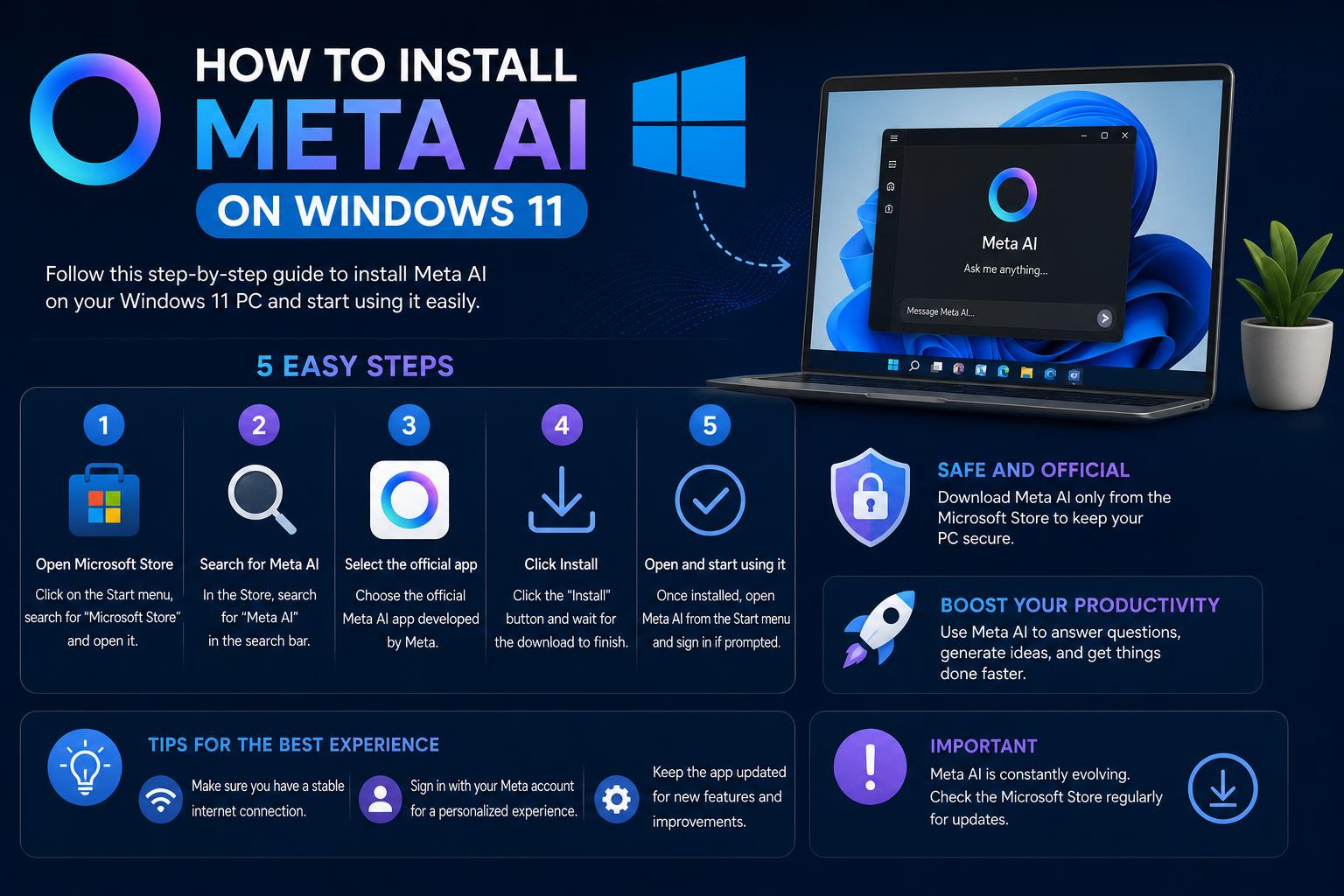
- Meta AI lacks an official Windows 11 desktop app, but can be used via web or third-party wrappers
- WebCatalog enables users to run Meta AI as a desktop-like application with added convenience
- AI image suite alternatives are available from Microsoft Store to supplement Meta AI's creative features
- Security and privacy considerations are crucial when using unofficial applications
Artificial intelligence assistants are transforming the way we interact with technology, making routine tasks simpler and helping us harness the power of machine learning in our daily lives. One of the emerging names in this space is Meta AI, which has captured attention for its robust set of features, including question answering, creative image generation, and more. But as AI evolves rapidly, many Windows 11 users are left asking: how can I install Meta AI on my system? If you’re curious about the installation process, system requirements, available tools, and how Meta AI can serve as your daily productivity companion, you’ve come to the right place.
This guide will walk you through everything you need to know about setting up Meta AI (or similar large language model assistants) on Windows 11. Covering official apps, third-party wrappers, and helpful usage tips, we’ll arm you with all the information necessary to get started. Since the landscape is evolving, we’ll also clarify what’s currently available, what’s not, and alternative solutions you might consider if there’s no official Windows 11 client yet. Let’s dive in!
What is Meta AI?
Meta AI, developed by Meta (formerly Facebook), is a digital assistant leveraging a large language model to provide intelligent support for tasks, research, content creation, and more. Designed to be a general-purpose assistant, Meta AI can answer questions, generate AI-powered images from simple text prompts, and even interact via text or voice. The assistant is aimed at helping users get quick answers, plan projects, troubleshoot complex problems, and serve as a brainstorming partner. Learn more about Meta AI and its capabilities at the official Meta AI page.
What is Muse AI? The Complete Guide to Meta’s Revolutionary Personal Agent
Some key features of Meta AI include:
- Conversational support for research and brainstorming
- AI-powered image generation and editing based on prompts
- Task assistance for planning, writing, and finding recommendations
- Media sharing for explanation and comparison with AI’s input
Official Availability of Meta AI on Windows 11
One of the biggest hurdles for Windows 11 users is the official availability of Meta AI as a stand-alone desktop app. As of the latest updates, Meta AI does not currently offer a direct, official Windows 11 application that can be downloaded from Meta’s own website or Microsoft Store. Instead, you’ll find that Meta AI is typically accessible via web portals, integrations with Meta’s own products (like Facebook or Messenger), or through third-party desktop wrappers.
For those seeking a native desktop-like experience, third-party platforms such as WebCatalog have stepped in to fill the gap. These apps essentially package the web-based version of Meta AI into a desktop wrapper, closely mimicking the look and feel of an official desktop app and allowing for convenient access directly from your Windows 11 environment.
Using WebCatalog to Install Meta AI on Windows 11
WebCatalog is a popular tool that allows users to run web apps as native desktop applications on Windows, Mac, and Linux. By encapsulating web-based platforms in a container, it provides enhanced features such as independent windows, session management, and handy shortcuts. It’s important to note, however, that WebCatalog is not officially endorsed by Meta; it acts solely as a helpful intermediary.
Main Features of the Meta AI WebCatalog App
- Access Meta AI directly from your taskbar or start menu
- Receive notifications, shortcuts, and multitasking features
- Keep your sessions and conversations organized
How to Install Meta AI through WebCatalog
Here’s a simple, step-by-step breakdown for setting up Meta AI on Windows 11 using WebCatalog:
- Visit the on your Windows 11 PC.
- Download the WebCatalog app for Windows from their website and complete the standard installation process.
- Open WebCatalog and search for “Meta AI.” Select it and click Install.
- The installation process wraps Meta AI’s web interface in a dedicated window, giving you a near-native app experience. Pin this shortcut to your Start Menu or Taskbar for easy access.
- Launch Meta AI from your desktop; now you can chat, generate images, ask for recommendations, and use it as you would on the web.
Please be aware that while WebCatalog makes the experience nearly seamless, you’re still dependent on the web version of Meta AI for all features and data.
Alternative Methods: Using Meta AI via the Web
If you prefer not to use third-party wrappers or simply want instant access, the simplest way is to use Meta AI through its official web-based interface.
- Visit the in your browser.
- Log in with your Meta account, if required.
- Use all available features directly within your browser. You can bookmark the page or create a shortcut for easier repeat access.
While this method does not offer desktop-window convenience, it’s the most direct and secure way to access Meta AI’s features.
AI-Powered Image Creation: Microsoft Store Alternatives
Meta AI’s image generation capabilities are a popular highlight, but there are also alternative AI image suite applications available on the Microsoft Store that can be installed on Windows 11. For example, the AI Image Suite app offers an all-in-one toolkit for AI-driven image creation, available for direct download. You can also explore Bing Image Creator as another browser-based option for generating visuals from text prompts.
Installing these apps is quite straightforward:
- Open the Microsoft Store on your Windows 11 device.
- Search for “AI Image Suite” or follow the direct link above.
- Click Install and let the app set up automatically.
- Once installed, open the app and explore its suite of creative tools, which might supplement or complement the features currently found in Meta AI.
Meta AI for Glasses: Companion Features on Windows
Another interesting aspect of Meta AI is its integration with Meta’s line of smart glasses. The desktop app (when available) also serves as a companion to Meta AI glasses, enabling users to manage the device, import captured media, and share their experiences.
Currently, if you own Meta AI glasses, you’ll find most support and management features within the official Meta mobile app or portal.
What If You Want a Standalone AI Assistant?
If an official Meta AI desktop app for Windows 11 isn’t yet available in your region, or if you need more advanced offline features, there are alternative AI assistants and open-source language models you can install.
- OpenAI’s ChatGPT Desktop Clients – Community-built wrappers or browser-based quick launchers are available.
- Other LLM platforms – Tools such as GPT4All, Oobabooga WebUI, or LocalAI are configurable on Windows 11 for more technical users.
- Colab Notebooks with Meta AI Models – via tools like Google Colab, explore Meta’s open research LLMs, although these require Python knowledge and cloud interaction.
Hermes Agent: The Self-Improving, Persistent AI Agent Explained in Depth
Each solution has its own pros and cons regarding privacy, ease of setup, and feature set, so consider your technical comfort and requirements before choosing one.
Who is Meta AI Best For?
Meta AI is a versatile assistant suitable for a wide range of users, from those needing fast answers and creative help to individuals seeking a smart companion for personal glasses. With features covering everything from image generation to daily planning and brainstorming, Meta AI appeals to those looking for both productivity and creativity boosters.
Keep in mind, however:
- Some features may be region-locked or tied to your primary language preference.
- WebCatalog and other desktop wrappers are unofficial and might have limited support or updates if Meta changes its web protocol.
- Always update your desktop wrappers or check for official product announcements at the Meta AI home page.
Disclaimer and Safety Note
Whenever you use third-party desktop wrappers or alternative download sources, review the security and privacy policies of those providers. WebCatalog and similar tools are independently developed and are not endorsed by Meta. Only download software from reputable sources and keep your Windows 11 system updated to ensure maximum safety.
If you use Meta’s tools for sensitive communications, consider sticking to the official web portal for maximum privacy and up-to-date features.
Meta AI is rapidly evolving as a mainstream assistant, but direct installation options on Windows 11 remain limited to web-based access or trusted third-party wrappers for now. For the best user experience, leverage browser access or WebCatalog to integrate Meta AI into your day-to-day workflow. Alternate solutions abound for those seeking more advanced, customizable, or offline AI assistant options on Windows 11, allowing you to tailor your productivity toolkit according to your needs and expertise. Stay tuned to official channels for new releases as Meta continues to innovate in the AI arena.