
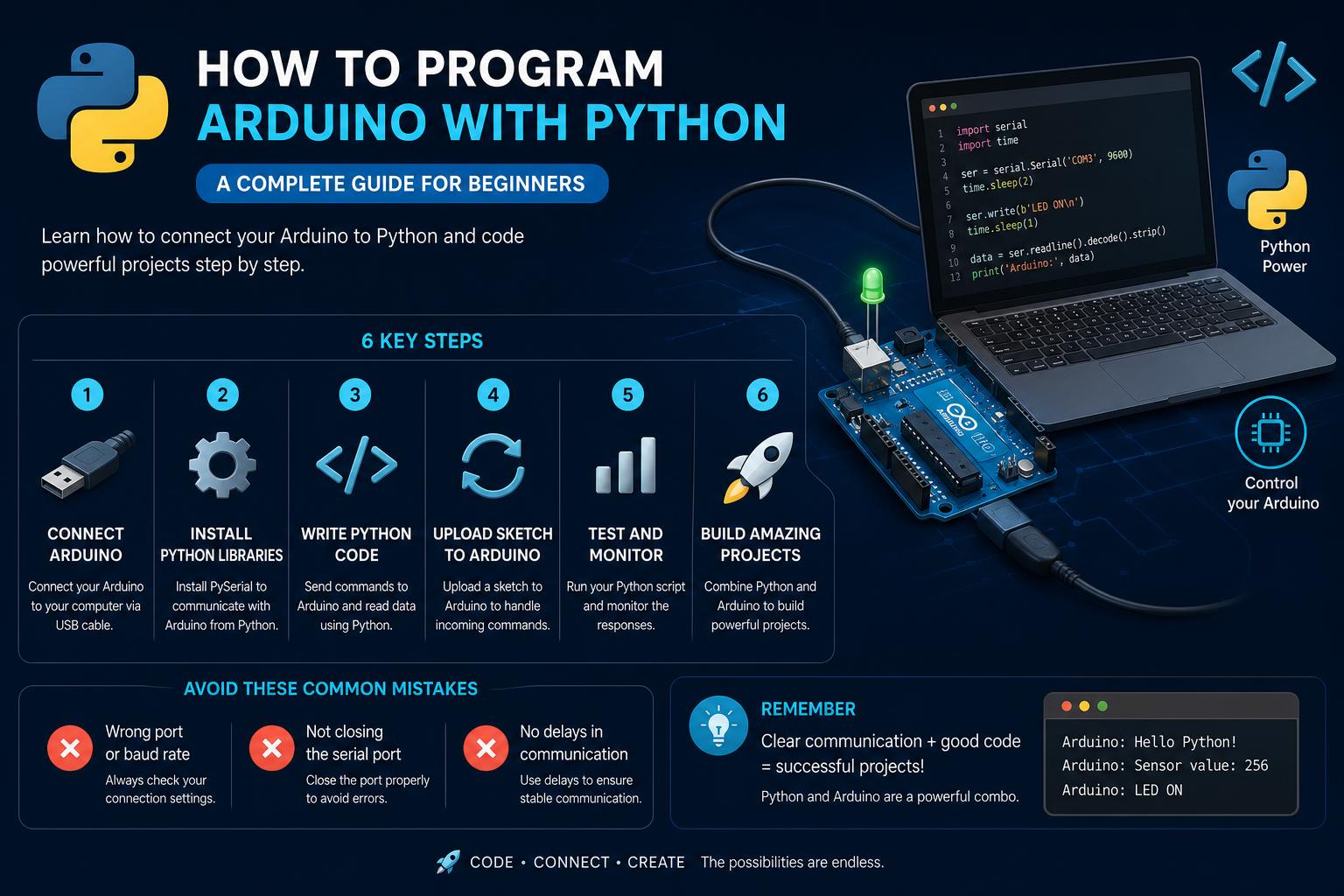
- Python unlocks advanced visualization and automation for Arduino hardware
- Serial communication via pySerial and protocol libraries enables seamless integration
- Real-time monitoring and virtual simulations are achievable using popular Python tools
Combining the robust hardware capabilities of Arduino with the versatility of Python opens up a world of creative possibilities for tech enthusiasts, hobbyists, and educators alike. Many people dive into Arduino projects to unlock interactive hardware experiences, but aren’t always keen to learn its native C/C++ syntax. Fortunately, Python, with its gentle learning curve and immense flexibility, allows for a seamless blend of software and hardware. If you’re curious about how to program Arduino with Python—either to build innovative robots, prototype sensors, or simply control LEDs—this comprehensive guide will put you on the right track.
Whether you’re running Windows, Mac, or Linux, bridging the gap between your Python code and Arduino microcontroller doesn’t require you to abandon your familiar programming environment. In this article, we’ll survey the most popular methods, tools, and libraries available, cover practical projects you can build, and share tips from real-world experience. Along the way, you’ll discover how to make your Arduino talk to Python effortlessly, visualize live sensor data, and even set up wireless communication between devices. Let’s supercharge your Arduino projects with the power of Python.
Why Combine Arduino and Python?
Python is renowned for its readability and ease of use, making it a preferred choice for both beginners and professionals. Although Arduino boards are designed to be programmed in C/C++, you don’t need to limit yourself to the Arduino IDE. Leveraging Python alongside Arduino allows you to:
- Automate and control Arduino from your PC, opening the door to integrations with web applications, databases, or cloud services.
- Visualize real-time data using advanced Python libraries, enabling dynamic dashboards and graphs.
- Experiment with advanced calculations and AI on your computer, sending results directly to your Arduino hardware.
- Simplify learning and prototyping for students and hobbyists familiar with Python syntax.
Overview of Popular Approaches
Various methods exist to make Arduino and Python work together. Here is a summary of the most recommended strategies and what current online trends are focusing on:
- Serial Communication: This remains the most widely used method. Your Arduino runs a sketch that listens on its USB serial port, while Python connects using libraries like pySerial. The setup is flexible and works across different platforms.
- Firmata Protocol: Using Firmata, you can upload pre-built firmware to the Arduino and control its pins directly from Python with libraries like pyFirmata. It requires less code on the Arduino, although it can be less flexible for complex logic.
- MicroPython: Some official Arduino boards (and many compatible ones) support MicroPython directly, allowing you to write Python code that runs natively on the microcontroller.
- Custom Protocols and Networking: For advanced projects, you can create your own communication protocol, implement simple client/server setups, or communicate wirelessly using solutions like XBee radios.
Practical Insights from Forums and Experts
Experiences and tips from official forums, Reddit, and online educators reveal a few key takeaways when getting started with Arduino and Python:
- Python works well across multiple operating systems. Mac users, for example, usually find Python pre-installed (though sometimes in older versions). On Windows and Linux, setting up Python is straightforward.
- No PC? No problem. Macs and single-board computers like the Raspberry Pi can be equally effective as hosts for Arduino-Python projects.
- There is a learning curve, but it isn’t steep. For those who already know the basics of Arduino and Python, combining them primarily requires understanding serial communication or standardized protocols, rather than mastering an entirely new language.
- Python expands Arduino’s potential, enabling advanced data visualization, automation, and remote wireless control.
Featured Educational Resources and Step-by-Step Guides
TopTechBoy’s lessons on Python and Arduino offer a progressive and comprehensive series covering everything from installation and libraries to visualization, sensor integration, and wireless communication. Let’s break down the most practical stages based on these materials:
Getting Python and Arduino to Communicate
Before experimenting, you’ll need to:
- Install Python: Download and configure Python—preferably version 3.x for modern compatibility. Verify the installation with a terminal command (e.g., python –version or python3 –version).
- Get the necessary libraries: Install pySerial for serial communication. Many projects also use matplotlib for plotting and drawnow for live graphs.
- Configure Arduino: Write and upload a sketch that transmits data over the serial port (for instance, sending sensor readings every second).
Python Code Example: Reading from Arduino
A basic script to collect serial data might look like this:
import serial
import time

arduino = serial.Serial(port='/dev/ttyUSB0', baudrate=9600, timeout=.1)

def read_from_arduino():
    data = arduino.readline() # wait for byte data
    return data.decode('utf-8').rstrip()

while True:
    value = read_from_arduino()
    if value:
        print('Sensor value:', value)
    time.sleep(0.1)
This script will display the values received from the Arduino in real time on the Python terminal or interface.
Advanced Projects: Virtual Worlds and Real-Time Data Visualization
Beyond basic monitoring, Python can create immersive experiences:
- Integration with VPython: Use VPython to build dynamic virtual worlds. For example, you can map distance measurements from an HC-SR04 ultrasonic sensor to 3D objects in Python, updating live based on Arduino data. This teaches concepts of simulation and digital twins.
- Visualization with matplotlib and live graphs: Plot real-time graphs (like temperature, pressure, or color data) using matplotlib. To instantly update charts, add drawnow to your project so the graphs reflect hardware changes in real time. This is fundamental in scientific experiments, engineering demonstrations, and sensor debugging.
- Multi-sensor projects: By combining distance and color sensors, you can create graphical interfaces in Python that track various variables. Data changes are reflected in real-time charts, making it ideal for demonstrating physical phenomena or interactive systems.
Expanding Horizons: Wireless and Network Communication
Some advanced tutorials cover XBee radios and Ethernet communication:
- Wireless Data Transmission: With XBee, explore remote monitoring. The Arduino collects measurements, and Python on your PC can capture this data via a wireless link. These lessons teach you how to configure radios, assign addresses, and program both ends for reliable transfer.
- Networked client/server models: For IoT applications, configure your Arduino as a simple server, with Python acting as the client. For instance, your Python application can send commands to read temperatures or trigger actuators, receiving real-time responses. This is the foundation for home automation systems or remote telemetry.
Keys to Overcoming Common Challenges
It’s normal to encounter obstacles when combining Arduino and Python, but here are some tips to smooth out the process:
- Managing versions: Always use an up-to-date version of Python. On Macs, check that Python 3 is your default interpreter, as many systems still come with Python 2.x pre-installed.
- Serial port permissions: On Linux and macOS, you may need to adjust user permissions or use sudo to access the Arduino’s serial port. Pay attention to the correct port name (for example, /dev/ttyUSB0, /dev/ttyACM0, or COM3 on Windows).
- Library installation: Make full use of pip, Python’s package manager, to install everything you need—following instructions in setup and troubleshooting guides.
Exploring MicroPython for Native Python on Arduino
- Hardware compatibility: Not all Arduino boards support MicroPython natively. It is primarily available on newer or ARM-based models (like the Arduino Nano RP2040 Connect).
- Development experience: With MicroPython, you can write and upload Python scripts directly, without the need for C/C++ or extra libraries. However, some advanced features and peripheral support may be less developed compared to the official libraries.
Ideas to Stay Inspired
- Autonomous robots: Program low-level motor control in C++ and manage decision-making or path planning from a Python app on a Raspberry Pi, connected via serial or network.
- Interactive dashboards: Use Python GUI libraries (like Tkinter or PyQt) to create real-time displays for Arduino sensors.
- Remote monitoring: Send live data to cloud dashboards or mobile notifications using Python scripts as a bridge.
Merging Arduino and Python is a step into the modern world of hardware-software integration. Whether it’s to collect data, build virtual representations, or implement wireless IoT experiments, the knowledge and techniques presented here offer a flexible and powerful approach. If you want to create smarter and more interactive hardware projects, unlock your Arduino’s full potential with the help of Python—it’s more accessible than ever, thanks to advancements in serial protocols, visualization libraries, and cross-platform tools.
Arduino App Lab: The Definitive Guide for Developers, Educators, and Makers