
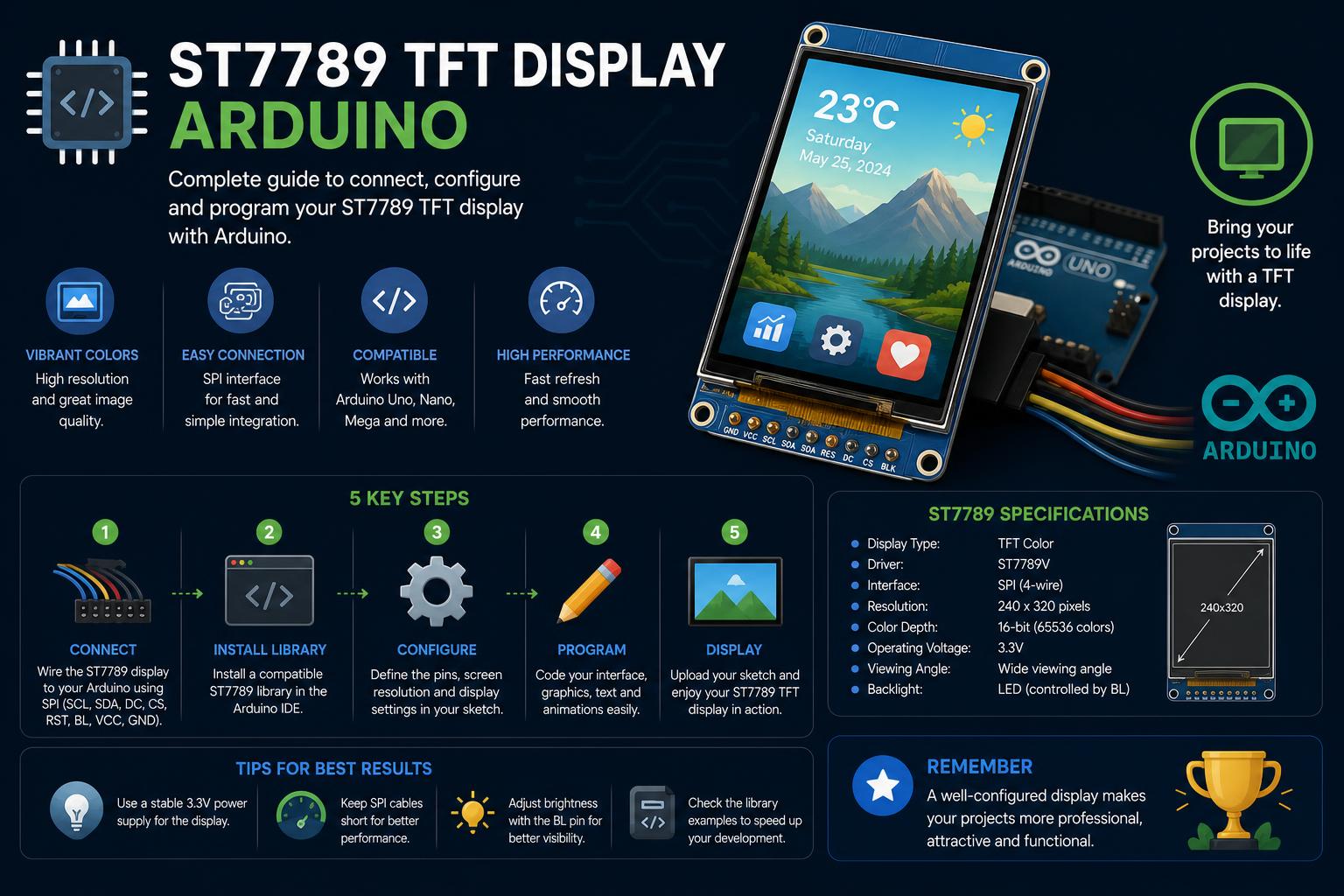
- ST7789 TFT displays bring vibrant visuals and versatile interfacing to Arduino projects, with support for both 16-bit and 18-bit color modes.
- Proper wiring and voltage level considerations are crucial to protect your ST7789 and ensure stable operation, especially when using 5V Arduino boards.
- Open-source libraries and example code simplify development, enabling the creation of rich user interfaces and graphics on embedded systems.
If you’re on the hunt for a reliable, colorful, and high-resolution display to bring your Arduino projects to life, you’ve probably stumbled upon the ST7789 TFT display. These compact screens have become incredibly popular among hobbyists and professionals alike, thanks to their vibrant IPS technology, flexible interface options, and potential to add a whole new dimension to microcontroller-based applications. But getting the most out of your ST7789 TFT display isn’t always straightforward. Between power considerations, tricky wiring, and library setup, there’s plenty of room for head-scratching moments.
This guide dives deeper than the usual quick-start posts. Whether you’re looking to wire your first 2.0″ color IPS ST7789, optimize your Arduino code, avoid common pitfalls, or find inspiration for your next big build, you’ll find exhaustive details, tried-and-tested tips, and multiple example projects bundled in one place. By the end, you’ll have the know-how to tame the ST7789 display—from breadboard basics through to slick graphics and advanced troubleshooting.
What is the ST7789 TFT Display?
The ST7789 refers to both the display module and its controller IC, manufactured by Sitronix Technology, supporting 16- and 18-bit color at resolutions like 240×240 and 320×240 pixels. Unlike older LCDs based on CSTN technology, ST7789 TFT displays are true IPS panels, providing brilliant colors, wide viewing angles, and smooth refresh rates—perfect for everything from sensor dashboards to real-time data visualization and custom GUIs.
Key features of the ST7789 display include:
- Vivid IPS technology for crisp, vibrant visuals from virtually any angle.
- Multiple color depths: 16-bit (65,536 colors) and 18-bit (262,144 colors), though most Arduino libraries default to 16-bit for efficiency.
- Flexible SPI interface, allowing connection to almost any microcontroller, including Arduino, ESP, STM32, and Raspberry Pi.
- Module variants with or without chip-select (CS) pins, microSD card slots, or extra connectors.
- Low power consumption, making them ideal for portable, battery-powered, or IoT devices.
Popular brands such as Adafruit and BuyDisplay stock official and compatible variants, often with helpful extras like soldered connectors, low-dropout voltage regulators, built-in level-shifters (suitable for both 3.3V and 5V logic), and microSD card slots for image loading.
ST7789 Pinout and Module Overview
Before hooking up your display, it’s crucial to correctly identify each pin and understand its function. ST7789 modules generally provide 7 to 8 pins. Here’s what you’ll encounter most often:
- GND: Ground connection, common to both Arduino and display power supply.
- VCC: Power input, typically 3.3V (sometimes up to 5V if module includes onboard regulation).
- SCL (SCK): Serial Clock, connects to Arduino’s SPI SCK pin (typically D13 on UNO).
- SDA (MOSI): Serial Data Input, links to Arduino’s SPI MOSI (D11 on UNO).
- RES (RST): Reset pin; active low, can be controlled via an Arduino digital pin or tied to a stable logic level for always-on.
- DC (D/C): Data/Command selection. Tells the controller whether incoming data is a command or display data.
- BLK (LED): Backlight control; connect to VCC for always-on or to a PWM pin for dimming.
- CS (optional): Chip Select; if available, use it for SPI multi-device support. Some modules tie CS to ground internally.
Some display modules (like the one highlighted in the Simple-Circuit article) omit the CS pin, leaving it permanently enabled. Always double-check your module’s datasheet and PCB labeling!
Choosing the Right Hardware and Components
Matching your ST7789 display with the right Arduino board and support components can save lots of troubleshooting later.
- Arduino Board: Any board with hardware SPI support, like UNO, Nano, Mega, or even the compact Pro Mini, works fine. Some examples use Nano for minimal form factors.
- Level Shifters or Voltage Dividers: Since ST7789 modules mostly require 3.3V logic (sometimes up to 5V if protected), using a 5V Arduino Uno or Mega mandates shifting data/control signals safely from 5V down to 3.3V. The common approach is using a simple resistor voltage divider on each SPI/data line.
- Resistor Values for Voltage Dividers: The widely recommended combination is 3.3kΩ (to display input) and 2.2kΩ (to ground), forming a divider from each Arduino signal pin. For displays with a CS line, don’t forget to add an extra pair for that pin as well.
- Breadboard and jumper wires: Useful for quick setup and prototyping.
- Power Supply: If your display backlight needs higher current, make sure your Arduino 3.3V output can supply enough. Otherwise, use an external 3.3V regulator (like AMS1117).
Trying to run the ST7789 directly from Arduino Mega’s 5V pins may work in some cases (as seen in certain forum threads), but long-term use risks damaging the display controller. For maximum reliability, always match the display’s specified voltage levels.
Wiring the ST7789 Display to Arduino — Step by Step
Connecting the ST7789 display to your Arduino requires attention to both power and logic-level wiring to avoid issues. Here’s a widely recommended wiring scheme for a 240×240 display module (pins from left to right):
| Display Pin | Arduino Pin (UNO) | Notes |
|---|---|---|
| GND | GND | Common ground |
| VCC | 3V3 | Or 5V if module includes voltage regulator |
| BLK | 3V3 | Or PWM digital pin for brightness control |
| SCL (SCK) | D13 (SPI SCK) | Use voltage divider for 5V boards |
| SDA (MOSI) | D11 (SPI MOSI) | Voltage divider for safe logic |
| RES (RST) | D8 (any digital out) | Voltage divider for 5V boards |
| DC (D/C) | D9 (digital out) | Voltage divider for 5V boards |
| CS (if present) | D10 | Voltage divider for 5V boards |
On Arduinos like UNO, D11 and D13 are always the hardware SPI MOSI/SCK pins. Even though software SPI is possible (with any pins), hardware SPI is vastly preferred for speed and stability, especially when working with higher resolutions or rapid refreshes.
Notes on Mega and Other Arduino Boards: Pin numbers for SPI are different on Arduino Mega, Leonardo, and others. Always crosscheck with your board’s documentation to map MOSI/SCK/SS correctly.
Handling 3.3V Logic with Arduino 5V Boards
Many headaches can be avoided by carefully shifting down the logic voltage for your ST7789 display. Community experiences—as seen in Reddit discussions—show that sometimes, displays work when driven directly from a 5V board, but this is not recommended. The display controller chip is rated for 3.3V signals, and exceeding this voltage may cause subtle damage over time, leading to random failures.
Use the widely accepted resistor divider method:
- Connect a 3.3kΩ resistor from each Arduino output (SCK, MOSI, RST, D/C, CS) to the display pin.
- Place a 2.2kΩ resistor from the display pin to ground.
If your module specifically claims to support 5V logic or includes onboard level shifter ICs (this is the case for some Adafruit displays), then you may skip the dividers.
Display Resolutions, Orientation, and Customization
ST7789 modules come in several flavors: 240×240, 320×240, 240×320, and even quirky sizes like 76×284 (often used in wearables and custom gadgets).
Common resolutions:
- 240×240 (square, popular for compact UIs and smartwatches)
- 320×240 (landscape/portrait—great for dashboards)
- 76×284 (vertical, suitable for narrow, tall applications)
The display orientation (portrait, landscape, inverted, etc.) can be easily changed in software. Most libraries will offer setRotation or similar commands. Under the hood, this is handled by the controller chip’s memory configuration and offsets, sometimes requiring custom tweaks for unusual modules.
For example, on the 76×284 display, correct display of graphics may require custom offset settings in the library, as discussed in Arduino forum threads. This could mean editing library header files or setup scripts to match your hardware.
Required Arduino Libraries
To make your ST7789 display shine, installing reputable Arduino libraries is essential. The most widely used libraries are developed by Adafruit, but others like TFT_eSPI are popular in the ESP and STM32 world.
- Adafruit ST7789 Library: Purpose-built for ST7789 modules, installs easily from the Arduino IDE Library Manager—search for “ST7789” and select the Adafruit version.
- Adafruit GFX Library: Provides the graphical backbone for drawing shapes, text, images; required for virtually all TFT work.
- TFT_eSPI: Highly optimized, especially for ESP boards, with extensive configuration possibilities. Configuration often involves editing User_Setup.h and related files to match your display’s resolution, color order, and pinout (as in the 76×284 example above).
Installing these libraries sometimes triggers prompts to install additional dependencies; allow these to ensure trouble-free compiling.
Check library versions for maximum compatibility: Projects have been tested with Adafruit GFX Library v1.11.9 and Adafruit ST7735/ST7789 Library v1.10.4.
Initializing and Configuring the Display in Code
Once wired and libraries installed, it’s time to initialize your ST7789 in software. The initialization sequence tells the Arduino which pins you’re using, display size, and SPI mode settings. Here’s the basic recipe:
-
- Include the necessary libraries in your Arduino sketch:
#include
#include
-
- Define your wiring connections using constants or #define macros:
#define TFT_CS    10  // Or -1 if not used
#define TFT_RST    8
#define TFT_DC     9
-
- Create the display object, specifying connections and optionally, the resolution:
Adafruit_ST7789 tft = Adafruit_ST7789(TFT_CS, TFT_DC, TFT_RST);
-
- Initialize the display in your setup() function and set any required SPI mode. For optimal performance (matching the official Adafruit examples), use:
tft.init(240, 240); // Or tft.init(320, 240) for 2.0" modules
If initialization fails and the screen stays black, try changing the SPI mode: Adafruit’s code defaults to SPI_MODE3, but if you experience glitches, switch to SPI_MODE0, SPI_MODE1, or SPI_MODE2.
Remember: Always call display initialization routines before any drawing or printing commands.
Drawing Graphics and Text: Essential Functions
The beauty of the ST7789 with Arduino is how easy it becomes to draw graphics, shapes, and text once set up. The Adafruit GFX library offers a toolkit covering almost every graphical need:
- drawPixel(x, y, color): Sets an individual pixel.
- drawLine(x0, y0, x1, y1, color): Draws straight lines.
- drawRect/ fillRect(x, y, w, h, color): For rectangles, filled shapes.
- drawCircle, drawTriangle, drawRoundRect: Custom shapes for UI elements or game design.
- setTextColor, setTextSize, setCursor, print/println: To write text anywhere on the screen in customizable sizes and colors.
For more advanced interfaces, you can render bitmaps—great for backgrounds or icons—or even full-screen images loaded from a microSD card (on modules with card support).
Performance Tips:
- Always use hardware SPI for fastest updates, especially when creating animations or updating the display frequently.
- Keep background redrawing to a minimum—only update what’s changed.
- For smooth color rendering, stick to 16-bit mode unless you specifically need all 18 bits and your microcontroller can handle the extra data.
Practical Example: Wiring and “Hello World” Demo
Let’s walk through a classic first step: showing text on your ST7789 display.
#include
#include
#define TFT_CS   10 // or -1 for no pin
#define TFT_RST   8
#define TFT_DC    9
Adafruit_ST7789 tft = Adafruit_ST7789(TFT_CS, TFT_DC, TFT_RST);
void setup() {
  tft.init(240, 240);
  tft.setRotation(2); // Landscape; optional
  tft.fillScreen(ST77XX_BLACK);
  tft.setTextColor(ST77XX_WHITE);
  tft.setTextSize(2);
  tft.setCursor(10, 10);
  tft.println("Hello, World!");
}
void loop() {}
This code assumes a 240×240 module and hardware SPI. The setRotation call configures display orientation. Try changing the text, positioning, and rotation to explore possibilities!
Building Real-World Projects
The ST7789 really shines when you move beyond the basics. Here are two projects highlighted in the ranking articles, reimagined with added detail and troubleshooting tips:
1. Real-Time Temperature and Humidity Monitor
Combine the ST7789 with a sensor module—like the DHT11 or DHT22—to create a weather dashboard in less than an afternoon. Here’s a stepwise, beginner-friendly outline based on tutorials from [ProjectHub Arduino](https://projecthub.arduino.cc/lucasfernando/st7789-display-with-arduino-complete-guide-b2bb5e) and community builds:
- Wire up your DHT sensor to the Arduino’s digital pins (commonly D2).
- Wire the ST7789 using the voltage divider approach outlined earlier.
- Install the Adafruit_Sensor and DHT libraries along with the display libraries.
- In your sketch, initialize both the sensor and display. In the loop(), read the sensor and print temperature/humidity values to the ST7789 at your desired update interval.
Impress your friends by adding colored icons, trend lines, or even logging data to the microSD card (on modules with built-in card readers).
2. Custom Animated UI or Mini Game
With full drawing and text support, you can dream up interfaces limited only by your creativity and RAM. Examples include:
- Nice-looking sensor dashboards with bar graphs, dials, or multi-screen navigation.
- Retro-style games using pixels, lines, and collision detection.
- Image displays pulled from a microSD (useful for photo frames).
For more inspiration, dive into the Adafruit GFX library’s example sketches, which showcase sprites, off-screen buffers, and direct control over every pixel.
Advanced Library Configuration: Tweaking TFT_eSPI for Custom Displays
If you’re running a display with unusual resolutions (like 76×284) or custom pinouts, you’ll need to edit your library configuration files for proper support. This is especially true for the powerful and highly customizable TFT_eSPI library, widely used on ESP32/STM32 platforms.
Here’s how you might approach it (as captured from the Arduino Forum):
-
- Navigate to your library directory and open User_Setup.h.
- Set the right driver, resolution, and offset definitions:
#define ST7789_DRIVER
#define TFT_WIDTH 76
#define TFT_HEIGHT 284
#define CGRAM_OFFSET
#define TFT_RGB_ORDER TFT_BGR  // or TFT_RGB, depending on color swap
- Assign the GPIO pins to match your development board and display wiring.
- If required, dig into ST7789_Rotation.h to add custom cases for your width/height offsets. This helps position the display memory map correctly, preventing clipped, mirrored, or misaligned output.
- Adjust SPI clock speed as needed. 27MHz is often a good safe bet for reliable drawing without data corruption.
For each change, save the file and re-upload your sketch. Refer to the ‘Read_User_Setup’ diagnostic tool for verifying pin assignments and configuration.
Handling Common Issues and Troubleshooting
Like any DIY electronics project, interfacing an ST7789 display with Arduino can throw curveballs. Here’s how to tackle the most frequent issues:
- Display shows nothing (black screen): Double-check wiring, logic voltage, and power supply. Ensure the libraries are correctly initialized and the correct display dimensions are specified in code. If the ST7789 library supports different SPI modes, try changing the mode.
- Wrong colors, mirrored or offset images: Switch color order macros in the library config (e.g., TFT_RGB <-> TFT_BGR). For offset issues, add custom offsets via library settings (see TFT_eSPI tweaks above).
- Sporadic failures or instability: Suspect insufficient voltage translation or unreliable physical connections. Avoid shaky wires, and use proper breadboards/headers.
- Flickering or partial refresh: Check SPI clock frequency; too high may overwhelm the display; lower it stepwise until stable.
- Library will not compile: Make sure all dependencies are installed and compatible. Sometimes uninstalling and reinstalling the core libraries resolves conflicts.
Forum threads, especially at [Arduino’s official site](https://forum.arduino.cc/t/tft-espi-setup-for-st7789p3-2-25-76×284-tft/1407473), can be goldmines for solving display quirks unique to certain clones, batch numbers, or vendor variations.
Exploring Module Variants: Touchscreens, microSD, and More
Not all ST7789 displays are created equal. While the main controller remains the same, manufacturers offer extra features:
- Touchscreen support: Some modules include capacitive/resistive touch layers. Handling touch events typically involves an extra driver IC (e.g., XPT2046), with separate wiring and library support.
- microSD card slots: Handy for loading images directly from FAT16/FAT32-formatted cards, ideal for dynamic visual content. Be cautious—on most modules, microSD shares the SPI bus, so mind your CS lines and avoid bus conflicts.
- Breakout headers, FPC connectors, and EYESPI: Newer Adafruit models have flip-top FPC connectors for solderless cable attachment, perfect for rapid prototyping or compact PCBs.
Using Adafruit’s Graphics Library: Beyond Pixels
When it comes to drawing complex graphics, custom fonts, and even bitmaps, the Adafruit GFX library is the backbone of many successful projects. It provides modularity and flexibility, letting you create everything from progress bars to retro games. Here are some highlights:
- Font customization: Load multiple pre-installed font sizes, or roll your own to save memory.
- Bitmap drawing: Use drawBitmap or drawRGBBitmap to create custom images, icons, and logos.
- Timers and animations: With efficient update cycles, interactive gauges or animated widgets run smoothly, even on basic boards.
The learning curve is gentle; most functions mimic standard Arduino drawing/printing, so you’ll feel at home quickly.
Best Practices for Wiring and Longevity
To keep your ST7789 running smoothly over the long haul, stick to a few common-sense practices:
- Never exceed recommended voltage limits. Even if a module seems to tolerate 5V signals for a while, it’s not worth the risk of frying your display eventually.
- Keep wiring as short and neat as possible. Long, loose wires can introduce noise, especially on high-speed SPI lines, causing flakey display output.
- Avoid hot-plugging modules. Always power down your Arduino before swapping displays.
- Double-check your connections before powering up. Even a small miswiring can damage your display, sensor, or microcontroller pin.
Community Support, Documentation, and Further Reading
The Arduino and maker community has poured hours into helping others with ST7789 modules. Besides vendor datasheets, you’ll find:
- Open-source graphics library documentation (e.g., Adafruit GFX, Adafruit ST7789 driver, TFT_eSPI).
- Project examples on sharing platforms like Arduino Project Hub and hackster.io.
- Q&A forums and troubleshooting guides at Arduino forums and specialized Reddit subs.
- Manufacturer application notes, especially useful for large/custom modules.
Some stores (like Adafruit) go further, with full datasheets, open-source code, and even live demo videos describing product features and step-by-step wiring options.
Frequently Asked Questions About the ST7789 and Arduino
- Q: Can I use ST7789 modules with 5V logic?
- A: Only if the module explicitly supports this or includes level shifting. Otherwise, always shift 5V outputs down to 3.3V.
- Q: What’s the difference between 16-bit and 18-bit color modes?
- A: 18-bit mode offers more color depth (262,144 vs. 65,536 hues), but most microcontroller libraries use 16-bit by default for speed and RAM savings.
- Q: Why does my screen initialize, but graphics look mirrored or upside down?
- A: Wrong orientation or incorrect offset configuration in the library. Check your setRotation call or tweak the library’s setup header.
- Q: My microSD doesn’t read images—why?
- A: Check card formatting (must be FAT16/32), verify CS line wiring, and ensure there’s no contention on the SPI bus.
- Q: Can I use more than one ST7789 display on a single Arduino?
- A: Technically yes, if each has its own CS line and the library supports multiple displays. You might face RAM and performance constraints depending on your MCU.
Armed with these details, your projects involving the ST7789 should become more reliable, efficient, and visually impressive. Keep experimenting and troubleshooting, and you’ll unlock a world of colorful, high-res displays at your fingertips!