
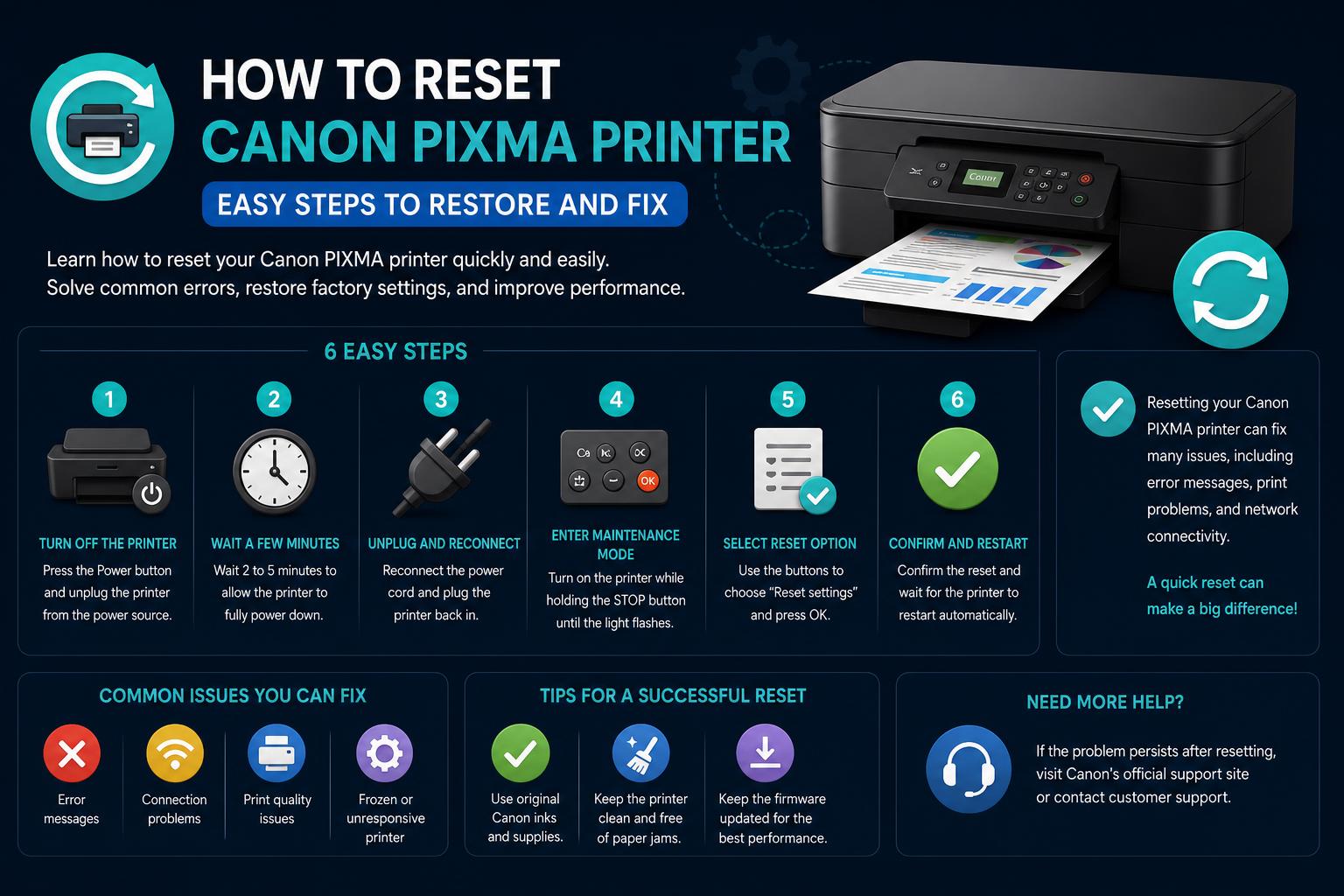
- Canon Pixma printers support several reset methods, each addressing specific issues.
- Power cycling, menu-driven resets, and hardware button resets are the main approaches.
- Understanding error codes and their causes can prevent unnecessary full resets.
Resetting a Canon Pixma printer might seem like a challenging task, especially when error messages or persistent issues prevent you from printing. Whether you’re a home user trying to resolve a technical glitch or a small business owner who depends on seamless workflows, understanding the right way to reset your printer is essential for maintaining productivity and peace of mind. The good news is that there are multiple methods you can follow, depending on your specific situation or printer model.
This comprehensive guide will walk you through everything you need to know about resetting your Canon Pixma printer. We’ll cover several proven reset methods, break them down into simple steps, explain when to use each one, and offer additional troubleshooting tips to get your printer back in shape. You’ll also find insights into why resets can help, the risks involved, and how to avoid recurring problems — all written in a clear, easy-to-understand style.
Why Would You Need to Reset Your Canon Pixma Printer?
There are a variety of reasons users need to reset their Canon Pixma printer. Resetting can resolve persistent error codes, network connectivity issues, print queue problems, paper jams, or software malfunctions. Sometimes, after replacing ink cartridges or performing maintenance, the printer might not register changes correctly. In other cases, you may want to clear out old Wi-Fi connections or prepare your printer to be used with a new computer or device.
It’s important to identify why your printer needs resetting before you start, as this will help you pick the right kind of reset and prevent unnecessary troubleshooting steps.
Understanding the Different Types of Resets
Canon Pixma printers support several different reset methods, each designed for a specific scenario. Understanding these can save you a lot of time and frustration:
- Power Reset: A simple way to clear minor glitches or temporary errors.
- Soft (Basic) Reset: A slightly more advanced technique, usually performed via the printer’s display or software, to clear settings or cancel error messages.
- Factory (Hard) Reset: This sets your printer back to its original settings—useful when problems persist or if you want to erase any customized configurations before selling or giving away the device.
- Ink Level/Cartridge Reset: Specifically targets issues where new cartridges aren’t recognized, or ink levels need recalibration.
Choose the reset method that matches your problem for the most efficient troubleshooting.
Method 1: Performing a Power Reset
This is the simplest approach and should be your first choice when minor errors occur. The power reset can clear up many temporary glitches and is entirely safe for your printer. Here’s how to do it:
- Turn the printer off using the power button. If the printer doesn’t respond, unplug the power cord from the back.
- Wait for at least 30 seconds. This allows any residual energy in the components to drain.
- Reconnect the power cable and turn the printer back on. Listen for normal startup noises and check the display for error messages.
If the problem persists after a power cycle, proceed to other reset methods.
Method 2: Resetting via the Printer Display Panel
For Canon Pixma models equipped with a control panel or touch display, a soft reset directly from the menu offers a user-friendly way to resolve settings-related issues. Here’s a commonly used approach (steps might vary slightly depending on your exact model):
- Press the ‘Menu’ button or access the main menu on the display panel.
- Navigate to ‘Setup’ or ‘Settings.’ This is sometimes marked with a wrench or gear icon.
- Look for an option labeled ‘Device Settings,’ ‘Reset Settings,’ or something similar.
- Choose ‘Reset’ or ‘Reset All/Factory Reset.’ (If you only want to reset network or LAN settings, look for that specific option.)
- Confirm your selection and restart the printer.
This type of reset usually clears custom settings but retains software updates and firmware. Only resort to this option if other, less drastic resets haven’t worked or if you want to wipe customizations.
Method 3: Resetting Using Hardware Buttons
For models without display screens, a button sequence reset is typically available. This allows even basic Pixma printers to be reset to default. Follow these general instructions (refer to your model’s manual for precise details):
- Ensure the printer is powered off but plugged in.
- While holding the ‘Stop/Reset’ button, press and hold the ‘Power’ button for at least 5 seconds. (On some models, you may need to press the power button first and then the ‘Stop/Reset’ button several times in quick succession.)
- Release both buttons once the printer display flashes or a reset sequence begins.
- Wait for the printer to initialize and restart.
This manual reset is especially helpful if you can’t access software menus or the device is frozen.
Method 4: Resetting Ink Levels or Cartridge Recognition
Sometimes, even after changing ink cartridges, your Canon Pixma printer may not detect them properly. This can lead to persistent ink level warnings or prevent printing altogether. Here’s what you can do:
- Remove the newly installed cartridge from its slot. Check for protective tape/paper still attached and remove it, as it can cause recognition failures.
- Reinstall the cartridge and make sure it clicks into place firmly.
- If errors persist, close the cartridge bay, wait for the error message, and then hold the ‘Stop/Reset’ button for about 5-10 seconds.
- This often overrides the error and resets the ink level status.
If the error does not clear, you may need to use a third-party ink reset tool specifically made for Canon cartridges.
Fixing Common Error Codes Without a Full Reset
Canon Pixma printers often display error codes for specific problems like paper jams, empty cartridges, or misfeed errors. Before resorting to a full reset, consult the printer’s manual or check Canon’s official support page to identify the code and follow the recommended fix.
- Paper jams: Open all accessible compartments, gently remove jammed paper, and inspect for torn remnants.
- Empty cartridge errors: Replace cartridges, ensuring they are genuine Canon products, and follow the detection reset method if the error persists.
- Print head issues: Remove and clean the print head following guidance in your user manual before attempting a reset.
Addressing the root cause of the error is typically faster and safer than repeatedly resetting the printer.
Precautions and What to Expect After a Reset
Resets are safe to perform, but a factory reset will wipe custom Wi-Fi, password, and preference settings. Make a note of any settings you wish to restore, and always double-check that the printer is not running an active job or firmware update when executing a reset.
For business environments or shared printers: Inform other users about planned resets, as this can impact queued jobs or affect connections on the network.
When Should You Contact Canon Support?
If your Canon Pixma printer continues to show the same errors after multiple resets, or fails to complete its startup checks, there may be a hardware fault or corrupted software beyond what a reset can resolve. In these cases:
- Visit the official portal for model-specific guides.
- Reach out in writing or via chat for step-by-step troubleshooting.
- Check if your device is still under warranty for possible repair or replacement.
Additional Tips for Maintaining a Healthy Canon Pixma Printer
Preventing the need for frequent resets is easier when your printer is well-maintained. Here are some practical tips:
- Update drivers and firmware regularly to keep up with bug fixes and compatibility enhancements.
- Use genuine Canon ink cartridges to avoid recognition errors and maintain print quality.
- Keep your printer clean and dust-free, especially around paper trays and cartridge bays.
- Avoid overloading paper trays to reduce paper jams and feed issues.
Consistent care dramatically reduces both downtime and the risk of hard-to-fix errors.
Resetting your Canon Pixma printer doesn’t have to be daunting. By understanding the different reset types—power cycling, software/menu resets, hardware resets via button combinations, and ink level troubleshooting—you can address the majority of the issues that disrupt printing. Match the reset method to your problem for best results, and remember: the official Canon support resources remain invaluable if you hit a roadblock you can’t resolve yourself. Regular updates and simple maintenance go a long way in keeping your printer running smoothly, so consider this process not just as a fix, but as part of good printer care.