
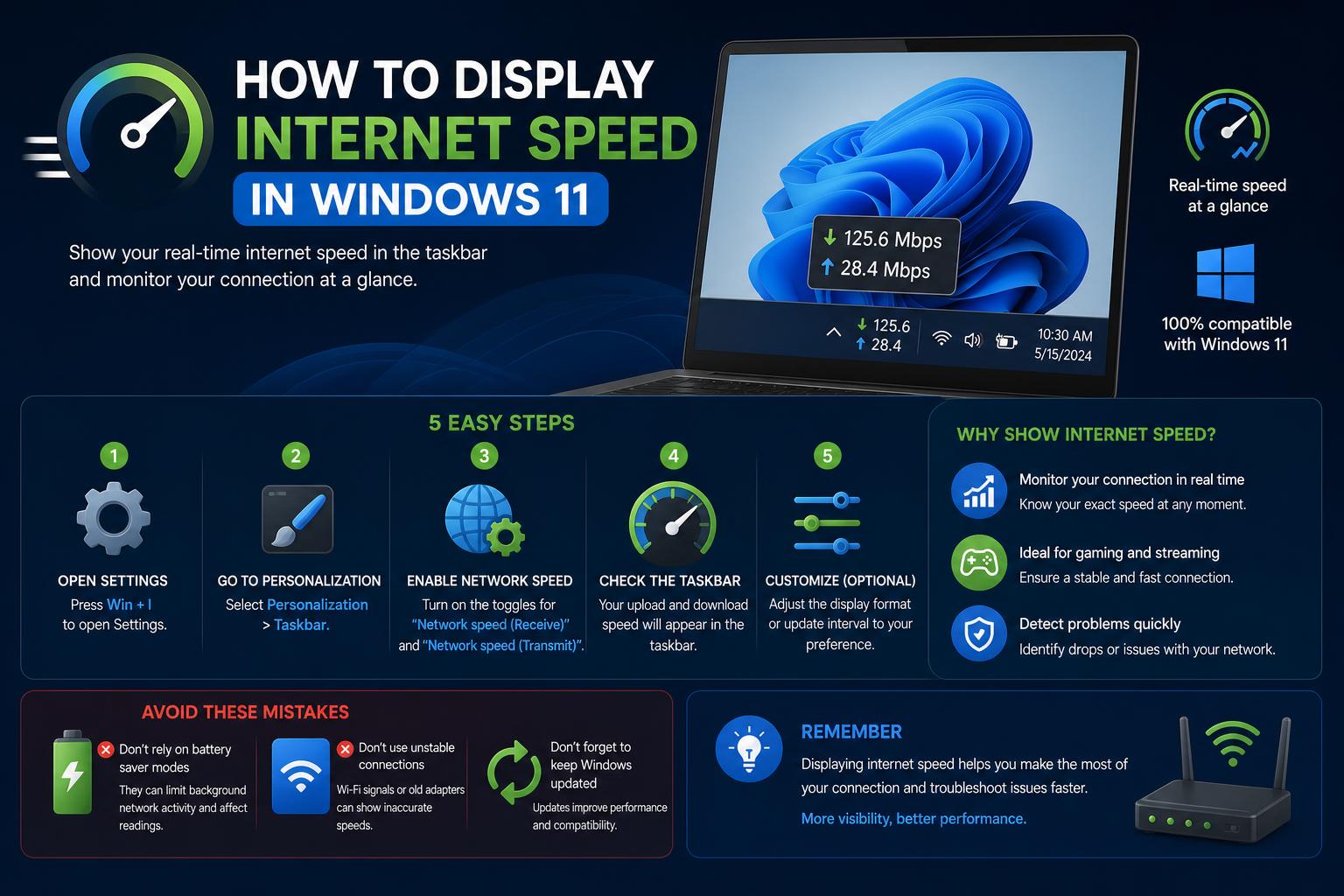
- Windows 11 lacks built-in real-time network speed display, but several safe apps fill the gap effectively.
- Net Speed Meter, Internet Speed Indicator, and TrafficMonitor provide customizable, always-on internet speed meters.
- Microsoft is testing a new speed test feature, but it’s not fully integrated or universally available yet.
Everyone faces that moment when streaming suddenly freezes or a download lingers longer than expected. It’s in these situations that you wish you could instantly see your actual internet speed directly on your Windows 11 desktop or taskbar. While Windows 11 has made several improvements over its predecessors, displaying real-time internet speed isn’t straightforward out of the box. This article breaks down all the available methods, including built-in features, Microsoft Store apps, and reputable third-party utilities, to help you keep an eye on your connection in real time.
Whether you’re a gamer monitoring latency, an office worker tackling large file uploads, or someone who just hates buffering, tracking your current upload and download speeds can give you peace of mind and help diagnose issues as soon as they happen. Let’s dive into the various ways to check and display your network speed on Windows 11, covering every solution on the market—including ones available only to advanced/test users, as well as reliable third-party options you can trust.
Understanding Internet Speed Metrics in Windows 11
Two main factors define your connection: download speed (data to your device) and upload speed (data from your device to the web). Most internet speed tests report these in Megabits per second (Mbps). However, the number you see during a test might not reflect what your applications are actually experiencing in real time. The test typically measures the fastest possible transfer rate between your device and a specific server at that moment, so actual speeds during practical use can vary.
If you notice discrepancies—like high test speeds but slow downloads—it can be because of background app activity, local network congestion, or external server limitations.
Checking Internet Speed with Built-in Windows 11 Tools
While Windows 11 doesn’t offer built-in functionality to keep your internet speed in plain sight on the taskbar or desktop, you can access real-time transfer data using Task Manager:
- Right-click a blank space on your taskbar and select ‘Task Manager’.
- Switch to the Performance tab, then select your Wi-Fi or Ethernet adapter in the left column.
- The interface displays current bandwidth use, with download and upload speeds updating constantly.
The downside is that Task Manager must remain open, and there’s no automatic floating or taskbar-based readout. For always-on visibility, you’ll need extra tools.
Running Quick Internet Speed Tests Online
The traditional way to check your maximum internet speed is by visiting a speed test website such as Google’s integrated ‘Internet speed test,’ Ookla’s Speedtest, or similar services. Here’s a simple process:
- Open your preferred browser and type ‘Internet speed test’ (Google search highlights its own testing tool).
- Click ‘Run Speed Test’. Within seconds, you’ll see your download and upload speeds displayed clearly.
While these tests provide a snapshot, they do not display ongoing bandwidth usage or reflect detailed network health throughout the day. This is why live monitoring is increasingly popular among Windows 11 users.
New Windows 11 Network Speed Feature (Insider Builds)
Microsoft is currently testing a new network speed tool for the Windows 11 taskbar, but it’s limited to members of the Windows Insider program using Release Preview, Dev, Beta, or Canary builds. Here’s how it works:
- A new taskbar icon activates a speed test by directing you to the Bing website, where you run the actual test.
- The tool measures download, upload, and latency, with results similar to other third-party test sites, since Bing relies on the Ookla backend for data processing.
This new feature is convenient for discovering your connection’s capabilities, but has limitations. It redirects to a browser test rather than running natively within Windows, meaning you won’t see constant real-time statistics directly on your taskbar.
ZDNet points out that while this is a step in the right direction, Microsoft could take inspiration from third-party apps, potentially integrating a native monitor or notification system right inside Windows in future updates.
Microsoft Store Apps for Network Speed Monitoring
For Windows 11 users who prefer official Microsoft Store solutions, a couple of apps stand out:
Net Speed Meter
Net Speed Meter is a free and lightweight utility available directly via the Microsoft Store. Here’s how it works and what makes it popular:
- Quick installation—search for it in the Microsoft Store and hit ‘Get.’
- Once launched, it shows a tiny floating readout on your desktop, tracking real-time download and upload speeds.
- Right-click its icon in the system tray to ‘Keep in Taskbar’, integrating the meter with your workflow.
- Customization options let you switch between Kbps and Mbps, adjust color and themes, and choose the meter’s placement so it’s always visible where you want it.
- The free version handles everything most users need—no forced upgrades or intrusive ads.
This is ideal if you want a no-fuss, safe, and Microsoft-vetted solution for constant speed awareness.
Internet Speed Indicator
Internet Speed Indicator is another Store option, providing real-time bandwidth stats in a sleek and simple interface. Like Net Speed Meter, it is easy to set up and allows users to:
- View download/upload speeds directly from the desktop or taskbar area.
- Monitor overall network usage without entering technical menus or leaving your current work.
While both apps are great choices, the decision will be based mostly on your design preference and the specific features you want at hand.
Third-Party Utilities for Detailed Network Monitoring
If the Microsoft Store apps don’t offer the depth or appearance you’re after, several trusted third-party solutions give you even greater control.
TrafficMonitor
TrafficMonitor is an open-source utility that combines network speed, CPU usage, and RAM consumption in one streamlined, customizable display. Here’s why many tech enthusiasts love it:
- No installation required. Download the ZIP, extract, and run TrafficMonitor.exe instantly.
- A floating meter appears, showing real-time bandwidth alongside system stats such as memory and processor usage.
- Right-click and select ‘Show Taskbar Window’ to blend the display with your Windows taskbar.
- Dive into ‘Display Settings’ to tweak layout, font size/type, and color schemes—great for high-resolution monitors.
- Enable ‘Run at Startup’ for the monitor to launch automatically when you turn on your PC.
- Choose preferred speed units (Bytes, KB/s, MB/s) and add or remove extra system info as desired.
TrafficMonitor stands out for its versatility. If you’re concerned about data security, its open-source nature allows anyone to audit the code for peace of mind.
Wise System Monitor
Wise System Monitor is another free and reputable program. Beyond just tracking network speeds, it monitors memory usage, hardware stats, and running processes.
- It features a floating window on the desktop displaying live download/upload rates.
- You can pause or close the monitor anytime without affecting system performance.
- Its broader system-monitoring capabilities make it a great tool for power users who want a snapshot of everything happening on their computer.
Like TrafficMonitor, it delivers more than just network metrics, making it a smart pick for anyone curious about their computer’s full status.
The Pros and Cons of Built-in vs. Third-Party Solutions
Although Task Manager provides reliable, real-time transfer data, its usability for speed monitoring is limited due to the lack of always-on, at-a-glance visibility. Windows 11’s upcoming network speed feature is convenient but still limited, as it isn’t a native performance overlay yet.
Third-party apps (especially from the Microsoft Store or reputable open-source projects) bridge this gap, offering:
- Live updates on both upload and download speeds, always visible without intrusive popups.
- Customization options (font, color, units, placement) to match your workflow and aesthetic preferences.
- Some—like TrafficMonitor and Wise System Monitor—go the extra mile, aggregating other hardware stats for deeper troubleshooting.
But remember: Apps not directly vetted by Microsoft can introduce privacy or security risks. Stick to established, well-reviewed, and open-source choices when possible—avoid unfamiliar programs from unofficial sources.
Community Insights: Challenges and Solutions
Enthusiasts on forums like Reddit often cite the removal of certain APIs from Windows 11 that older tools depended on to display real-time network speed in the taskbar. For example, programs like NetSpeedMonitor worked on Windows 10 but no longer function reliably on the latest builds, even in compatibility mode. There are also concerns about using region-locked or non-English software, as with TrafficMonitor’s Chinese origins. However, the open-source nature of such tools and active community support often help bridge those gaps.
If you’re wary of language barriers or unclear privacy policies, opt for Microsoft Store-verified solutions such as Net Speed Meter or Internet Speed Indicator, or open-source programs with English locales and well-documented repositories.
Step-by-Step: Setting Up Always-On Speed Monitoring
Here’s a quick guide to putting your network speed front and center on Windows 11, combining the best of both official and trusted third-party tools:
- Install Net Speed Meter or Internet Speed Indicator from the Microsoft Store
- Go to the Microsoft Store, search the app, click ‘Get,’ and follow onscreen prompts.
- Open the app, find the settings (often under the system tray icon), and customize meter placement, color, and units.
- For deeper system stats: Use TrafficMonitor or Wise System Monitor
- Download the ZIP or installer from the official website or trusted repository. Avoid random download links!
- Launch the program (no need for installation in most cases).
- Right-click the floating window to anchor it to the taskbar or desktop.
- Tweak settings for appearance, stats shown, and startup behavior as needed.
- Consider enabling autostart so your speed meter is active from login.
- Troubleshoot if you run into issues: Some advanced apps need additional permissions. Run as administrator if required, or consult the project’s FAQ/forum.
What About the Future of Network Speed Display in Windows 11?
With Microsoft actively developing its own taskbar-triggered speed test, it’s clear that real-time connectivity diagnostics are a growing priority for both home and professional users. However, until a robust, persistent, and native indicator is available for everyone—not just Insider builds or via the Bing browser redirect—third-party and Microsoft Store apps will remain essential for full control and convenience.
Staying on top of your connection is no longer just for power users. Whether you’re annoyed by buffering videos, drops in video call quality, or suspect your ISP isn’t delivering promised speeds, these tools empower you to see what’s really happening. Reliable meters and monitors—especially those that integrate smoothly with Windows’ look and feel—turn troubleshooting from a guessing game into something you can check at a glance. Take some time to try the options above and select the one best suited to your technical comfort and personal style, ensuring smooth surfing, streaming, and sharing every day.