
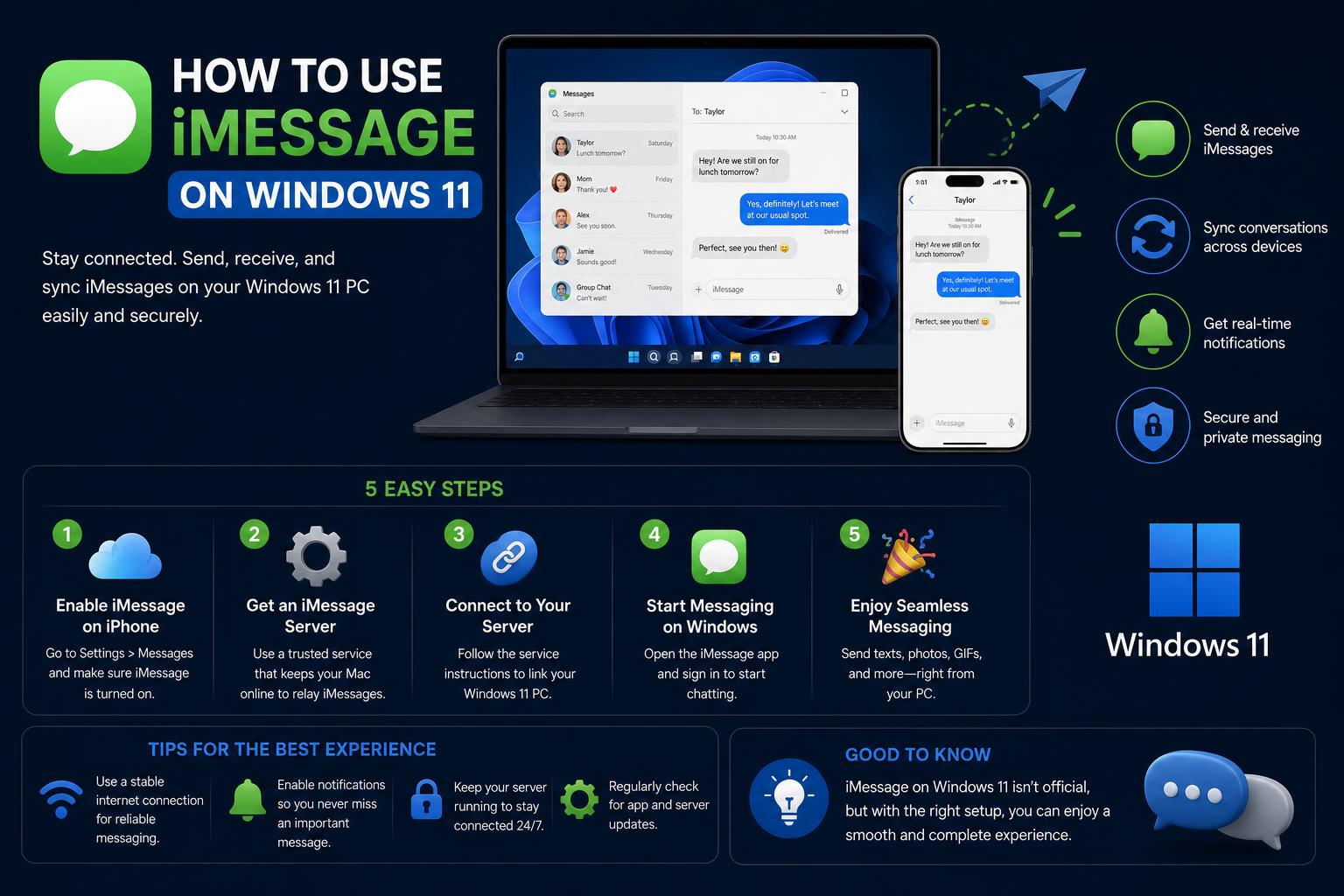
- The native Microsoft Phone Link app allows basic iMessage use on Windows 11 PCs when paired with an iPhone, but its features are limited to one-to-one messaging without media or group chats.
- Advanced solutions like BlueBubbles and AirMessage require an always-on Mac to bridge iMessage, unlocking full features such as group chats and attachments directly from a Windows PC.
- Screen mirroring tools, third-party chat platforms like Spike, and developer APIs like Claw Messenger provide alternative ways to access iMessage-like experiences, automate workflows, or enable messaging on non-Apple hardware.
Apple’s iMessage service has become synonymous with seamless, secure messaging—for those in the Apple ecosystem. But what if you use Windows 11 and still want to stay in those blue-bubble conversations without constantly picking up your iPhone? Despite Apple’s reluctance to play nice with the competition, a surge of tools, workarounds, and official integrations has come to the rescue, each with its own quirks. This guide breaks down every reliable method—both official and unofficial—to get iMessage working on your Windows 11 PC.
Whether your goal is simple texting from your desktop, accessing iMessage features from anywhere, or enabling advanced integrations for AI and workflow automation, there’s something here for every need and level of technical ability. We’ll cut through the noise, highlight the pitfalls, and break down your options—so you can send blue bubbles from Windows with confidence and security.
Why Bringing iMessage to Windows 11 Is Such a Challenge
iMessage is Apple’s crown jewel—a proprietary messaging platform deeply woven into iOS, macOS, and the rest of Apple’s hardware ecosystem. It leverages enhanced security through Apple IDs, and supports rich features like group chats, reactions, high-quality images, stickers, and more. Unfortunately, Apple has little incentive to extend these perks to rival operating systems. That means Windows users have long been stuck with limited, often unreliable workarounds—or forced to juggle multiple devices.
Your Options: Ways to Use iMessage on Windows 11
1. Microsoft Phone Link: The Official Path (with Caveats)
If you’re running Windows 11 and own an iPhone, your easiest route is right under your nose: Microsoft’s Phone Link app. Once limited to Android, Microsoft expanded support in 2023 to include iPhones, offering basic iMessage features directly from your Windows desktop.
- How It Works: Phone Link pairs your iPhone with your Windows 11 PC via Bluetooth. Once set up, you’ll see incoming messages and can reply—or start new conversations—without switching devices.
- Key Steps: Install Phone Link on Windows 11 (usually pre-installed), and then install the Link to Windows app on your iPhone. Initiate pairing, scan the QR code, and follow the on-screen instructions to sync your contacts and enable messages.
- What You Get: You can send and receive one-on-one messages, view notifications, and make or receive calls—all from your PC. It’s simple, free, and requires no Mac or extra subscription.
- But keep the limitations in mind:
- No group chat functionality; group conversations will send notifications, but you won’t be able to reply from your PC.
- Images, GIFs, and other media don’t sync via iPhone to PC—only text messages.
- No full history—only messages sent and received while the devices remain linked via Bluetooth.
- Some notifications are not interactable—notifications from apps like Reddit or Twitter simply redirect you to install their apps instead of letting you interact directly.
2. Intel Unison: An Alternative with Some Extras
Intel Unison is another iPhone-to-Windows integration app, especially useful if your PC isn’t running Windows 11 or uses non-standard hardware.
- How It Works: Like Phone Link, Intel Unison creates a Bluetooth link between your iPhone and PC. Its user experience is slightly more versatile for transferring files and accessing photos compared to Phone Link, which is focused on messages.
- Supported Devices: It works on Windows 10 and 11, expanding compatibility to a wider range of PCs.
- Key Extras:
- Transfer files and photos between devices—useful if you want to move more than just messages.
- Although it shares many limitations with Phone Link: no group chats, no multimedia messages, and only notifications.
Should you use it? If you have an older PC or want to transfer files alongside messages, Intel Unison is a solid choice, but don’t expect more messaging capabilities than Phone Link.
3. iOS Emulators: The Myth and the Reality
- iPadian itself states outright it does not support iMessage. Despite claims in some tutorials, there is no emulator that can reliably and safely replicate iMessage functions on Windows without violating Apple’s terms or putting your Apple ID at risk.
- Most emulators do not provide genuine iPhone OS environments. They only simulate some app interfaces, not native functionality.
- Security Risk: Giving your Apple credentials to an unsupported app or emulator is dangerous and not recommended.
4. Screen Mirroring Solutions: AirDroid Cast and More
If you need deeper control and want to use iMessage—plus other iPhone apps—on your PC, screen mirroring tools like AirDroid Cast offer an interesting solution.
- How It Works: AirDroid Cast allows you to mirror your iPhone (or iPad) screen to your Windows PC via Wi-Fi or USB. With its control feature, you can even interact with your iPhone screen from your computer.
- Key Features:
- Send and receive iMessages, browse history, reply, and more—just like on your phone.
- Compatible with various Windows versions, from Windows 7 to 11, making it accessible to almost everyone.
- Ideal for those who want visual access to their entire iOS experience, not just messaging.
- Drawbacks:
- The experience relies on screen mirroring—so you are still using the Messages app on your iPhone, just projected onto your PC.
- Some tools require a subscription or monthly payment for advanced features. (AirDroid Cast, for example, has a monthly fee).
- No jailbreak required—unlike older, riskier methods.
5. Virtual Machines Running macOS on Windows
- The Pros: This unlocks full iMessage capabilities: group messages, media, reactions, history syncing, and more.
- The Cons:
- Requires a complex and time-consuming setup.
- Frequently violates Apple’s software license agreement. This method carries legal and performance risks, and is generally not recommended for non-technical users.
6. Using a Physical Mac as a Remote iMessage Server
- Chrome Remote Desktop: With Chrome Remote Desktop, you can access your Mac from any device that has Chrome. This allows you to view and interact with the entire macOS environment, including Messages, from your Windows browser.
- How To Use: Install the Chrome Remote Desktop extension on your Mac, enable permissions, and log in from your Windows device to control your Mac remotely.
- BlueBubbles: BlueBubbles takes this further by serving as a dedicated iMessage relay for Windows, Android, and web clients. It requires installing BlueBubbles on your Mac, which must be kept on and connected at all times. BlueBubbles offers group chat, rich media, reactions, and an open-source REST API for automation.
- AirMessage: AirMessage is similar to BlueBubbles, but its interface is browser-based and it also supports Android. Like BlueBubbles, it requires an active Mac to act as a bridge. Both allow for a near-native iMessage experience, including features missing from Phone Link.
- Setting up: Both require moderate technical skills, including installing unsigned software, configuring permissions, and managing networks.
7. Beeper: The Subscription Chat Aggregator
Beeper once promised to offer access to iMessage and other chat protocols across all platforms for a monthly fee. In 2024, its support for iMessage is limited, unreliable, and dependent on a Mac running Beeper Desktop. Furthermore, Android compatibility for iMessage has been discontinued. This option is no longer recommended for regular users.
8. Developer APIs: Claw Messenger for Automated Messaging and AI Agents
- No Mac required: Claw Messenger manages Apple’s infrastructure so your application can interact via REST and WebSockets.
- Who is this for? Developers who need to integrate messaging into production software, automations, or support channels.
- Features: Supports group chats, attachments, typing indicators, rich notifications, even read receipts, but does not function as a classic inbox; it is geared towards programmed interaction.
- Pricing: Starting at $5/month with 250 messages, with more options for agencies and enterprises.
- Setup: Create an account, follow the API tutorials for Node.js (or similar), and test with your devices.
9. Third-Party iMessage-Like Platforms: Spike and Others
Some seek the simplicity of the iMessage experience—groups, GIFs, stickers, quick replies—without relying on Apple’s closed ecosystem. Spike offers an email-based platform that mimics iMessage-like conversations across Windows, Android, iOS, and the web.
- How it works: Spike uses your existing email account to create quick chat threads with friends, family, or teams, bypassing the lack of an official iMessage app. Features include group chats, GIF and media support, read receipts, and enterprise deployment.
- Not iMessage, but… While it isn’t official iMessage, Spike captures much of the spirit of cross-platform chat—more secure and practical, especially in heterogeneous environments.
- Who should use this? Users who want to switch platforms or centralize their conversations—email and chat—in a single interface, across Windows and other devices.
Security Considerations: Why Some Methods Are Risky
Sharing your Apple ID credentials with third-party tools, emulators, or web services can expose you to serious risks, including data theft, account compromise, and violations of Apple’s terms. Jailbreaking your iPhone to install Cydia or other software for PC access, while possible, is not recommended because it compromises device security and may leave it unsupported in future updates.
Always favor solutions vetted by the community, with transparent code, or official support. If your workflow involves confidential messages or business communication, carefully evaluate privacy and legal compliance before proceeding.
Feature Comparison: Which Path Should You Choose?
| Method | Group Chats | Media Support | View History | Requires Mac? | Recommended For |
|---|---|---|---|---|---|
| Microsoft Phone Link | No | No | Only active session | No | Simple, secure one-to-one texting with an iPhone nearby |
| Intel Unison | No | No | Only active session | No | Older Windows versions or file transfer needs |
| AirDroid Cast | Yes (via mirrored interface) | Yes (mirrored) | Full, through mirroring | No | Users needing full device control on desktop |
| BlueBubbles | Yes | Yes | Yes | Yes (always-on) | Power users and developers with Macs |
| AirMessage | Yes | Yes | Yes | Yes (always-on) | Browser access, cross-device sync for those with Macs |
| Claw Messenger | Yes (via API) | Yes (via API) | Yes (via API) | No | Automation, bots, business workflows |
| Spike | Yes (Spike groups) | Yes | Yes | No | iMessage-like experience, cross-platform |
Frequently Asked Questions
- Can I use iMessage on Windows without a Mac?
Yes, via Phone Link or Intel Unison, you can send and receive basic iMessages as long as your iPhone is connected. Advanced features (like group chats or multimedia) still require a Mac, always on and acting as a bridge server (with BlueBubbles or AirMessage). For software integrations, Claw Messenger offers an API solution without needing a Mac. - Will Phone Link ever support group messages or media?
Currently, no—the limitations stem from Apple’s security model and Microsoft’s decisions. Group messages and media sharing are only available through relay apps on a Mac or using screen mirroring. - What are the safest options for business/professional use?
Opt for Phone Link, Intel Unison, or AirDroid Cast for personal use. For automations, the managed API from Claw Messenger is designed for professional environments and features support and limits based on the plan. - Is there a way to relay iMessage to Windows if I don’t own a Mac?
Only via limited Bluetooth relay (Phone Link) or through browser-based chat apps (like Spike), but neither is a complete substitute. Renting virtual Mac servers or using third-party relay services can work, but comes with reliability and security risks. - Does Apple plan to release iMessage for Windows?
There is no official indication that Apple will bring iMessage natively to Windows, given its exclusive hardware-based and security model.
How to Choose the Best Solution for You
- Keep it simple with Microsoft Phone Link if you’re looking for fast, lightweight messaging for one-on-one chats with your iPhone nearby. It’s free, secure, and basic.
- If you crave the full iMessage experience and already own a Mac, set up BlueBubbles or AirMessage. You’ll get the full power of iMessage, but you’ll have to manage a “server” Mac 24/7.
- If you’re technical and want to automate messaging, check out Claw Messenger’s API. Ideal for bots, customer support, and automations.
- Looking for iMessage on every device, even non-Apple ones? Try Spike for an iMessage-like experience that’s email-based and cross-platform.
- If you mainly want visual access to your iPhone—and don’t mind using its app interface via your PC, opt for AirDroid Cast for mirroring and remote control.
Whether you’re a casual user wanting to text from your Windows keyboard, an IT admin enabling staff productivity, a dev automating customer conversations, or a switcher seeking Apple’s clean chat experience on Windows, you now have reliable methods to get the job done. Each solution has its trade-offs, so match your approach to your devices, needs, and appetite for complexity or maintenance.