
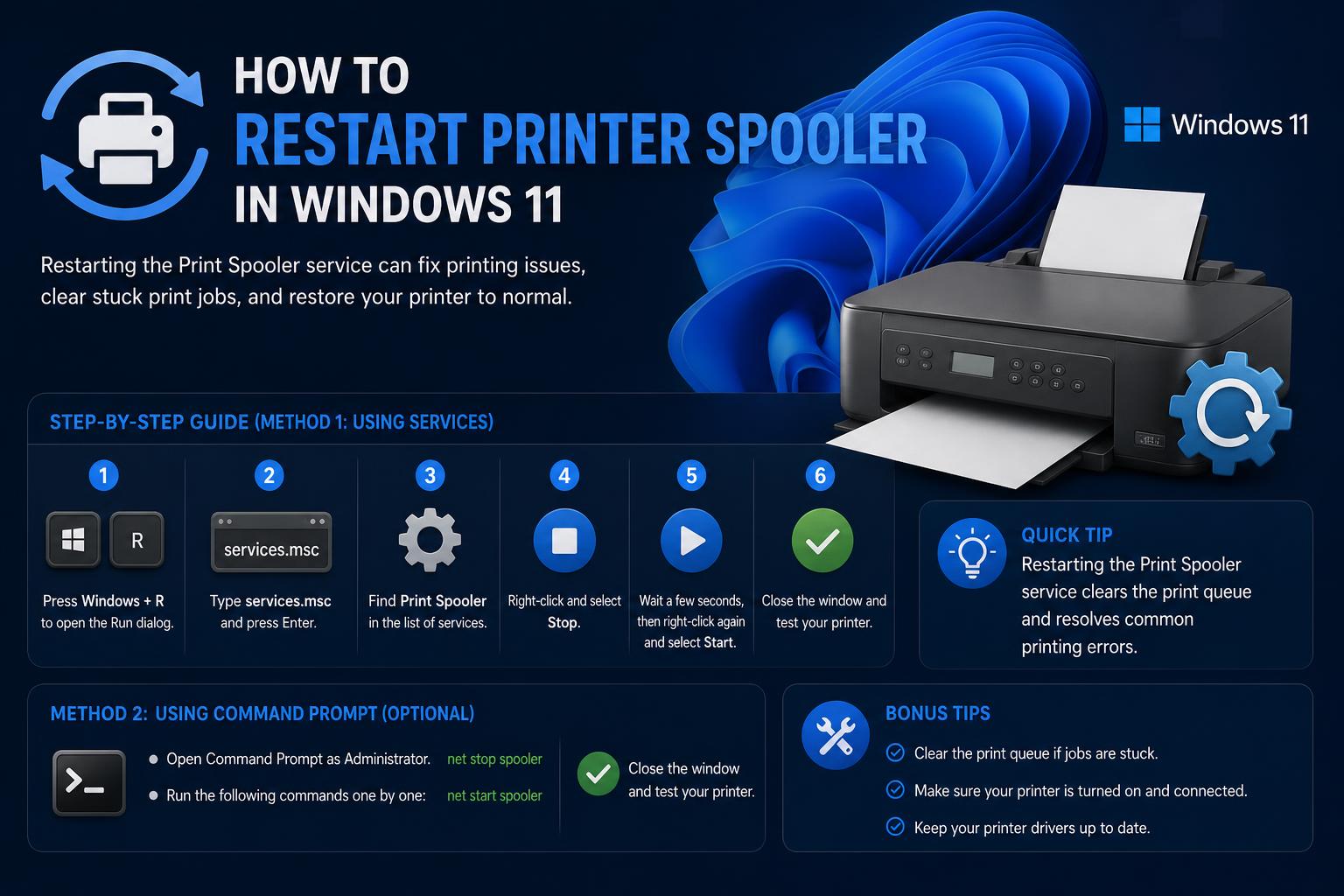
- The Print Spooler service is crucial for managing all print tasks in Windows 11.
- Restarting the Print Spooler and updating drivers resolves most printing problems.
- Clearing the print queue and removing unnecessary drivers can prevent future issues.
If you’ve ever tried to print something from your Windows 11 computer, only to find your printer simply won’t respond, you’re far from alone. It’s a frustrating situation, especially when you see cryptic error messages, print jobs stuck in the queue, or find the printer completely unresponsive. Among the most common reasons behind these issues is a problem with the Print Spooler service – a background process that controls the way Windows manages print jobs.
Understanding how to restart or troubleshoot the printer spooler on Windows 11 can save you a lot of headaches and wasted time. The Print Spooler is a vital component ensuring that your documents are queued, processed, and finally sent to the printer in order. If this service breaks down, everything else grinds to a halt. The good news? Problems with the spooler are usually easy to fix with step-by-step guidance, even if you’re not particularly tech-savvy.
What Is the Print Spooler and Why Does It Matter?
The Print Spooler service acts as a manager or middleman between your computer and printer hardware. It queues up print jobs, holds them until the printer is ready, and helps coordinate multiple printing tasks. When the spooler stops running or malfunctions, print jobs can freeze, new print tasks don’t start, and the entire printing process can become unresponsive.
Typical symptoms of a failing Print Spooler service include:
- Print jobs stuck and not progressing
- Printer appears offline or unresponsive
- Applications hang or freeze after pressing print
- Error messages such as “The local print spooler service is not running” (error 0x000006ba)
These symptoms can be very annoying, but in most cases, restarting the Spooler service and troubleshooting the underlying issues can resolve them quickly.
Common Causes Behind Print Spooler Issues in Windows 11
Several factors can cause the Print Spooler to stop working properly:
- Conflicting, outdated, or duplicate printer drivers can cause the spooler to crash or behave unpredictably.
- Stuck print jobs or corrupted print data can freeze the queue and prevent new jobs from printing.
- System updates that update Windows components without also updating the printer drivers.
- Manual changes to system files, Registry settings, or power failures can affect underlying Windows services.
Understanding the root cause is crucial. However, in many cases, carefully restarting the Spooler service and performing a few cleanup steps can resolve most issues quickly.
How to Restart the Printer Spooler Service in Windows 11
Restarting the Print Spooler is one of the fastest ways to restore printer functionality in Windows 11. This can easily be done through the Windows Services Console. Here is how to restart the Print Spooler step by step:
- Open the Run dialog: Press Win + R on your keyboard to open the Run box.
- Launch the Windows Services Console: Type services.msc and press Enter. This will open the Services window, where you can manage all running services.
- Locate Print Spooler: Scroll through the alphabetical list until you find Print Spooler.
- Restart the service: Right-click Print Spooler and select Restart. If the “Restart” option is grayed out, select “Start” instead.
- Check the startup type: Double-click Print Spooler. In the properties window, make sure Startup type is set to Automatic so the service starts automatically in the future. Click OK to confirm the changes.
Once this process is complete, try printing again to check whether the spooler issue has been resolved.
Additional Steps for Persistent Print Spooler Problems
Sometimes, restarting the service is not enough. You may need to clear the print queue or address problematic drivers. Here is what to do if the problems persist:
Clear Stuck Print Jobs From the Queue
- Open Start and go to Settings, then Devices > Printers & scanners.
- Select your printer and click Open queue.
- Right-click each print job and choose Cancel until they have all been removed.
Clearing the print queue ensures that no stuck jobs remain to block the Spooler service when you restart it.
Update or Remove Problematic Printer Drivers
- Go to Start and search for Device Manager.
- Expand Print queues or Printers to view all installed drivers.
- Uninstall old, duplicate, or unnecessary drivers by right-clicking them and selecting Uninstall device.
- Visit your printer manufacturer’s website (e.g., HP, Brother, Canon, Epson, etc.) and download the latest compatible driver.
This step is especially important if your printer stopped working after a Windows update. Conflicting or outdated drivers are a common cause of spooler failures.
Service Management via Command Prompt
For users comfortable with the command line, you can also stop, clean, and restart the Print Spooler from Command Prompt:
- Click Start, type cmd, and open Command Prompt as administrator.
- Type net stop spooler and press Enter.
- Open File Explorer and navigate to %systemroot%\system32\spool\PRINTERS (or usually C:\Windows\System32\spool\PRINTERS).
- Delete all files inside (but not the subfolders).
- Return to Command Prompt and type net start spooler, then press Enter.
This process clears all pending or corrupted print jobs that may be blocking the service.
Manual Registry Cleanup for Stubborn Printer Issues
If a particular printer cannot be removed or keeps causing problems, you may need to edit the Windows Registry:
- Press Windows + R, type regedit, and open Registry Editor.
- Navigate to HKEY_CURRENT_USER\Printer_Connections.
- Find the problematic printer, right-click it, and select Delete.
Caution: Always be careful when editing the Windows Registry. Back it up first and only delete printer-related entries you understand.
Why the Print Spooler Sometimes Fails on Windows 11
While the root causes can vary, Windows 11 inherits many of the spooler features and issues from previous versions. Spooler failures are frequently caused by:
- Poor driver management: Device Manager can accumulate unnecessary drivers, especially if you have used several printers or switched drivers multiple times. This can affect the spooler.
- Corrupted print jobs: Large documents, files with special formats, or interrupted print tasks often get stuck and block new jobs.
- Updates or third-party applications: New software or system updates can alter background printing compatibility, disabling or interfering with the spooler service.
- Malware or misconfiguration: In rare cases, system corruption or a malicious application can affect how the spooler works.
Advanced Troubleshooting: Dealing With Spooler That Won’t Stay Running
If the Print Spooler will not stay running—that is, it starts and then repeatedly stops—the problem may be more complex. Here is what to try:
- Make sure you have deleted all .shd and .spl files from the %systemroot%\system32\spool\PRINTERS directory. These files can sometimes cause restart loops.
- Completely uninstall and reinstall your printer driver using the manufacturer’s official files.
- Check the Registry for remnants of old or problematic printers and remove them as explained above.
- If none of these steps works, run System File Checker (SFC):
- Open Command Prompt as administrator and run sfc /scannow
Comprehensive Guide to Fix Windows 10 Stop Code Errors and Blue Screen Issues
Clearing Print Jobs: Practical Example
One of the most common complaints is: “I canceled a print job, but it won’t disappear” or “My printer won’t print anything else because there is a stuck job. What do I do now?” Here is how to clear those blockages:
- Go to Settings > Devices > Printers & scanners.
- Select your printer and click Open queue.
- Manually cancel each job.
- If they do not disappear after a few seconds, restart your computer and repeat the steps.
Still not clearing? Then you will need to manually stop the Spooler service and delete any remaining files in the spool\PRINTERS folder, as explained earlier.
Special Mention: Remote Spooler Management
In professional or IT environments, you may need to restart the Print Spooler on another computer or server. Tools such as Sysinternals PsExec allow you to run commands remotely, including restarting services. This is very useful in enterprise environments where print servers manage queues for multiple users.
Tips to Prevent Print Spooler Problems
Although not every problem can be prevented, you can significantly reduce the likelihood of spooler errors:
- Keep printer drivers up to date by periodically checking the manufacturer’s website.
- Remove any printer or driver you no longer use from Device Manager.
- Restart your computer after long print jobs or Windows updates, especially if you notice unusual printing behavior.
- Do not disconnect printers while a print job is in progress. Wait until it finishes.
FAQs: Quick Answers About Restarting Print Spooler in Windows 11
- Do I need to reinstall my printer if the spooler fails? Usually not. Restarting the service and clearing print jobs is often enough.
- Is it safe to delete files in the spooler folder? Yes, as long as you delete only the files inside C:\Windows\System32\spool\PRINTERS and not the folders themselves.
- Why is the “Restart” option sometimes grayed out? If the service is not running, you will need to use the “Start” option instead.
- Can the process be automated? Advanced users can create scripts or scheduled tasks to clear the queue and restart the spooler automatically if problems occur frequently.
Although dealing with the Print Spooler in Windows 11 can seem like a hassle, knowing which buttons to press can make the difference between a persistent problem and a quick 2-minute fix. If you keep your drivers up to date, clear stuck jobs, and know how to quickly restart the spooler service, you will rarely suffer long periods of printing downtime. And if you ever encounter a more difficult issue, the steps outlined here will leave you much better prepared to troubleshoot it without outside support or wasted afternoons.
Comprehensive Guide: What to do when Windows Defender Firewall Blocks features of an App