
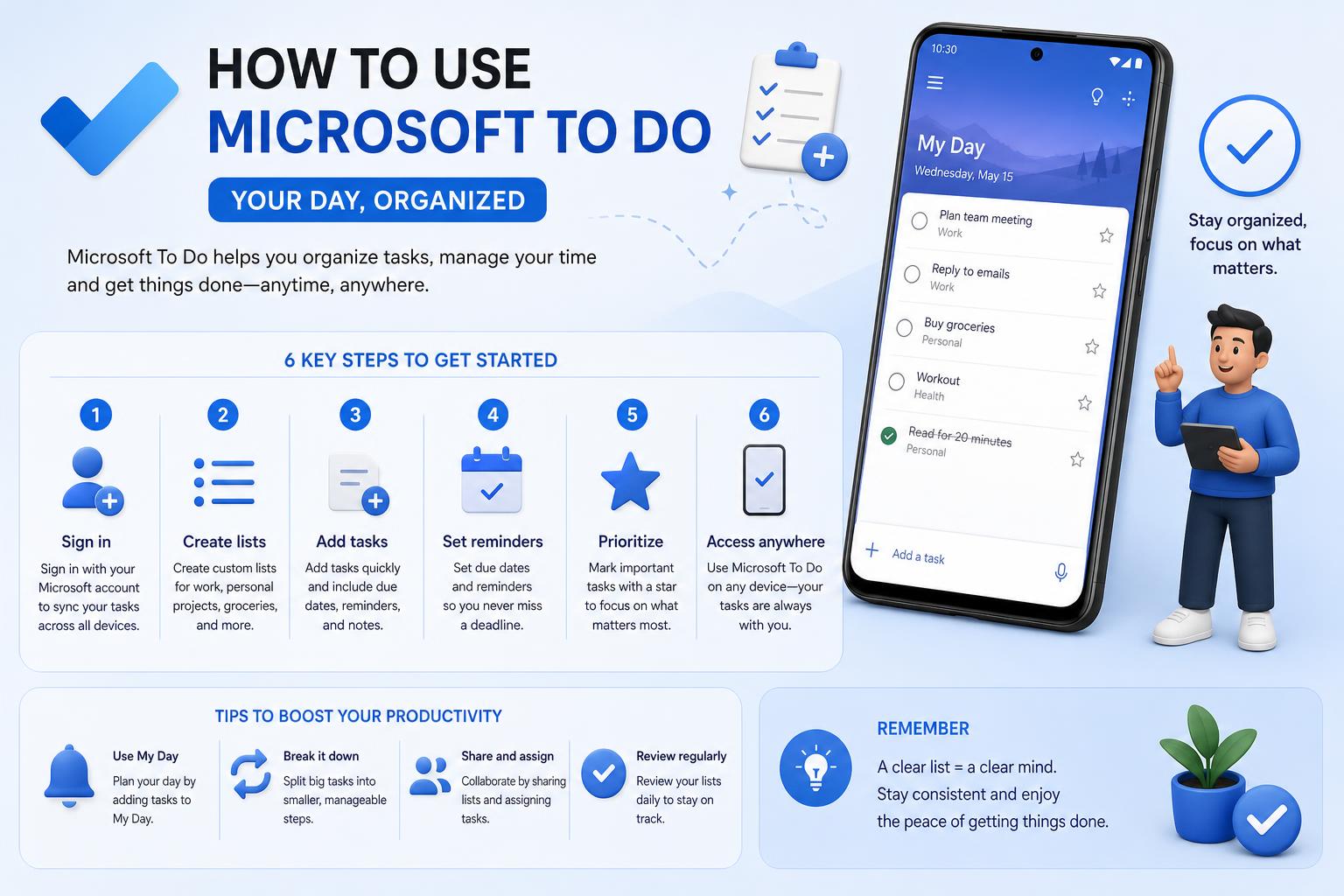
- Microsoft To Do seamlessly syncs tasks across devices and integrates with Outlook, Planner, and Teams for unified productivity.
- Comprehensive features like reminders, steps, repeating tasks, list sharing, and group organization make it suitable for both personal and professional use.
- Deep customization allows users to set priorities, collaborate in real time, and tailor workflows for daily focus and more productive routines.
Juggling multiple responsibilities has become the norm in our fast-paced digital world, and keeping track of them can feel overwhelming without the right tools. Microsoft To Do shines as a powerful, user-friendly solution, empowering users to organize their personal and professional lives with precision and ease. Whether you’re a beginner just starting out or a productivity nerd looking for advanced integrations, this app covers all your bases for building a more organized, focused daily routine.
What follows is a feature-packed, step-by-step guide to making the most out of Microsoft To Do. We’ll cover everything from basic account setup and task creation to leveraging integrations with Outlook, Teams, and Planner, collaborating with others, and optimizing your experience across all devices. If you’ve been struggling with sticky notes, scattered spreadsheets, or overloaded inboxes, Microsoft To Do is the digital companion you need to bring it all together and stay on top of life’s priorities. Ready to boost your productivity and ditch the chaos? Let’s get started!
Getting Started with Microsoft To Do
Microsoft To Do provides a personal task management ecosystem, accessible on Android, iOS, Windows, Mac, and the web (official site). This cloud-based app automatically syncs your tasks with Microsoft Exchange, ensuring seamless updates across devices. If you already use Microsoft 365, you’ll find a dedicated tile for To Do in the app launcher and Office.com portal, making access simple from anywhere.
Account Setup and Availability
Signing up is straightforward: All you need is a Microsoft account (personal, work, or school). In many enterprise and educational environments, To Do is already included with an Office 365 license. Ensure you are licensed for To Do and have an Exchange Online mailbox—this is essential for syncing and storage.
If you’re an admin managing organizational use, user-level licenses can be configured per individual, allowing fine-tuned access for your entire team or company. Only those with active licenses and Exchange Online enabled will see To Do in their available apps.
Device Compatibility
Microsoft To Do’s versatility extends across platforms with dedicated apps for Windows, MacOS, iOS, and Android, as well as a slick web app. Prefer working outside the browser? The desktop and mobile apps mirror the web experience, complete with synchronization and push notifications for your reminders.
Understanding the Basics: Tasks, Lists, and Steps
Tasks: Your Main Action Items
Creating a new task is the foundation of your workflow. Simply go to the Tasks section and select “Add a task”—give it a meaningful title, and you’re set. Tasks can be self-created or assigned to you by others, and are visible in a central location so nothing falls through the cracks.
Enrich Your Tasks with Details
Each task can hold a wealth of information beyond its title. Click any task to open its detail pane, where you can:
- Add steps: Break tasks into bite-sized sub-tasks, ticking them off without marking the main task as done.
- Set reminders and due dates: Notifications pop up on your device so important deadlines and follow-ups never slip by.
- Schedule repeats: For recurring chores, use the recurrence feature to set daily, weekly, or custom intervals. Remove recurrences by hovering over the detail tab and clicking ‘x’.
- Mark as important: Star high-priority tasks to track them quickly in the dedicated ‘Important’ tab.
Note: Reminders are highly flexible, displaying as desktop banners (Windows app), Outlook pop-ups, or mobile notifications. Just be aware: reminders do not appear in the main Outlook calendar.
Deleting and Managing Tasks
Tidy up your space by right-clicking any task and selecting ‘Delete’. For tasks you wish to prioritize, mark them with a star. Progress tracking is simple as you check steps off within each task, helping you monitor completion without clutter.
Mastering Lists and Groups for Better Organization
Create and Customize Lists
Lists in Microsoft To Do help you organize tasks by context, project, or theme. When you tap ‘New list,’ you can:
- Give your list a name for easy identification.
- Pick a color theme or set a custom photo background for quick orientation.
- Modify lists at any time—rename, delete, or tweak styles using the three-dot menu.
Grouping Lists for Work-Life Balance
Use groups to cluster related lists together. This is perfect if you manage both personal and work-related responsibilities in To Do. Create a group (such as Work or Home) and drag relevant lists inside. Groups can’t be shared, but they do help you keep things organized behind the scenes.
- Every list can be shared with colleagues, friends, or family. Just tap the people icon at the top of the list, select how you want to invite others (via contact or app), and send the invitation.
- Once joined, all collaborators are visible in the members section, making team collaboration or household task management a breeze.
- Share a direct invitation link or send it through email for convenience.
Deep Integration With Outlook, Planner, and Teams
Connect Outlook Emails to Your To Do Workflow
- Flagging emails in Outlook instantly creates linked tasks in To Do’s ‘Flagged Emails’ section, allowing you to add due dates, steps, and even open the original email.
- Drag and drop emails: In Outlook, simply drag an email into the navigation pane over the Tasks icon to create a new to-do.
This tight integration ensures that nothing important from your inbox escapes your attention—ideal for keeping your action items centralized.
Microsoft Planner Collaboration
If your organization uses Microsoft Planner, all tasks assigned to you will automatically appear in the To Do app. This ‘Assigned to Me’ section combines Planner and To Do tasks for a holistic view of what’s on your plate. Enable Planner under Connected Apps in To Do’s settings, and you’re ready to go.
- Open the ‘Assigned to Me’ view to see personal and Planner tasks side-by-side.
- Jump directly to task details or view in the original Planner or Teams interface via the provided link.
Leverage Teams and To Do for Unified Task Management
- Access your tasks directly from Microsoft Teams by adding the ‘Tasks by Planner and To Do’ app.
- Click the app in Teams to see all To Do and Planner tasks in one place—convenient for project collaboration and status updates.
Working with Outlook Desktop and Webmail
All tasks—whether added, flagged, or pulled from emails—appear on Outlook’s navigation pane under the Tasks tab. In webmail, switch to Calendar view, select My Day, and open the To Do tab to see upcoming and priority tasks. Assign calendar dates by dragging items in the calendar.
Making the Most of ‘My Day’ for Daily Focus
‘My Day’ is To Do’s daily planning engine—a clean slate that resets every morning so you start afresh. Use it to highlight the top priorities you need to accomplish today. Click the Suggestions option (top right), and To Do will recommend important or overdue tasks to populate your day’s agenda.
- Select ‘My Day’ on the sidebar to plan your daily workflow.
- Use Suggestions to pull in unfinished or important items into today’s list.
- Add custom tasks directly or from any other list or section.
- Remove completed or irrelevant items by clicking the ‘x’ on an entry in My Day—this won’t delete the task itself, just remove it from today’s view.
Pro Tips, Customization, and Best Practices
Build Habits with Regular Engagement
Consistency is key for maximizing productivity with To Do. Many users find it helpful to review their lists:
- First thing in the morning, to set priorities and plan the day.
- After lunch (around noon), for a midday check-in and progress review.
- End of the day, to tick off completed tasks and prepare for tomorrow.
Decide what cadence works for you—every few hours, at set times, or whenever you need a motivation boost.
Keep To Do in View
If you don’t have a dual-monitor setup, consider keeping the To Do app window on top or snapping it to a corner of your desktop for constant reference. On mobile devices, take advantage of home screen widgets for quick access.
Automatic Suggestions and Notifications
Let To Do prompt you to stay on target: Enable notifications and reminders on all devices, so you’re gently nudged to re-engage and keep your lists up to date. The Suggestions feature ensures priorities aren’t forgotten amidst a busy schedule.
Mastering Notification Management in Windows 11: The Ultimate Guide
Reporting and Productivity Tracking
While To Do doesn’t provide robust built-in reports, you can manually review completed tasks, scheduled items, and overdue lists to track progress. Advanced users integrate To Do with Outlook or export finished tasks to email updates for managers or self-review. For organizations, automated workflows via Power Automate can help schedule reports or daily summaries by email.
Integrating Emails and External Systems
Besides flagged emails, integrate external ticketing systems or other apps into To Do using Microsoft Power Automate or third-party integrations. This lets you create tasks from tickets, chats, or other software—though consider keeping complex ticket workflows distinct from individual to-do lists, depending on your organizational needs.
Security and Compliance
Microsoft To Do leverages Exchange Online for secure, encrypted data storage and synchronization. All information is safeguarded both in transit and at rest. The web app meets industry standards, including SOC 2 audits, making it a reliable choice for business and sensitive data.
Advanced Customization and Workflow Tips
Sync Across All Devices
Install To Do on your computer, tablet, and phone to ensure tasks and updates are always accessible. The experience remains familiar and consistent, no matter where you log in.
Personalization Matters
Customize list names, themes, and backgrounds to make your workspace inviting and intuitive. Use visual cues like colors and icons to instantly distinguish between personal, work, household, or project-based lists.
Prioritizing and Delegating via Sharing
Share lists to delegate and collaborate efficiently, especially for shared households or project teams. Assigning tasks, leaving comments, or marking completions in real time turns To Do into a collaborative hub instead of just a static checklist.
Syncing with Outlook on the Web
Microsoft is working to further unify experiences by making To Do available as part of Outlook on the web, providing streamlined access for all users licensed through Exchange Online. This transition will make syncing even more seamless, bringing task management directly to your inbox interface.
Troubleshooting and Support
Should you run into issues or need help, Microsoft offers robust support via their help portal. Organizational administrators can access dedicated Office 365 support channels.
Why Microsoft To Do Is a Game-Changer
Bringing order to our increasingly complex lives, Microsoft To Do stands out as a cross-platform task manager that grows with your evolving needs. With robust integrations, easy collaboration, and flexible organization features, it goes far beyond a mere checklist. Whether you’re managing personal errands, coordinating projects, or ensuring critical work tasks never fall behind, mastering Microsoft To Do means more focus, better follow-through, and fewer dropped balls. Pair it with your favorite Microsoft 365 tools and the app quickly becomes the central control tower for productive, stress-free days.