
- Windows 11 product keys are essential for activation and vary by how you obtained Windows.
- There are major differences between digital licenses and classic product keys, impacting activation and system reinstall scenarios.
- Retrieving your product key and troubleshooting activation can differ vastly for preinstalled, purchased, or upgraded systems.
Anyone who’s set up a new Windows computer, migrated to a new device, or needed to reinstall the operating system has probably encountered that critical prompt: ‘Enter your product key’. But what exactly is a product key in Windows 11, why does it matter, and do you even need to worry about it these days?
This article takes a deep dive into the entire landscape of Windows 11 product keys—covering what they are, when you need them, how activation really works (especially with all the recent changes from Microsoft), and crucially, every method to retrieve or manage your product key in any situation. We’ll explore manufacturer approaches, digital licenses, boxed retail copies, online purchases, upgrades, error fixes, and everything in between—demystifying the process with clear, practical advice balanced with official knowledge from Microsoft and leading OEMs like Dell.
What is a Windows 11 Product Key?
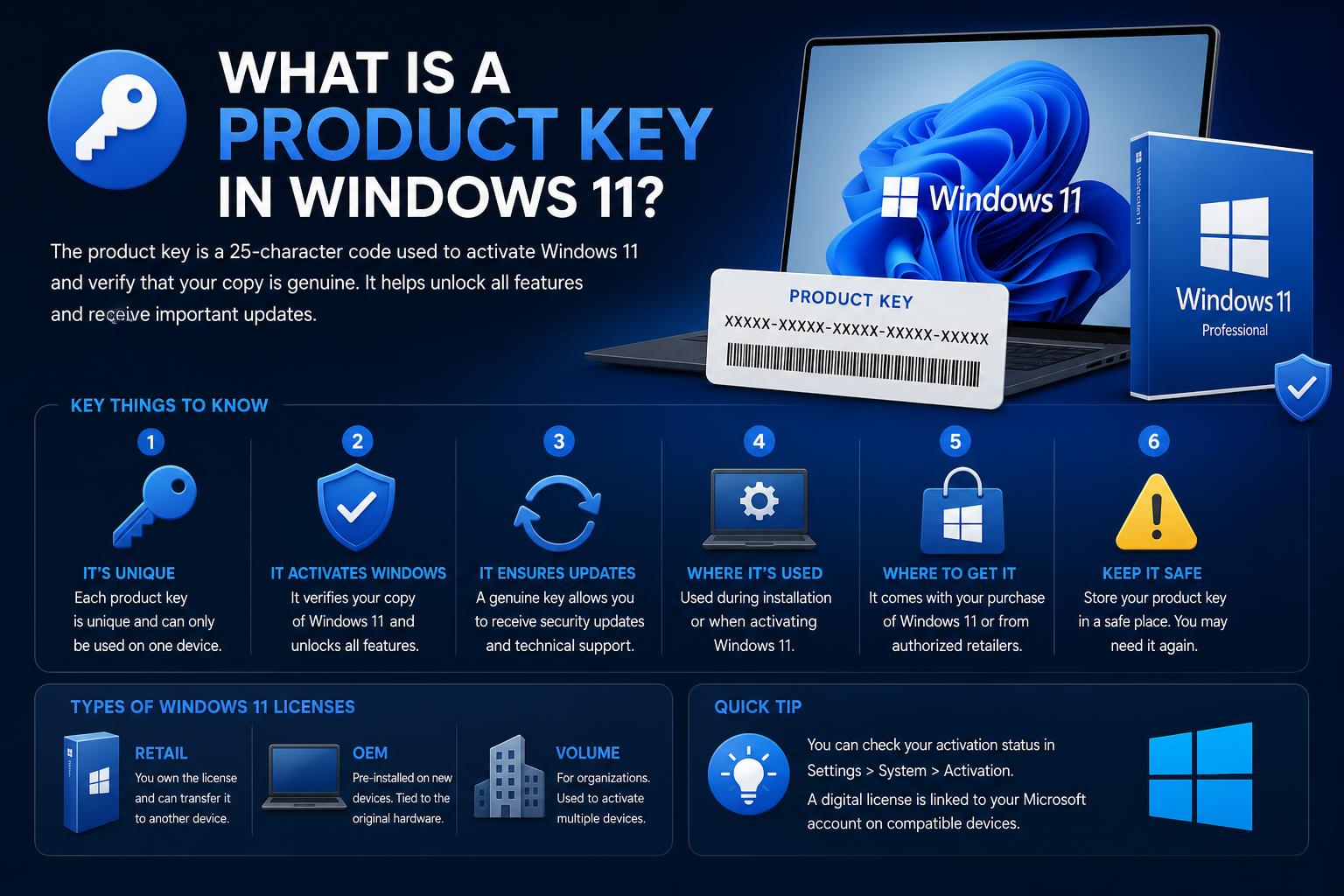
A Windows 11 product key is a unique, 25-character alphanumeric code (formatted as XXXXX-XXXXX-XXXXX-XXXXX-XXXXX) that serves as proof of purchase and is used to activate a specific copy of Windows on a device. Before the era of digital entitlements and online activation, this key was the only way Microsoft could verify that your Windows installation was genuine and not being used on more devices than was legally allowed.
Product keys remain a core part of Windows licensing, but the way they’re handled has evolved dramatically. In many cases, especially with new PCs or digital purchases, you may never see or need to enter a key—it happens automatically or is linked to your Microsoft Account. However, understanding product keys—and knowing how to retrieve or use them—remains important, particularly when reinstalling, upgrading, transferring, or troubleshooting Windows 11.
Product Key vs. Digital License: What’s the Difference?
Activation for Windows 11 can occur through either a product key or a digital license (sometimes called a digital entitlement). The activation pathway used depends entirely on how you acquired your operating system:
- Product Key: A classic, 25-character code. Historically used for all retail, boxed, and some OEM devices. Still provided in scenarios such as boxed Windows purchases, digital downloads from third-party resellers, or volume licensing agreements. You might also need it for some refurbished or custom-built PCs.
- Digital License (Digital Entitlement): A modern activation method where no visible key is involved. Instead, Microsoft automatically links your Windows 11 license to the device’s hardware or your Microsoft Account. Used for upgrades (such as from Windows 10 to 11), digital purchases from the Microsoft Store, and most OEM PCs where the key is injected into the motherboard firmware.
Without a valid product key or a digital license, Windows 11 remains unactivated. This may affect personalization options and occasionally prompts warning messages, including watermarks on the desktop.
Where Can You Find Your Windows 11 Product Key?
This is perhaps the most frequent and pressing question users face. The location of your product key—or whether you need to find it at all—depends on how you got Windows 11 in the first place. Here’s a comprehensive breakdown of every scenario:
1. Windows 11 Came Preinstalled on a New Computer (OEM Devices)
- Most modern, factory-installed devices (especially from brands like Dell, HP, Lenovo, etc.) do not come with a printed product key. Instead, the key is ‘digitally injected’ into the firmware (BIOS/UEFI) during manufacturing.
- During Windows 11 installation or recovery, the system reads this key automatically—there’s no need for manual entry or searching in the box. Activation generally happens discreetly in the background as soon as the device connects to the internet and Windows verifies the hardware/firmware key.
- Exceptions: If you purchased a refurbished device or if the motherboard was replaced by an unauthorized technician, you may be given a Certificate of Authenticity (COA) label with the key physically printed.
2. Purchased as a Boxed/Retail Copy of Windows 11
- When Windows 11 is bought as a physical package (box) from a store or authorized reseller, the 25-character product key is usually found on a label or a card inside the package.
- If it’s a digital download from a retailer (other than Microsoft Store), check your purchase confirmation email or the digital product ‘locker’ on the retailer’s site.
- Always safeguard this key—it may be required for future reinstalls or transfers to other PCs, according to Microsoft’s license terms.
3. Purchased as a Digital Copy from the Microsoft Store
- If you purchase an upgrade or a new license directly from the Microsoft Store (either through Windows itself or the online Microsoft Store), you typically won’t receive a product key at all.
- Instead, the transaction creates a digital license that is instantly linked to the device and your Microsoft Account. You can review these purchases in your Microsoft Account order history online.
4. Upgraded for Free (e.g., From Windows 10 or 7 to 11)
- If you upgraded from a genuine copy of Windows 10, 8.1, or even 7 to Windows 11 during Microsoft’s free offer window, a digital license is automatically created.
- No product key is required for activation—you simply keep using your Microsoft Account and ensure your device’s hardware remains substantially the same (major hardware changes may complicate this; see the troubleshooting section).
5. Bought Through Volume Licensing or MSDN Subscription
- Businesses, organizations, and developers may obtain Windows 11 via Microsoft’s Volume Licensing Program or MSDN subscription.
- Product keys in these scenarios are usually distributed via a secure organizational portal or dashboard and may follow different rules for activation, transfer, and device entitlement.
6. Refurbished Computers
- A refurbished Windows PC should always provide a COA label (sticker) or card with a product key. The manufacturer or refurbisher—not Microsoft—is responsible for providing and supporting this key.
How Do You Check Windows 11 Activation Status?
It’s advisable to verify that your system is activated and genuine, regardless of installation origin. The process is the same for Windows 10 and 11:
- Open Start and go to Settings.
- Choose System and then Activation.
- Here, review the Activation status message.
You may see one of several messages:
- Windows is activated – Your copy is genuine and functioning as intended, but not linked to any Microsoft Account.
- Windows is activated with a digital license – You’re activated via the hardware-embedded key or via upgrade, but your digital license is not yet associated with a Microsoft Account. Linking it simplifies troubleshooting and reactivation after hardware changes.
- Windows is activated with a digital license linked to your Microsoft Account – The preferred scenario. Your device is activated, and your license is tied to your Microsoft Account, enabling easier reactivation if hardware changes occur.
- Windows is not activated – Your software isn’t marked as genuine—an error message should give the reason. Activation may have failed due to hardware changes, mismatched editions, or invalid/counterfeit keys.
Why Link Your Microsoft Account to Your Digital License?
Connecting your Microsoft Account (MSA) to your device’s digital license is optional but highly recommended.
This offers several key benefits:
- Enables easy reactivation after hardware repairs or replacements (like motherboard swaps) without the need to re-enter your product key.
- Facilitates troubleshooting, faster recovery, and clearer license management for devices registered to your MSA.
- Unlinking your device from your Microsoft Account when selling or giving it away helps protect your licensing rights.
To establish the link:
- Navigate to Settings > Accounts > Your Info and ensure you are logged in with your Microsoft Account.
- Then visit Settings > System > Activation and select Add an account if prompted.
- Once completed, you’ll see confirmation that Windows is activated with a digital license linked to your Microsoft Account.
Generic Product Keys: What Are They and When to Use Them?
Microsoft offers generic, public Windows 11 product keys for specific use cases: tech labs, testing, or temporary installations while waiting for a genuine license.
For example, for Windows 11 Pro, a generic key like VK7JG-NPHTM-C97JM-9MPGT-3V66T can be used to complete setup or upgrade, but it will not activate the OS permanently. These are often called KMS keys (Key Management Service) and are typically employed by IT professionals or for limited trial periods.
Important: These keys will not activate Windows permanently—ongoing activation warnings will appear, and customization options will be limited. You must use a valid, purchased product key or digital license for full activation.
Retrieving Your Windows 11 Product Key: All Possible Methods
Need to find your product key due to reinstallation, migration, or troubleshooting? The method to retrieve depends on how Windows was originally activated.
1. For Preinstalled (OEM) Systems: Digitally Embedded Keys
Most new computers (like Dell, HP, Lenovo) no longer display a printed key—they store it in the motherboard’s firmware (BIOS/UEFI).
During reinstall or reset, the installer reads this embedded key and activates Windows automatically. You generally do NOT need to locate or input this key—Microsoft designed this for seamless operation.
If you’re technically inclined or activation fails, you can attempt to retrieve this firmware-stored key using Windows tools as follows: más información sobre cómo activar Windows 11 y TPM.
- PowerShell or Command Prompt:
wmic path softwarelicensingservice get OA3xOriginalProductKey
This command queries the BIOS/UEFI for the embedded product key. On most OEM systems, it returns your original key. Keep in mind, if the system never had a BIOS-injected key (common in DIY or older setups), this method may return nothing.
- Via Windows Registry:
Computer\HKEY_LOCAL_MACHINE\SOFTWARE\Microsoft\Windows NT\CurrentVersion\SoftwareProtectionPlatform --> BackupProductKeyDefault
2. System activated via digital license only (no key to retrieve)
For users who upgraded for free, purchased from Microsoft Store, or used digital activation linked to their Microsoft Account, the product key isn’t visible.
In these cases, reinstallation or device transfer relies on your digital entitlement. Sign in with your Microsoft Account on the same hardware, and Windows 11 activates automatically—no manual key input needed. For support purposes, your Microsoft Account order history and device registration should suffice.
3. Purchased boxed or retail copies of Windows
If you bought a physical or digital retail copy, the product key will be located:
- On a label or card inside your Windows packaging.
- Within your purchase confirmation email (if digital).
- In your online account portal if purchased directly from Microsoft (check your order history).
Securely store this key for future reinstalls or device transfers.
4. Refurbished or volume licensing / enterprise scenarios
In these cases, your organization or refurbisher should provide the key.
- Look for COA labels or documentation on your device.
- For volume licensing or MSDN, use the organization’s web portal.
5. Lost your key or it doesn’t work
If you’re missing your key or it’s invalid, don’t panic:
- Ensure your Windows edition matches your license type. (For example, you can’t activate Windows 11 Pro with a Home key.)
- Check your Microsoft Account order history if purchased via Microsoft Store.
- Contact your retailer or refurbisher for support if bought packaged or refurbished.
How to Enter or Change Your Windows 11 Product Key
Whether activating for the first time, switching editions, or fixing activation issues, you can manually input a product key:
- Navigate to Settings > System > Activation.
- Select Change product key.
- Input your 25-character key and proceed. If valid and matching your edition, activation should complete automatically.
If you don’t have a key during setup (such as reinstalling on hardware previously with Windows 11 Home or Pro), choose I don’t have a product key. If your device has a valid embedded or digital license, activation will happen automatically later.
Troubleshooting Common Windows 11 Activation Problems
Activation issues can occur despite the streamlined process. Here are common problems and solutions:
1. Activation fails after hardware change (e.g., motherboard replacement)
When you replace major hardware, Windows may see this as a new device:
- Pro Tip: Link your Microsoft Account before hardware changes!
- After replacing hardware, use Settings > System > Activation and run the Activation Troubleshooter. Sign in with your account, and Windows should reactivate via your digital license.
2. Edition mismatch error
Licenses are edition-specific. A Windows 11 Home key cannot activate Pro, and vice versa. Verify your installation matches your license.
3. “Windows is not Genuine” or recurring prompts
- Re-enter your product key via Settings > System > Activation > Change product key. Persistent issues might mean your key is overused or invalid. Contact Microsoft Support in such cases.
- Illegitimate or overused keys can cause these warnings, and may prevent feature updates.
4. Activation error codes
Various error codes indicate specific activation problems (wrong key, server issues, regional restrictions). Check Microsoft’s support page for specific fixes based on your code.
5. Using the same license on multiple devices
Retail licenses typically activate only one device at a time. Using the same key elsewhere can deactivate the first device, leading to activation errors. Volume licenses allow multiple devices but have limits.
What Happens If Windows 11 Is Not Activated?
When Windows 11 is not activated, it operates with limited features:
- There will be a wallpaper watermark stating “Activate Windows”.
- Personalization options are restricted.
- Frequent activation reminders and popups appear.
- Security updates and basic features continue, but some advanced features or upgrades may be blocked.
Best Practices: Buying, Storing, and Protecting Your Product Key
As digital licenses become common, many users overlook the importance of securing their product keys, but it remains crucial in certain scenarios.
- If you receive a physical or digital key, keep multiple secure copies: print, save in a password manager, or email yourself.
- Purchase Windows licenses from trusted sources that provide genuine keys: use Microsoft’s official store or authorized retailers. Avoid third-party sites of dubious authenticity.
- Link your license to your Microsoft Account to simplify recovery.
- When selling or handing down your device, unlink your account and destroy any stored key copies that aren’t being transferred.
Special Notes: Enterprise, Lab, and Generic Activation Scenarios
Organizations deploying Windows at scale often use Key Management Service (KMS) and volume activation solutions. These rely on generic keys for deployment, then activate multiple devices via license servers. For home users or small businesses, this doesn’t usually apply, but it’s useful to understand in corporate environments, testing, and large-scale deployments.
In lab or testing setups, generic keys enable Windows installation, but full feature activation requires proper licensing afterward.
Identifying a Genuine Windows 11 Installation
Verifying the authenticity of your Windows 11 copy is essential for security and support. You can check activation status as detailed earlier—only ‘activated’ or ‘digital license linked’ statuses indicate genuine, supported systems. Look for official COA labels or avoid devices with watermarks and dubious license claims. For official guidance, see Microsoft’s How to Tell.
Reinstalling Windows 11: Do You Need the Product Key Again?
The need for a product key during reinstallation depends on your original activation method:
- OEM devices with embedded keys automatically reactivate after reinstalling and connecting online, without needing to re-enter a key.
- For upgrades or same-edition reinstallations using a digital license, reactivation is automatic upon signing in with your Microsoft Account.
- Switching editions or changing hardware typically requires entering the product key again.
If hardware has changed significantly or you encounter activation hurdles, contacting Microsoft Support may be necessary to restore activation, providing proof of license and ownership.
Activation for Refurbished and Upgraded Devices
Refurbished PCs with Windows 11 typically activate via COA stickers or OEM keys. Ensure all documentation is available at purchase, and verify activation during initial setup. Hardware upgrades, especially from legitimate previous Windows versions, generally activate smoothly, especially if linked to your Microsoft Account.
Using Non-Genuine or ‘Gray Market’ Product Keys
Be cautious of overly cheap or suspicious product keys from unverified sources or online marketplaces. These keys often turn out to be invalid or blocked, leaving your system unactivated. Using such keys can also expose your computer to security risks and licensing violations, and you’ll be unsupported for feature updates and support in most cases.
Frequently Asked Questions About Windows 11 Product Keys
- Do I really need my product key? In many cases, no—digital licenses and firmware keys make activation automatic. But in scenarios like reinstallations, transfers, or edition changes, having the key available is useful.
- Where do I enter my product key if required? Settings > System > Activation > Change product key.
- Can I activate Windows 11 with a Windows 10 product key? Often yes! Microsoft supports cross-version activation, especially for upgrades. Verify edition compatibility first.
Resources and Official Support
What is TPM 2.0? A Complete, Practical Guide to the Trusted Platform Module