
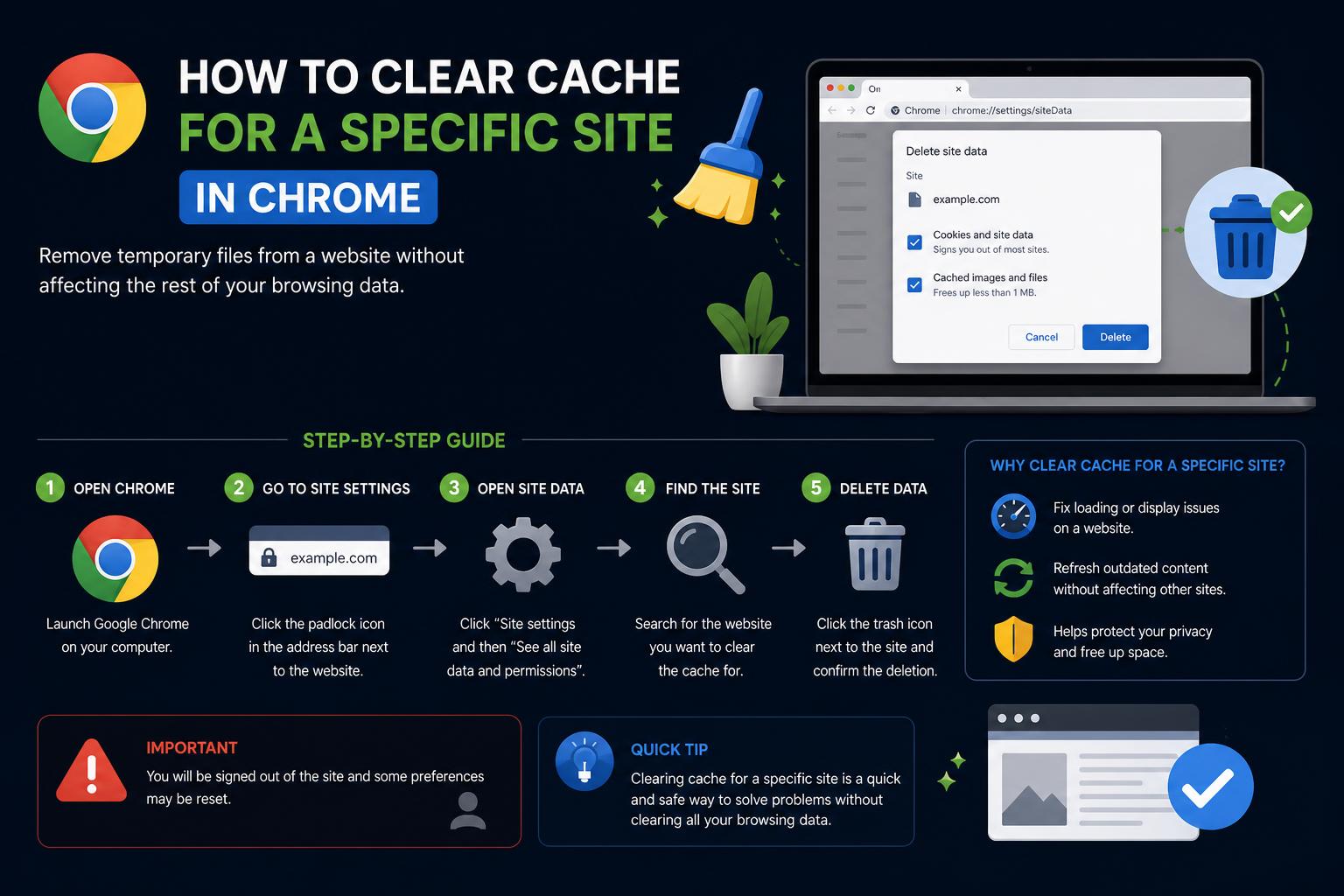
- Selective cache clearing in Chrome fixes display and content issues without affecting data from other sites.
- Server, CDN, and DNS caches also impact what content you see; knowing how to purge them is essential for troubleshooting.
- Developer tools in Chrome and other browsers provide the most effective methods for cache management during development or problem solving.
Sometimes, surfing the web doesn’t go as smoothly as we’d like—maybe a website isn’t loading the latest changes, or things just look off, even after a reload. If you’ve ever built, managed, or frequently visited a website, you know the importance of seeing fresh content right away. But that pesky browser cache sometimes stands in the way. The good news? You don’t have to dump your entire browsing history or cache to fix it. This guide will walk you through absolutely everything there is to know about clearing the cache for just one specific site in Google Chrome (and other browsers), along with all the tricks and troubleshooting steps you might need along the way.
We’ll break down, in plain English, why clearing the cache can fix a surprising number of weird website issues, how to do it using multiple methods—ranging from the most direct, developer-favorite tools to alternative browser settings—and what to do if clearing the browser isn’t enough. Whether you’re a web developer, a curious problem-solver, or you just need that one stubborn website to work as expected, you’re in the right place for all the practical solutions you need.
Understanding Website Caching: Why Does It Matter?
Let’s start from the beginning: what is a cache? Your web browser stores information from websites you visit—like images, stylesheets, and scripts—to make your next visit much faster. Instead of re-downloading everything from the server, it grabs what it already has saved. This system is fantastic for speed and efficiency. Pages load in a flash, bandwidth is saved, and servers don’t get hammered with repeated requests.
But here’s where things go sideways: if a website gets updated after you visited it (think: new images, refreshed styles, or recent changes you made as a developer), your browser may cling to those outdated files—and it keeps showing you the old stuff. Sometimes even after multiple refreshes! If you’re troubleshooting display glitches, not seeing recent updates, or stuck with old layouts, your browser’s cache might be the reason.
Common Reasons to Clear a Specific Site’s Cache
- Making Website Changes: If you’re tweaking your own website and changes aren’t appearing—think CSS, JavaScript, or images—clearing the cache ensures you’re viewing the latest content.
- Display or Functionality Issues: Sometimes, a page looks broken because the browser is showing you mismatched or outdated resources. Clearing only the affected site can fix it without losing your data on every other site.
- Content Not Updating: If a new article or product image isn’t showing up, a quick cache clear might be all you need.
- After Migrations or Major Updates: When websites move to a new server or undergo major updates, old resources can stick around in your browser—getting rid of those helps avoid any surprises.
How to Clear Cache on Android Devices: Comprehensive Guide to Boost Performance, Free Storage, and Fix Issues
Why Not Just Clear Your Entire Browser Cache?
It might be tempting to just nuke everything, but that’s not ideal. When you clear the entire cache, you lose saved data from every site you’ve ever visited. This means you’ll be signed out everywhere, lose site settings, and the next time you visit your favorite sites, things could be slower since every resource will be downloaded again. The smart move: target just the website causing you trouble.
How to Clear Cache for One Website in Google Chrome
Chrome, being developer-friendly and widely used, gives you a couple of excellent methods to clear cache for only one site—no need to touch your history or cookies from other domains.
Method 1: The Developer Tools Approach (Fastest & Most Reliable)
- Go to the website you need to refresh. Make sure you’re on the right page.
- Open Chrome DevTools: There are a few ways to do this:
- Right-click anywhere on the page and hit Inspect.
- Or use the shortcut: Ctrl + Shift + I (Windows/Linux) or Cmd + Option + I (Mac).
- Alternatively, go to the Chrome menu (three vertical dots) → More Tools → Developer Tools.
- Check (Optional): ‘Disable cache’ in the Network tab. This ensures the cache remains off while DevTools is open—crucial if you’re troubleshooting recurring issues.
- Right-click the browser’s reload button (usually at the top next to the address bar). You’ll see extra options open only when the DevTools panel is up:
- Normal Reload (standard refresh).
- Hard Reload (forces download of some resources).
- Empty Cache and Hard Reload (the magic button: wipes all cache for that page, then fully reloads it).
- Select ‘Empty Cache and Hard Reload’. Done! Your browser now shows only the fresh, most recent data.
Method 2: Chrome’s Site Settings
- Go to the website in question.
- Click the lock icon (or info icon) left of the URL in your Chrome address bar.
- Select Site Settings in the drop-down window.
- A new tab opens; look for Usage at the top.
- Click Clear data, then confirm by selecting Clear again. Note: This removes all site data, including cookies (so you’ll be logged out).
Other Browsers: Similar Techniques
If you’re not using Chrome, don’t worry—Firefox, Edge, and Safari have comparable features. The main idea remains: mix developer tools and browser settings for the cleanest results.
Mozilla Firefox
- Developer Tools (Network Monitor): Launch DevTools with Ctrl + Shift + I or Cmd + Option + I. Go to the Network tab, tick Disable Cache, then do a Hard Refresh (Ctrl + Shift + R or Cmd + Shift + R on Mac).
- ‘Forget About This Site’: From the Library (History) window, right-click the domain and pick Forget About This Site for a big reset. Beware—it clears everything, including saved logins and history for that domain.
Microsoft Edge
- Edge is built on Chromium, so the Chrome Developer Tools technique (inspect → Network tab → disable cache → hard reload) works the same way. Quick and easy!
Safari (macOS)
- Enable the Develop menu: Safari menu bar → Settings/Preferences → Advanced, then tick Show Develop menu in menu bar.
- With the menu on, use Develop → Empty Caches or press Option + Cmd + R to force a fresh reload from the server.
Beyond Browser Cache: What If the Problem Persists?
So, you cleared the browser cache but you’re still not seeing updated content? There might be a deeper layer at play—namely server-side caching, CDN-level caching, or even your local DNS cache. Here’s what you need to know if you hit a dead end in the browser.
1. Server-Side Website Caching
The most common culprit for ongoing issues is the website’s own server cache, especially if it runs on a platform like WordPress or uses a CMS with caching plugins. Instead of generating web pages from scratch for each user, the server prebuilds pages and serves out static versions. Massive speed savings, but a big problem if you think you published something new and the server keeps sending out the stale content.
How to Clear WordPress or Plugin Cache
- Most WordPress plugins—like WP Rocket or W3 Total Cache—add a Clear/Purge Cache button either in the admin bar or their settings page. Use it after making critical site changes.
- With managed WordPress hosts (e.g., Elementor Hosting), you’ll often find a Clear Cache button in your hosting dashboard or within WordPress (provided by your host’s plugin).
- If you use , don’t forget it also has its own cache. Head to Elementor → Tools → Regenerate Files & Data for a full refresh.
2. Content Delivery Network (CDN) Caching
A CDN, such as Cloudflare or Amazon CloudFront, stores cached versions of your content on servers around the globe. If the CDN is serving the old files, even after local and server caches are purged, the update won’t show up for you or your users.
- Log into your CDN provider’s dashboard (e.g., Cloudflare Dashboard).
- Head to the Caching/Purge section.
- Paste the exact URL you want purged (for instance, for an updated image).
- Or consider the Purge Everything option, but be aware this may temporarily slow down your site for first-time visitors as content is rebuilt in edge servers.
3. DNS Cache Issues
When your device remembers the IP corresponding to a domain, that info goes into the DNS cache. If a website moves servers and the IP changes, the browser might keep looking for the old destination until the cache is reset.
- Windows: Open Command Prompt as admin and enter ipconfig /flushdns then press Enter.
- macOS: Terminal command is sudo dscacheutil -flushcache; sudo killall -HUP mDNSResponder; press Enter and give your password.
- In Chrome: Visit chrome://net-internals/#dns and hit Clear host cache.
Frequently Asked Questions and Advanced Tips
Yes. Cache is all about performance: it keeps website images, scripts, and CSS locally, so repeat visits are fast. Cookies store your session or user preferences—like login state, items in your cart, or personalization. Clearing the cache reloads assets; clearing cookies logs you out and resets custom settings. For more details, see this guide to enabling cookies in Chrome.
Is ‘Empty Cache and Hard Reload’ the same as forcing a hard refresh?
No, they’re not identical. The keyboard shortcut (Ctrl + Shift + R or Cmd + Shift + R) commands a hard reload, causing the browser to bypass the cache for the page’s primary file, but sometimes parts of the resource stash (like deeply cached assets) still stick around. Empty Cache and Hard Reload, available through Chrome’s DevTools, wipes everything relevant for that page, then reloads it from scratch—much more thorough.
Does clearing one site’s cache affect other websites?
Not at all. The purpose of all these targeted methods is to safeguard your browsing on other sites. Only the domain you specify loses cached files and cookies; the rest of your browsing data stays untouched.
Why might I still see stale content after clearing all these layers?
- Network or Proxy Cache: Business or educational networks sometimes cache web content at the proxy level—changes might be stuck there.
- ISP Caching: Rare, but some ISPs cache popular content to save bandwidth.
- Browser Extensions: Malfunctioning or heavy-handed plugins could interfere. Open the site in Incognito/Private mode to eliminate extension influence.
How frequently should cache clearing be done?
Ordinary users rarely ever need to clear their cache. Browsers manage it on their own. The main exceptions are for troubleshooting or active website development. There’s no speed gain in routinely clearing everything—in fact, cold-start loading is slower! Only intervene when necessary.
Can I turn off cache permanently for only one domain?
For ongoing development, yes. In Chrome and Firefox, DevTools’ Disable Cache option (under the Network tab) disables caching for all tabs with the tools open. Remember, as soon as you shut Developer Tools, caching resumes as normal—so it’s not a long-term, automated solution, but great for work sprints.
Do Incognito or Private Windows avoid the cache?
Mostly, yes. Private browsing windows start with nothing cached and don’t save new cached files for future sessions. Each time you open a fresh incognito session, it’s like visiting the site for the first time—making it a great tool for quick checks if something’s stuck in the cache.
The simplest method for clearing a specific website’s cache?
- Open the site.
- Fire up DevTools (Ctrl + Shift + I or Cmd + Option + I).
- Right-click the refresh button, then select Empty Cache and Hard Reload.
After you’ve done it a couple of times, muscle memory takes over—it’s really that quick.
Will a cache clear fix every problem?
No cache-clearing technique will solve all website glitches. Some issues come from buggy website code, server errors, or connection hiccups, and cache clears won’t help with those. But for stuck images, outdated layouts, or strange page behavior, it’s always the best first troubleshooting step.
I cleared the cache on my desktop, but my phone still shows old content. Why?
Mobile browsers keep their own separate caches. You’ll need to clear the cache on your smartphone’s browser too. For Chrome on Android or Safari on iOS, look under Settings > Privacy or Clear Browsing Data for similar options.
Extra: What Happens When You Clear Cache and Cookies?
When you clear both, you’ll notice:
- Your logins and site settings are removed. You might have to sign in again to websites you visit often.
- Some sites might load a bit slower initially—all those images and scripts are fetched anew.
- Things like browsing preferences and customization can revert to default—cookies manage a lot of your persistent settings and personal touches.
Tips for Web Developers and Power Users
Disabling cache temporarily during site edits is a lifesaver. Pin the DevTools window open, check Disable Cache in the Network tab, and Chrome will always pull the latest resources for every change you make—until you close the tools.
Hard reload shortcuts and cache controls speed up development cycles. Learning these tricks avoids confusion, ensures you’re seeing your actual work, and helps with troubleshooting user complaints.
Best Practices for Caching Beyond Browsers
- Always provide end users with simple instructions for clearing their browser cache if you’re troubleshooting support issues.
- If your site relies on plugins or server-level caching, routinely update and test your cache purging procedures—and educate your team and clients.
- Monitor CDN behaviors: after deploying major changes, check your CDN’s dashboard to confirm new assets are propagating globally.
Mastering cache clearing lets you skip endless guesses and directly fix update issues, display problems, and fresh content blockages—both as a creator and as an everyday web user. Whether you’re chasing the latest design tweak or just want your favorite blog to show up right, a targeted cache clear in Chrome (or other browsers) is your best ally. Try the developer tools method for speed and precision, or dive deeper into server and CDN caches when browser-level fixes just don’t cut it. With these steps, you’ll never be at the mercy of an outdated web page again.