
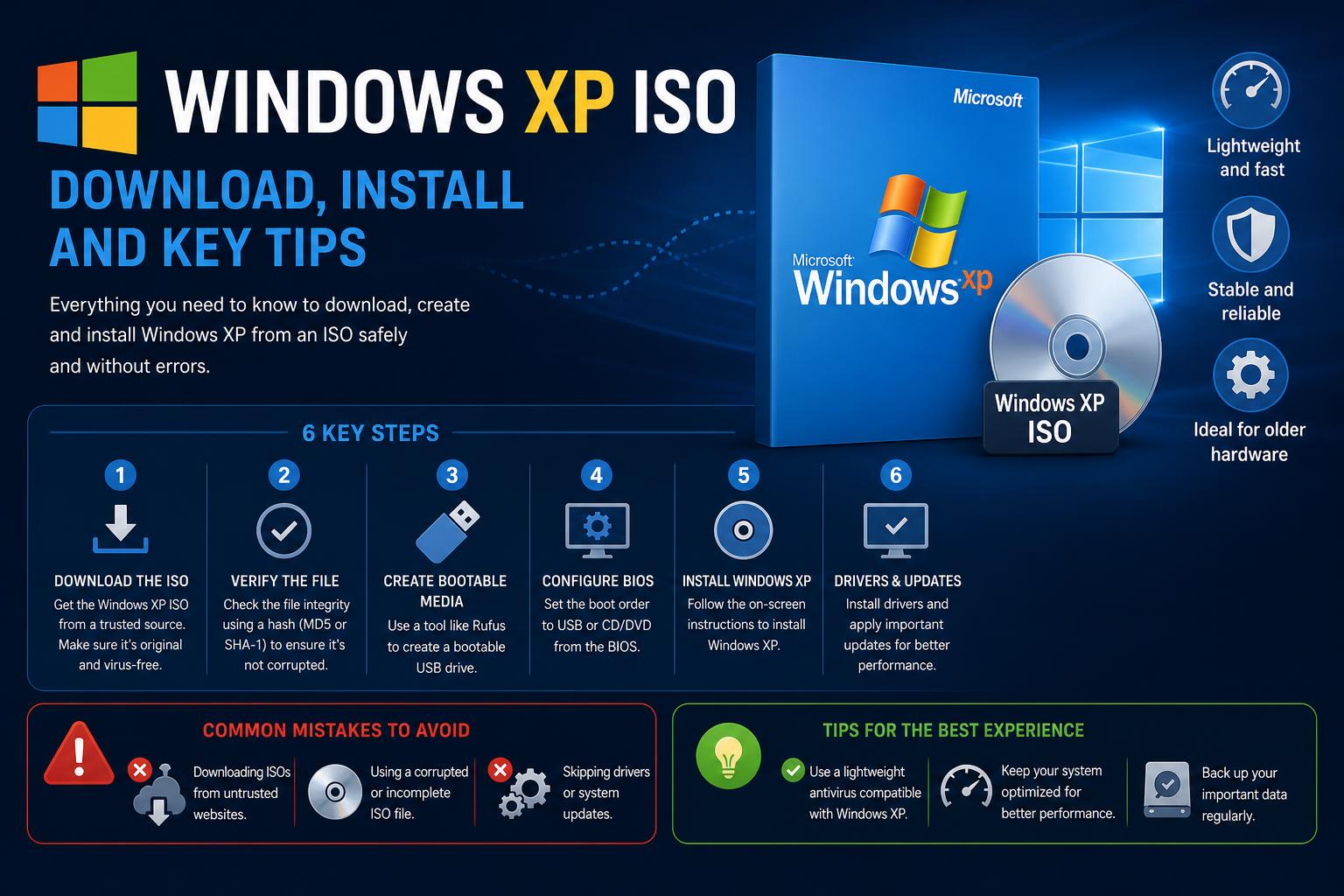
- Always use verified Windows XP ISO sources and check file integrity with checksums.
- Windows XP Professional SP3 (32-bit) is the most compatible and secure version for most retro PC setups.
- Install and use XP in a safe offline or virtual environment for optimal security.
- Carefully follow each step during installation to avoid common pitfalls and ensure system stability.
Windows XP may have reached its end of life years ago, but demand for its ISO files is still very much alive in 2026. Whether it’s nostalgia, legacy software, or the challenge of reviving old PCs, tech enthusiasts and professionals continually seek safe, reliable sources and detailed instructions for using Windows XP ISOs. This comprehensive guide brings together all essential details you need to know—types of ISOs, verification tips, installation step-by-step, and crucial safety warnings—making sure you make informed choices.
While Microsoft no longer distributes Windows XP, and support was officially dropped back in 2014, there are still legitimate use cases for needing the ISO. From managing specialized business processes, launching retro games, to simply enjoying a wave of nostalgia on classic hardware, users are looking for ways to download and install XP safely. This article dives deeply into everything from the best versions and where to get them to technical installation and key safety precautions—a must-read for anyone exploring the XP landscape.
Why Download Windows XP ISO Files Today?
Despite being discontinued, Windows XP holds an irreplaceable position in computer history. Many users still value it for:
- Running classic business or industrial software that remains unmatched or nonfunctional on new OS versions.
- Operating specific hardware or devices that lack updated drivers for Windows 7, 10, or 11.
- Retro gaming, benchmarking, or simple curiosity about how software and operating systems used to work.
- Testing legacy applications in a controlled environment or in virtual machines.
What Is ReactOS? The Open Source Windows Alternative Explained in Depth
It’s important to note that using Windows XP comes with substantial security risks, as there are no official updates, no patches, and essentially no defense against modern-day malware if the device is connected to the internet. Experts advise using XP only in offline environments or within virtual machines for safety.
Popular and Verified Windows XP ISO Versions
When searching for a Windows XP ISO, the version you choose matters for compatibility and reliability. Over the years, several editions and service packs were released, each addressing bugs, security issues, and performance. The community and archival projects list out the following major options:
- Windows XP Professional with Service Pack 3 (SP3), 32-bit (x86): This is the most stable, refined, and widely compatible version for most uses. File size is about 589 MB, and it supports the broadest range of legacy devices and applications.
- Windows XP Professional x64 Edition with Service Pack 2 (SP2): Suitable for advanced users who require 64-bit capabilities for specific workloads or hardware. The 64-bit version is only available up to SP2 and has more limited software compatibility but can address larger RAM.
- Windows XP Home Edition: Targeted at general consumers, it has fewer features than Professional (like no Remote Desktop), but it’s lightweight and still functional for most tasks.
- Windows Fundamentals for Legacy PCs (FLP): A special stripped-down XP version for old computers with low resources, often used to extend the life of aging hardware.
- Unofficial Windows XP SP4: An enthusiast-maintained service pack that rolls in post-SP3 patches and hotfixes to boost stability and security. While unofficial, it can make XP setups safer but is not endorsed by Microsoft.
These versions are available in numerous languages: English, German, Spanish, French, Russian, Turkish, and more, meeting the needs of users worldwide.
Recommended Sources for Windows XP ISO Download
Microsoft has removed all official Windows XP images from its website. This leaves users with community archives and trusted repositories such as:
- Internet Archive: Houses multiple untouched MSDN ISO files for XP in different Service Packs, languages, and editions. These are generally considered reliable as they are sourced from original discs and volume licenses.
- MAS Project: Lists direct links for verified XP ISOs in a wide variety of languages, enabling easier access to authentic images. MAS is recognized by the tech community as a reliable repository for legacy Windows setups.
- DataRecovee: Provides clear and updated guidance on available ISO files and how to validate them post-download. Their articles focus on MD5/SHA verification and tips to avoid corrupted or malicious installers.
For all sources, it’s essential to verify checksums (MD5, SHA-1) to ensure no tampering or corruption. Legitimate ISOs will match the hashes listed on trusted platforms. Always avoid unknown, suspicious sites or links to ensure safety.
Understanding Windows XP ISO Editions and Service Packs
Windows XP was released with different Service Packs (SP0, SP1, SP2, SP3), and in Home, Professional, and specialty flavors. What’s the difference?
- Service Pack 3 (SP3): The last and most stable version for 32-bit. Includes all security and stability patches. Always preferred unless a specific old program requires an earlier version.
- Service Pack 2 (SP2): The last available for 64-bit XP. Some rare applications or environments need this version.
- Home vs. Professional: Professional includes extra features like Remote Desktop, advanced networking, group policy management, and better support for multi-processor setups. Choose Professional for business or testing scenarios, and Home for basic desktop needs.
- Specialty editions: Fundamentals for Legacy PCs (FLP) supports very old or resource-limited devices. MUI Packs (Multilingual User Interface) allow installation in multiple languages, useful for international deployments.
If you aim for compatibility and security, go for XP Professional SP3 (32-bit). For specific workloads needing 64-bit, opt for Professional x64 SP2—but check software compatibility first, as many legacy applications don’t function properly in 64-bit XP.
Minimum and Recommended System Requirements
Windows XP runs well even on very modest hardware, but meeting or exceeding the recommended specs ensures a smoother installation.
- Processor: Minimum 233 MHz, recommended 300 MHz or higher
- RAM: At least 64 MB required, 128 MB or more preferred
- Storage: Minimum 1.5 GB free disk space, more is better
- Graphics: 8 MB video RAM, VGA compatible display at 800×600 or higher
- BIOS: Legacy BIOS support, no UEFI requirements
These requirements highlight why Windows XP can breathe new life into even the oldest computers.
How to Safely Install Windows XP from an ISO
Obtaining the ISO is just the start—setting up Windows XP involves several careful steps. Here’s a step-by-step approach to ensure a smooth and secure installation process:
- Download a validated ISO from a trustworthy source. Use Archive.org, MAS Project, or other community-recommended platforms.
- Validate the ISO file using MD5 or SHA checksum utilities (such as HashTab or built-in terminal commands) to ensure no alteration during download.
- Install a bootable USB creation tool like Rufus. It’s widely recommended for prepping USB drives with ISO images. (Older PCs may need you to burn the ISO to a CD instead. Check the hardware’s boot options.)
- Insert a USB flash drive (at least 4-8GB) into your modern PC, open Rufus, and select the XP ISO. Set the boot type to MBR or BIOS/Legacy if prompted.
- Plug the prepared USB drive into the target PC, access the boot menu (usually F12, F10, or Esc during startup), and initiate installation from the USB media.
- Follow the on-screen prompts: Press Enter at the setup screen, accept the license with F8, select and format the appropriate storage partition (preferably NTFS), and allow installation to run uninterrupted until full setup is complete.
- Post-installation, run available Windows system folder and driver packages—most old drivers can still be sourced via manufacturer websites or Archive.org’s driver collections.
- If security is a concern, consider installing the unofficial SP4 update for 32-bit XP, which rolls in extended fixes from the enthusiast community.
Keep the system offline whenever possible, especially if using no official support or third-party updates.
Essential Tips for Safe Windows XP Use
- Never use Windows XP as a main internet-connected OS, especially for sensitive tasks. Its lack of updates makes it highly vulnerable to modern threats.
- Virtual machines are the safest way to use XP for testing, nostalgia, or running legacy software without risking host PC security.
- Always download OS, drivers, and software from reputable archives, double-checking file integrity with MD5 or SHA-1 checksums.
- Store ISO images and driver backups on secure, offline media to prevent future scrambling if you need to rebuild your retro PC later.
- Consider using unofficial community packs only in controlled, offline settings—never for business-critical or internet-facing systems.
Frequently Asked Questions About Windows XP ISO
Do I need a product key? Yes, most original ISOs require a product key during setup, even from MSDN or Volume License images. Community forums and Archive.org often list generic keys for setup, but be sure to comply with local laws and use original keys if possible.
Can I activate Windows XP in 2026? Online activation servers are no longer available. However, many ISOs are pre-patched for offline use, especially those labeled “VL” (Volume License). Some community solutions also emulate activation for legacy usage.
Will my old hardware and software work on modern PCs? Most classic applications and hardware will run as expected if you use compatible drivers. For new hardware, drivers may not exist, reinforcing the case for virtual machines if possible.
Best Practices for Future-Proofing Your Windows XP Setup
- Keep multiple backups of ISO files, drivers, and unique programs. The internet is constantly changing, and links that work today may disappear tomorrow.
- Maintain documentation and step-by-step notes about installation for next time—or to help others in retro computing communities.
- Regularly check community forums and trusted repositories, as new enthusiasts sometimes update unofficial patches or offer fresh tips for smooth XP operation in modern environments.
Reviving Windows XP in 2026 is easier than you might expect with the right tools and information—and a bit of patience. By relying on verified archives, practicing good digital hygiene, and keeping your activities offline, you can enjoy all the charm and capabilities of XP, whether for nostalgia, legacy software, or technical experimentation. Just remember: always keep safety and legality in mind, as this classic OS is no match for today’s internet threats. Have fun diving back into Windows XP’s iconic world!