
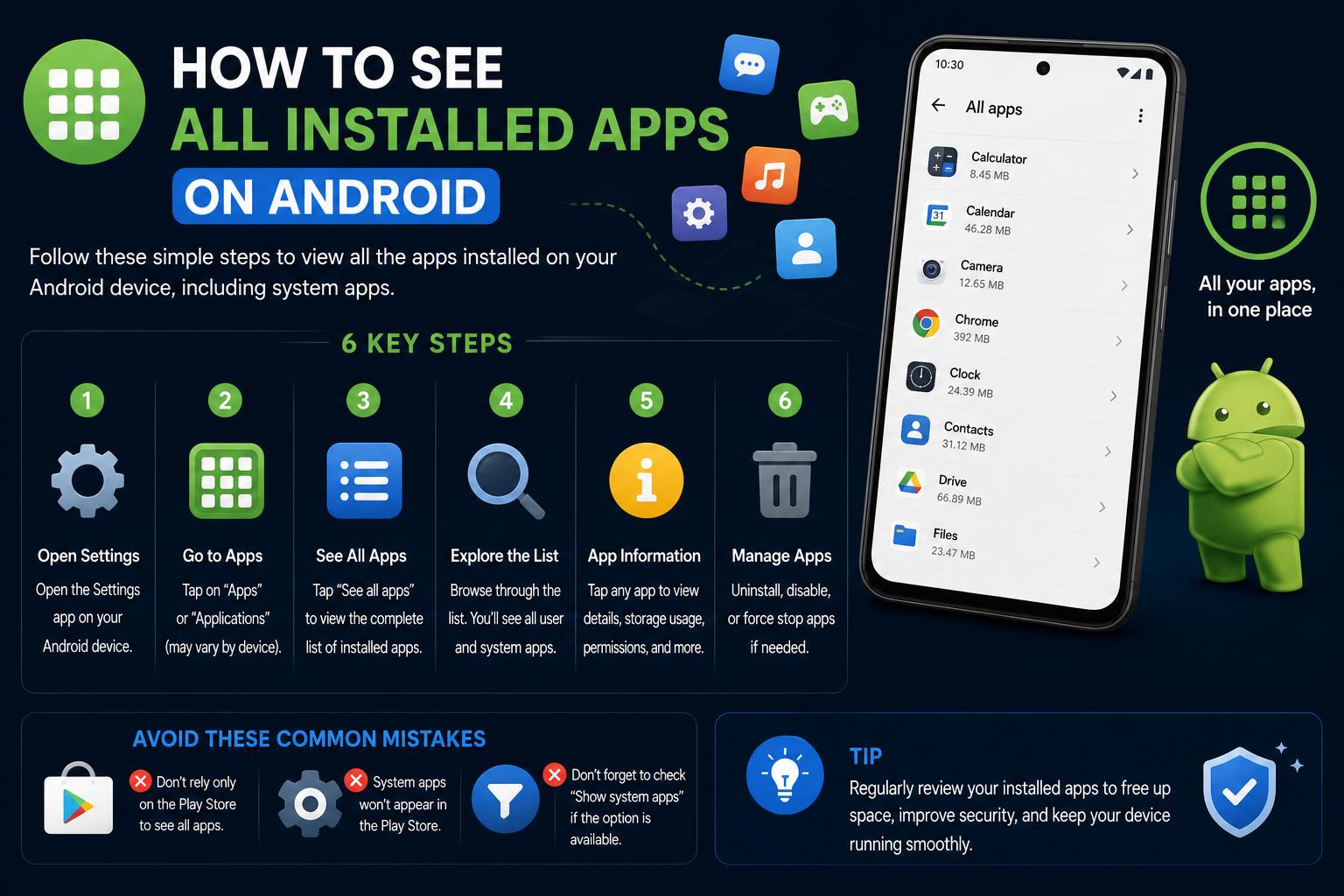
- Discover every installed, hidden, or system app across all Android devices and brands.
- Learn step-by-step methods to view and manage your complete app history.
- Expert strategies for app organization, storage cleanup, and device security.
Android devices continue to become a staple in our everyday digital routines, and with that comes an ever-growing collection of apps we accumulate over time. Whether installed years ago, recently added, or even hidden away, managing and locating all your apps can quickly feel overwhelming. Many users often wonder how to get a full view of what’s actually installed on their phone or tablet. Maybe you want to free up space, organize your device better, or double-check for hidden or unused apps. Whatever your reason, taking control of your app library is easier than you might think.
This article will walk you through every possible method—step by step—to see all the apps installed on your Android device. We’ll dig into ways to find apps through standard menus, track down hidden and system apps, revisit your download history, and more. You’ll also learn effective tricks to organize, clean, or restore apps as needed, based on the latest advice from trusted tech sources. Ready to declutter and become the master of your device? Let’s get started!
Why Knowing Your Installed Apps Matters
It’s common for users to lose track of all the apps they’ve downloaded, especially when certain apps don’t show up on home screens or have become hidden due to settings changes. Besides tidying up your device, having full control over your app inventory lets you manage privacy, optimize storage, and maintain a smooth experience. You can also combine this review with a guide to virus scanning on Android devices to identify suspicious software. And if you’ve switched phones or reset your device, knowing where to review all past installs can be a game changer.
Let’s explore a range of practical, simple methods tailored for nearly every Android user, including how to:
- Find all currently installed apps, even hidden or system apps
- Quickly search and launch apps
- See your complete app download history
- Manage or recover unused or disabled apps
Google Play Protect: Your Essential Guide to Android App Security
Using the App Drawer to See All Installed Apps
The app drawer is your primary window into all applications installed on your Android device—including those that aren’t visible on your main home screens. Here’s how most Android phones give you access:
- Go to your home screen. From anywhere on the device, just return to the main home screen by tapping the home button.
- Swipe up from the bottom edge. This gesture reveals the complete list of your installed apps, often called the ‘App Drawer’ or ‘All Apps’.
- Scroll through the alphabetical list or use the search bar. Every downloaded app will appear here, organized for easy browsing.
If your phone’s interface uses folders, you might find some apps tucked away there too. In rare cases, especially on phones with heavy custom interfaces (like some Xiaomi or Huawei models), you may have to look for a dedicated ‘Apps’ or ‘All Apps’ icon—often found right on the home screen.
[relacionado url=”https://www.ikkaro.net/which-version-of-android-you-have/”]
Viewing All Applications from Device Settings
Your device’s Settings menu goes even deeper, showing all installed apps—including many that aren’t user-facing. This is the best way to view system apps, disabled/hidden apps, and app information at a glance.
- Open the Settings app on your Android device.
- Scroll to and tap on Apps (or sometimes Applications or App Management depending on your device brand and Android version).
- Tap on See all apps or App info. This section provides a full list, including both active and disabled applications.
In this list, you’ll be able to access storage, permissions, notification settings, and even uninstall or disable individual apps. It’s also where you can easily spot apps you may not remember installing, or identify those taking up unnecessary space.
How to Install APK Files on Android: The Ultimate Safe Sideloading Guide
Special Methods for Major Android Brands
Android devices sometimes feature brand-specific tweaks for app management. Here’s how to hunt for hidden or special apps on the most popular brands:
- Samsung: Use a two-finger pinch on your home screen to access Home Screen Settings, then select Hide apps. Here you can see or unhide apps missing from your regular lists.
- Google Pixel / Android One: Go to Settings > Apps > See all apps. This includes both enabled and disabled (greyed out) apps.
- Xiaomi / OnePlus: Navigate to Settings > Privacy > Hidden apps. This is where any apps intentionally removed from view will be listed, and you can quickly restore their visibility.
Searching and Launching Apps Directly
If you’re in a rush and just need to open a specific app, the app drawer offers a handy search function. At the top of the app drawer, you’ll typically find a search bar. Typing any part of the app’s name allows you to instantly locate and launch apps—even if they’re buried deep in your collection.
Finding Apps You’ve Downloaded or Uninstalled in the Past
What if you want to see not only your active apps, but also those you’ve previously installed and deleted? Google’s Play Store keeps a running history of every app ever downloaded with your Google account—perfect for restoring favorites or checking your download history after switching devices.
- Open the Play Store app.
- Tap your profile icon in the upper right corner.
- Select Manage apps and device.
- Tap the Manage tab at the top. You’ll see a dropdown that usually defaults to ‘Installed’.
- To browse previously downloaded but uninstalled apps, change the filter to Not installed. This displays every app ever linked to your account, regardless of what’s currently active on the device.
This feature is especially handy if you’re trying to recall an app you used years ago, compare usage across devices, or want to reinstall favorites after a factory reset.
How to Remove an Android Launcher and Restore Your Home Screen
Troubleshooting Hidden, Disabled, or Work Apps
If an app is not appearing on your home screen or even in your app drawer, there are a few extra places to look.
- Disabled Apps: Many Android versions allow users or the system to disable preinstalled apps. These will still show up in Settings > Apps, often at the bottom of the list, but may be grayed out or labeled as disabled.
- Work/School Profiles: If you’re using a Google Workspace (business or school) account, you may see an additional ‘Work’ tab in your apps drawer or Google Play. Switch tabs to view both personal and work-related apps. For security, some work profiles also allow certain apps to be hidden from your main account.
- Hidden Folders: Check all home screen folders and the ‘App Drawer’ folders for apps you can’t locate—sometimes they get inadvertently moved and forgotten.
Organizing, Managing, and Cleaning Up Apps
Now that you have the full picture of your installed apps, it may be time to tidy things up. Regular maintenance keeps your device running fast, saves storage, and helps with security.
- Remove unused apps: Press and hold any app icon, then select ‘Uninstall’ or drag it to the ‘Uninstall’ section at the top or bottom of your screen.
- Clear unused data: In Settings > Storage (or Settings > Apps), you can review each app’s storage usage and clear the cache to recover space.
- Create folders and rearrange: Group similar apps together on your home screen or within folders in your app drawer. On some launchers, you can create folders by dragging one app over another.
The Ultimate Guide to Virus Scanning and Malware Protection on Android Devices
Tips for a Cleaner and More Manageable Android Device
Here are some extra tricks to keep your app experience efficient and organized:
- Set App Permissions: In Settings > Apps, review app permissions to protect your privacy and prevent background data drains.
- Enable Storage Optimization: Many modern Android devices include features to ‘Offload’ unused apps or optimize storage—enable these to automate cleanup.
- Regularly Update Your Apps: Keeping apps updated reduces the risk of bugs and security threats. Check Play Store’s Updates tab frequently!
Alternative Launchers and Advanced App Management
Power users may want to consider custom launchers for enhanced control. Launchers such as Nova Launcher or Evie Launcher allow you to fine-tune app organization, hide sensitive apps, and access advanced search and backup features—all while offering a fresh look.
Additionally, some third-party tools can scan and list all installed packages for those who want a technical overview, including system components not shown in regular menus. Just be cautious when granting deeper access to non-official apps: always review permissions and privacy policies.
Frequently Asked Questions
Is there a way to view all apps installed on my device remotely?
Unfortunately, as of now, Google Play’s web interface doesn’t directly show what’s installed on each specific device, but you can see your full Google account app history through the Play Store app under ‘Manage apps and device’.
What about preinstalled and manufacturer apps?
The Settings > Apps menu will display everything—user, manufacturer, and system apps. Some may not be removable, but you can usually disable them to hide from your lists.
Can I see app installs per device if I own several phones?
While the account history is global, to see current installs per device, you must check directly on each phone/tablet using steps above.
You can take total control of your Android app environment. Whether you need to see what’s installed, track your app journey, or clear out years of unused downloads, these tools let you stay ahead. Enjoy a more streamlined, secure, and organized Android experience from today on!