
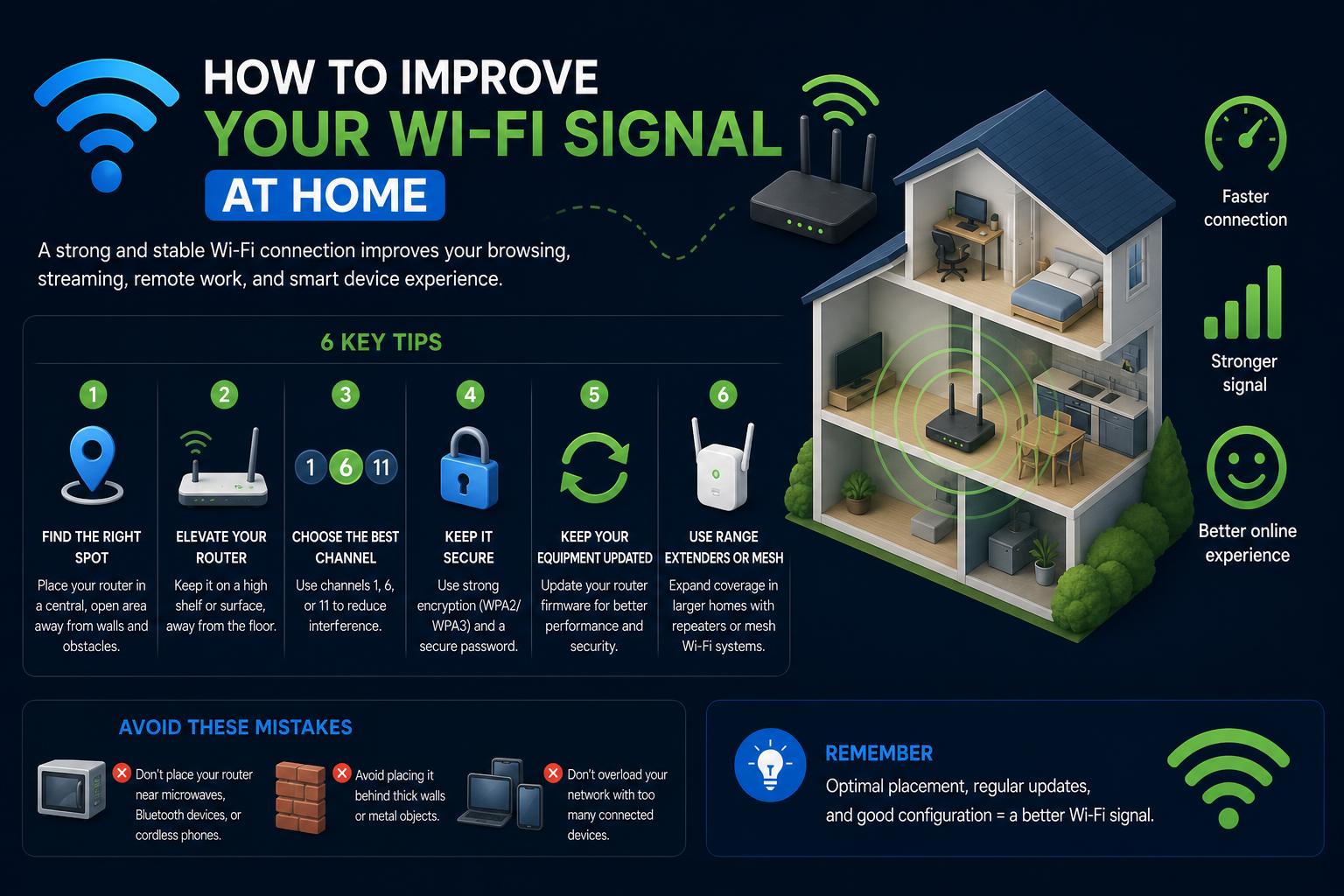
- Optimizing router placement and settings dramatically enhances WiFi strength and reduces dead zones.
- Using modern solutions like mesh networks, extenders, and powerline adapters can expand reliable coverage throughout multi-story homes.
- Upgrading to newer standards (WiFi 6 or 7 routers) manages bandwidth better, improves speed, and supports many smart devices.
If you’re battling with slow WiFi, dead zones, or weak signals at home, you’re not alone. In the era of smart homes, streaming services, and remote work, a robust wireless connection is no longer a luxury but an essential lifeline. Between thick walls, aging hardware, and households packed with devices, understanding how to seriously boost your WiFi signal at home can feel overwhelming. But don’t worry—after diving into the best advice from networking experts, major router brands, and tech-savvy communities, we’ll walk you through every proven tip and new trick you need to transform your WiFi experience.
Stop struggling with dropped video calls, slow downloads, and buffering Netflix marathons. This in-depth guide, blending advanced know-how and simple hacks, is tailored for everyone—from casual users wanting a quick fix to tech enthusiasts hoping to tweak every last detail. Ready? Let’s explore how to maximize your WiFi—room by room, device by device.
Why Your Home WiFi Signal Drops
Poor WiFi isn’t just bad luck. It’s usually a mix of environmental issues, hardware limits, and more. Here are the main culprits that lead to sluggish connections:
- Physical Obstacles: Concrete, brick, bookshelves, mirrors, large appliances, and even water in fish tanks can heavily degrade signal strength. The more walls your WiFi passes through, the weaker it becomes.
- Distance from Router: The farther you are from the wireless source, the poorer the connection. Even the fastest routers lose punch at the home’s edges.
- Interference: Other electronic devices—microwaves, cordless phones, baby monitors, and old Bluetooth gadgets—broadcast radio waves that can disrupt your WiFi. Neighbors using the same WiFi channel also cause interference, creating congestion—especially in apartment buildings.
- Load and Congestion: Lots of devices (TVs, laptops, phones, tablets, smart bulbs, etc.) can max out your WiFi bandwidth. Large or older families may notice slow speeds as more gadgets hop on the WiFi train.
- Router Placement: A router hidden in a closet, behind a TV, or shoved under a cabinet won’t serve your home effectively—no matter how new it is. Height and central position matter!
- Old or Outdated Equipment: Aging routers (WiFi 5 or older), old firmware, and cheap extenders often struggle with heavy modern usage and can result in frequent drops or buffering.
Start With the Basics: Router Placement and Environment
Get the most from your gear before buying anything new. Little changes in your router setup make a huge difference:
- Central Location: Place your router midway between the areas where you use internet most. Avoid corners, closets, or low-lying shelves—aim for a spot out in the open, halfway up a wall or on a raised shelf.
- Avoid Obstacles and Interference: Keep your router far from microwaves, cordless phones, TVs, fridges, aquariums, thick cement, or metal. Even adjusting the antenna or the router’s angle can help if your model allows.
- Consider Aesthetics: If you’re tempted to ‘hide’ an ugly router, consider investing in one that looks good enough to leave in plain sight. Signal strength matters more than style!
- Elevation: Routers work best when placed higher—signals radiate downward as well as sideways. Avoid putting them on the ground.
- DIY Reflectors: For signal weak spots, you can try crafting a simple parabolic reflector behind your router using cardboard covered in aluminum foil. This can help direct more signal power to hard-to-reach rooms. Learn more about wireless signal reflection at Wikipedia: Wi-Fi Positioning.
Tweak Your WiFi Settings and Network Health
Before you shell out for new equipment, try tuning what you already have:
- Switch WiFi Channels: Routers in your area may jam up the same channels, causing signal overlap. Log into your router admin page and move to a less crowded channel. For 2.4GHz, channels 1, 6, and 11 tend to be the least prone to interference. Use WiFi analyzer apps for Android or NetSpot for Windows/macOS to find the clearest frequency band. Visit NetSpot for site surveys and channel suggestions.
- Switch to the 5GHz Band: If your device and router support dual-band networking, opt for 5GHz for less-crowded frequencies and better speeds (though range is shorter).
- Disconnect Unused Devices: Log into your router’s admin to track gadgets hogging bandwidth and disconnect those you don’t often use (especially old tablets, smart TVs, or forgotten phones).
- Update Router Firmware: Manufacturers often update their software to improve security and performance. Check for firmware updates in your router’s admin menu and apply any available upgrades.
- Restart Devices Regularly: Sometimes, a simple reboot of your router can clear memory leaks or channel congestion issues, especially after power surges or long-term uptime.
Unlocking the Secrets: A Deep Dive into Hidden Features in Windows 11
Modern Solutions: Mesh Networks, Extenders, Powerline, and More
Is your home too big for one router? Experiencing dead zones even after optimizing placement? Let’s look at the top technologies to stretch your signal further:
WiFi Range Extenders and Boosters
Extenders work by picking up your main router’s signal and re-broadcasting it to new areas. These are best placed halfway between the router and your dead zone, ideally where the original signal is still at least 50% strength. Extender pros: affordable, fairly easy to set up; cons: they often create a new network name (SSID), and speeds past the extender may drop. Try a tri-band extender, which uses a dedicated band for ‘talking’ to the main router, so your devices don’t fight bandwidth.
Find more about placement and best practices at TP-Link’s Range Extender FAQ.
Mesh WiFi Systems
Mesh networks like Netgear Orbi, TP-Link Deco, and Google Nest WiFi are game-changers for large or multi-story homes. They link multiple nodes into one seamless network, automatically handing off your device to the strongest connection as you move. Advantages include a single SSID for the entire property, self-repairing node connections, and superior coverage—all without drops or complex setups. Many modern options support the latest WiFi standards (WiFi 6/6E/7) for extra speed and capacity. TP-Link’s EasyMesh and OneMesh offer more affordable entry points for those who already have compatible TP-Link hardware.
If you already own a compatible mesh router, simply add a satellite or repeater in your dead zone (see for how-tos).
Powerline Networking Adapters
Powerline adapters transmit internet data through your home’s electrical wiring. They’re handy in homes where WiFi can’t penetrate thick walls or where Ethernet cabling isn’t possible. Just plug in a powerline kit—one by your router, one where you need signal—and it functions like a wired or even wireless access point in another room.
Important: Both adapters need to be on the same electrical circuit (breaker). Results may vary in very old houses or if circuits are split.
Discover more about this solution at .
Upgrade to WiFi 6 or WiFi 7 for the Ultimate Boost
Invest in a WiFi 6 (802.11ax) or even WiFi 7 router for future-ready connectivity. These routers are not only faster, but handle many devices at once thanks to technologies like OFDMA, MU-MIMO, and advanced channel management. WiFi 6 routers excel at allocating bandwidth wisely, lowering latency, and providing smoother connections across video calls, gaming, and 4K streaming—even with a house full of family or smart devices.
The latest models, like the Netgear Nighthawk RS700S or Orbi 970 Series, combine advanced antenna designs, beamforming for targeted range, and robust tri-band or quad-band support for crowded environments. Always check if your new router supports modern security like WPA3 and automatic updates.
[relacionado url=”https://www.ikkaro.net/how-to-show-outlook-calendar-on-desktop-in-windows-11/”]
Advanced Tweaks: Channel Bonding, QoS, and Placement Tricks
If you’ve gotten this far and still crave more juice or reliability, try these deeper, mostly software-based tweaks:
- Channel Bonding: Modern routers can combine two channels for higher throughput. However, be cautious; if neighbors are doing the same, congestion might rise, hurting stability more than it helps. Use signal analyzer tools to check congestion before enabling.
- Quality of Service (QoS) & Application Layer Gateway (ALG): In your router settings, prioritize traffic for important tasks (streaming, gaming, VoIP). ALG features let you set top priority for things like Zoom or Xbox Live. Not all routers support this, but those that do can make a real difference during peak hours.
- Antennas and Orientation: If your router has external antennas, experiment with their direction and angle. Often, vertical for horizontal coverage and horizontal for multi-story coverage is recommended, but try different setups and test with a WiFi analyzer.
- Diagnostics and Mapping: Tools like allow you to create detailed heatmaps of your home, revealing dead zones and interference areas so you can place extenders or mesh nodes accurately for maximum benefit.
What is Bing Maps? Complete Guide, Features & Global Coverage
Free and Easy Steps to Try Right Now
Need a quick fix while you wait for new gear? These free, simple steps from experienced internet users often generate rapid improvements:
- Move Your Router Somewhere Central and Elevated. Just relocating your router can cure weak rooms instantly.
- Keep It Away from Appliances. Don’t let microwaves or TVs hog the neighborhood airwaves.
- Switch Channels and Bands. Reduces crowding and fights interference.
- Kick Off Little-Used Devices. Each one fighting for bandwidth slows everyone down.
- Make Sure Firmware Is Always Current. Security and speed both depend on regular updates.
Flipper One: The Next Generation Digital Multi-Tool Explained — Specs, Features, Comparisons and Release Updates
Comparing All Your Options: Which Tech Is Best For Which Home?
| Solution | Best For | Setup Difficulty | Reliability |
|---|---|---|---|
| Range Extender | One-story, spot coverage | Easy app setup | Fair |
| Powerline Adapter | Thick walls, same power circuit | Plug and play | Good |
| Mesh System | Large/multi-story homes, seamless roaming | Easy app setup | Great to Excellent |
| WiFi 6/7 Upgrade | Device-heavy households, best speeds | Standard router setup | Excellent |
What About Wired Connections?
Cables may not be glamorous, but Ethernet still guarantees the strongest connection. Whenever possible, wire your work or gaming computer directly to the router, then use WiFi for less demanding gadgets. Powerline adapters come close, but pure Ethernet is unbeatable in speed and stability.
For permanent installations, consider running hidden flat Cat6 cables behind baseboards between rooms or floors. Even a partial wired approach with an access point on each floor can mean less strain on your WiFi.
Keep Security Top Of Mind
Don’t forget the modern risks of a connected home. Strong passwords, WPA3 encryption (if available), and regular router firmware updates will all help keep your WiFi safe from neighbors, hackers, and opportunistic freeloaders. Routers with security suites like Netgear Armor (powered by Bitdefender) even automate updates, monitor vulnerabilities, and add features like built-in VPN support.
Latest Innovations and What to Watch For
- WiFi 7 routers provide up to 2.4x the speed of WiFi 6—look for Multi-Link Operation (MLO) and extra channels for even less congestion.
- Mesh systems are starting to offer Ethernet and Powerline backhaul, meaning mesh nodes can talk through wires as well as wirelessly for top reliability.
- Newer antenna technologies like beamforming auto-target devices, improving 360º coverage versus earlier “spray and pray” methods.