
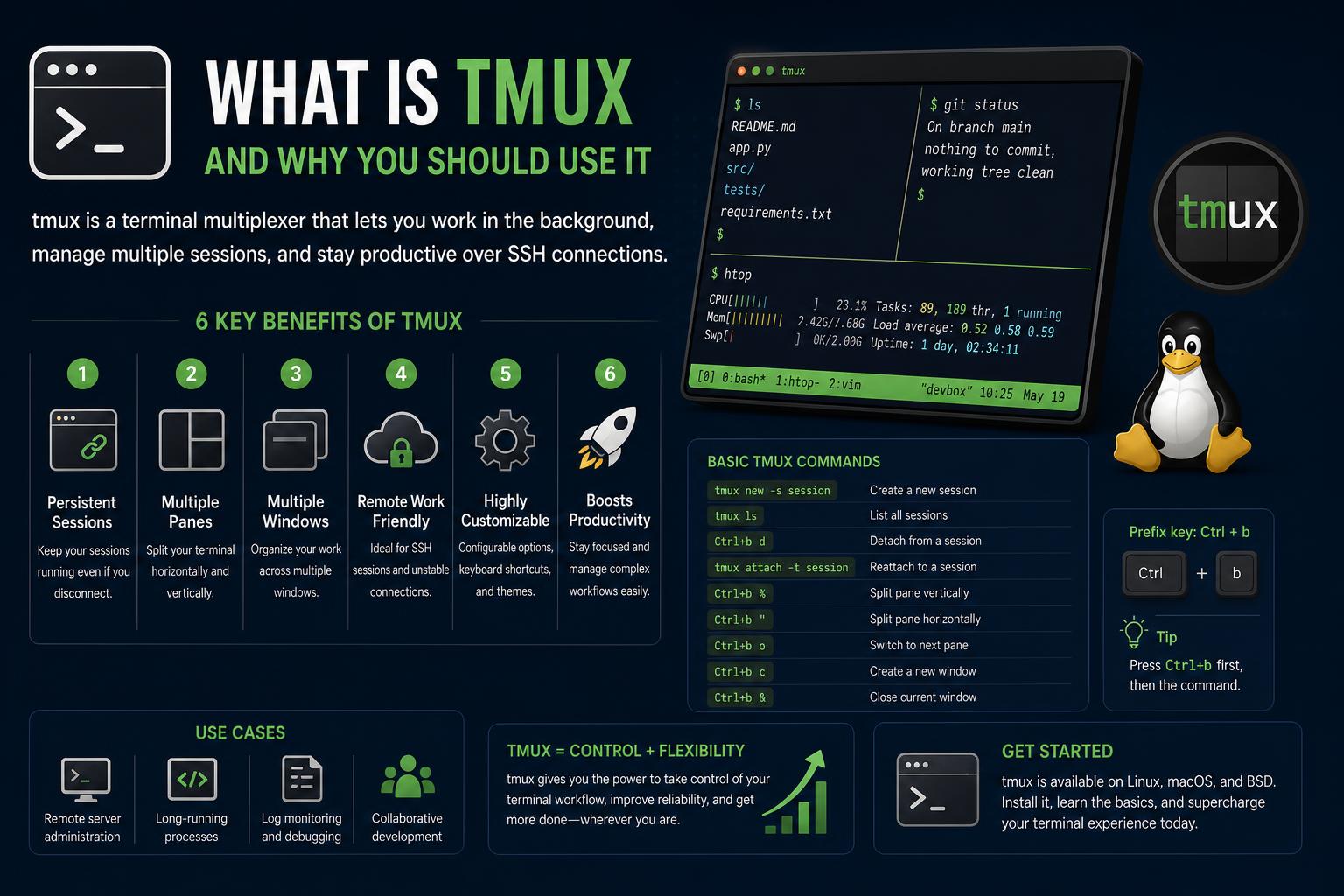
- tmux enables running, splitting, and managing multiple terminal sessions concurrently within a single window, offering flexibility for development, system administration, and remote work scenarios.
- The core concepts of tmux—sessions, windows, and panes—provide a powerful organizational structure that enhances productivity and workflow customization far beyond default terminal applications.
- tmux sessions persist after detaching or losing connections, allowing secure and seamless SSH workflows, as well as sophisticated multitasking, both locally and remotely.
- Comprehensive configuration, scripting, plugins, and keyboard shortcuts empower users to tailor tmux to personal and professional needs, integrating with tools like Vim, creating workflows for multiple projects, and boosting command-line efficiency.
If you’ve ever juggled far too many terminal windows, desperately tried not to lose your place while SSHing into a remote machine, or wished your command-line workflows were a little more like a well-organized control room, a tool named tmux might just change your life. For both casual developers and command-line power users, tmux is that Swiss Army Knife you’ve always wanted: it lets you open, manage, split, and persist multiple terminal environments—no chaos, just productivity. But what is tmux, really? What can it offer you if you embrace its quirks and strengths?
Let’s set the stage: You’re deep in the zone, tabs everywhere, SSH connections open, processes running, maybe a Vim session here and a shell script there. Suddenly, your Internet fries, or you switch computers, or you’re simply lost among all those open windows. With tmux, not only can you secure your running processes from such headaches, but you can also split your terminal like pieces of a puzzle, jump flexibly between workspaces, and resume without skipping a beat—regardless of which machine or terminal emulator you’re using. Whether you’re new to terminal multiplexer concepts or already scripting tmux for advanced scenarios, this guide is your companion for making the most of every keystroke.
What Is tmux? Understanding Terminal Multiplexers
tmux, which stands for ‘terminal multiplexer’, is a program that allows you to run and control multiple independent terminal sessions within a single window or remote connection. You can also check out this resource to learn how to get even more out of tmux in advanced environments (https://www.ikkaro.net/android-17-linux-terminal/).
Why do people love tmux? The practical reasons are many:
- Simultaneous Work Environments: You can have an editor here, logs there, servers running in one pane, while monitoring performance in another.
- Persistence: Processes keep running even if your terminal closes, disconnects, or you step away. You can leave and return later, right where you left off.
- Remote Work: Especially over SSH, tmux protects your work from being destroyed if the network drops by keeping sessions alive on the server.
- Customization: Tmux is deeply customizable, with extensive configuration options, scripting capabilities, and plugins making it a staple in many power-user toolkits.
In short, tmux doesn’t just let you split a terminal—it brings order, convenience, and a powerful organizational structure to your work, turning a simple shell into something like a robust desktop environment for the CLI. If you’ve used GNU Screen, tmux builds on similar ideas but with cleaner, more modern code and better extensibility.
Fundamental Concepts: Sessions, Windows, and Panes
To really understand tmux, you need to grasp three key concepts that make everything work: sessions, windows, and panes. Once you’ve mastered these, you’ll be able to design custom terminal workspaces in no time.
Sessions
A session is your top-level container in tmux. Every time you start tmux, you create a new session. Sessions can represent different projects, remote connections, or workflows. You can have several sessions running in the background, each disconnected from the outside world until you decide to attach (or switch) to it.
- Session = collection of windows and their panes.
- They can stay active (and running) even if you disconnect or close the terminal.
- You can then reattach to any session from anywhere—it’s like teleporting your entire CLI workspace between devices or terminals.
Learn how to get the most out of tmux and other commands in these terminal guides to boost your workflow.
Windows
Within each session, tmux organizes your work using windows. Each window works like a full-screen terminal that can be split into panes. You can switch windows, name them (for example, ‘deployment’, ‘logs’, ‘editor’), and treat them as separate workspaces within your session.
- Window = grouping of one or more panes, representing a task or subset of your project.
- Switching windows is instant and the content stays active—if you leave a build running, it will keep going while you work in another window.
- Windows have indexes (numbered, or optional custom names), which you can use for shortcuts and navigation.
Panels
Panes are where multitasking becomes real. Within a window, you can split the view into multiple ’tiles’ or panes, each running its own program, command, or shell. You can split them horizontally or vertically, move them, resize them, and even sync input across all of them if needed.
- Pane = an individual terminal running within a window of a given session.
- They can be split, resized, expanded/shrunk, and moved independently.
- You can interact with each pane as if it were its own terminal.
The key? They all work together: you can have one session for work, with several windows for projects or tasks, and each window split into panes according to your workflow.
Real-World Scenarios: Why tmux Is Great
1. Remote Development and SSH
One of tmux’s most powerful features is its resilience in remote environments. Imagine you’re connected via SSH to a remote server, running long processes or builds. Without tmux, a dropped connection would likely mean lost output or interruptions. With tmux, you simply detach from your session, and later (even days later) reconnect and pick up exactly where you left off—your processes keep running without interruption.
2. Managing Multiple Projects and Workflows
tmux is excellent for developers juggling many projects, each with its own directory, dependencies, and running processes. For example, you can create a session called ‘clientA’, with windows for ‘frontend’, ‘backend’, ‘database’, and ‘logs’. Each window can be split into panes with editors, tests, and console output. Need to switch to ‘clientB’? Detach and reattach to the next session.
3. Simultaneous Tools, Editors, and Monitors
tmux turns your shell into a productivity cockpit. Maybe you want to watch log files, run live commands, monitor a Kubernetes cluster, and edit code, all at the same time. With tmux, you can split the panes however you like, with each one as independent as you want. Frequent users set up custom layouts that mirror their daily routine—editor in one pane, server output in another, deployment tools in a third.
4. Teams, Pair Programming, and Teaching
Because tmux can have several clients connected to a session at the same time, it’s ideal for pair programming. Two or more people can connect to the same tmux session, collaborate live, and see each other’s actions in real time—perfect for remote code reviews, debugging, or teaching CLI concepts.
Getting Started: Installation and First Steps
How to Install tmux
tmux works on almost any Unix-like operating system—Linux, macOS, *BSD, and even on Windows via WSL or Cygwin. On most Linux distributions, you can install it directly from your package manager:
- Debian/Ubuntu:
sudo apt install tmux - Fedora/Red Hat:
sudo dnf install tmux - Arch Linux:
sudo pacman -S tmux - macOS (with Homebrew):
brew install tmux
Want to check the installation? Type tmux -V to see the installed version.
Starting a tmux Session
To start your first tmux session, simply run the ‘tmux’ command:
tmuxYou’re now in a default session (often called session 0), with your first window and pane acting as your usual shell environment. You can start running commands normally.
Detaching and Reattaching
tmux’s real value shows when you detach from your session and come back to it later. To detach, use the prefix key (by default Ctrl+b, sometimes called the ‘tmux leader’) followed by d:
Ctrl+b dYour tmux session is now running in the background—safe and waiting for you to return.
To reattach, list the available sessions:
tmux lsThen, with:
tmux attach -t session_number_or_nameIf you only have one session, tmux attach or even tmux a is enough.
Organizing Your Work: Sessions, Windows, and Panes in Detail
Creating and Managing Sessions
You can create a new session (with a custom name) like this:
tmux new -s my_sessionList all current sessions:
tmux lsAttach to a specific session:
tmux attach -t my_sessionKill a session (from outside or inside tmux):
tmux kill-session -t my_sessionCreate a new window:
Ctrl+b cSwitch between windows:
Ctrl+b n # Next window Ctrl+b p # Previous windowSwitch by number:
Ctrl+b 0 # Window 0 Ctrl+b 1 # Window 1 ... up to 9Rename a window for easier management:
Ctrl+b ,Panes: Splitting and Managing Your View
Split the current window vertically (pane on the right):
Ctrl+b %Split horizontally (pane below):
Ctrl+b "Move between panes (with arrow keys or hjkl):
Ctrl+b (Arrow) or Ctrl+b h/j/k/lSwap or move panes:
- Move to the previous pane:
Ctrl+b o - Rotate panes:
Ctrl+b Ctrl+o - Move pane left/right:
Ctrl+b {andCtrl+b } - Kill current pane:
Ctrl+b x
Dynamically resize panes using Ctrl+b together with the arrow keys (for fine adjustments):
- Small step:
Ctrl+b Ctrl+arrow - Large step:
Ctrl+b Alt+arrow
To zoom a pane to full screen and have it fill the whole window:
Ctrl+b zHandy Values: tmux’s Key Combinations
The beauty of tmux lies in fast navigation and control via keyboard shortcuts. Here are the ones you’ll use every day:
- Launch tmux:
tmux - Detach the session:
Ctrl+b d - List sessions:
tmux ls - Connect to a session:
tmux attach -t session_name - New window:
Ctrl+b c - Next/Previous window:
Ctrl+b n/Ctrl+b p - Rename window:
Ctrl+b , - Split pane vertically/horizontally:
Ctrl+b %/Ctrl+b " - Navigate between panes:
Ctrl+b arrowsorCtrl+b h/j/k/l - Kill pane/window:
Ctrl+b x/Ctrl+b & - Zoom a pane:
Ctrl+b z - Show all shortcuts:
Ctrl+b ?
For a complete reference, check the manual or the official tmux wiki.
Status Bar and Visual Customization
tmux’s interface is more than functional—it’s designed to give you context at a glance and quick access to your workspaces via the status bar.
The Status Line
By default, tmux shows a status bar at the bottom of the terminal. The status line shows your session, window names and indexes, the active window (usually highlighted), and useful system info (host, time, date).
- The left side shows the attached session (e.g., ”).
- The center shows all window names, their indexes, and highlights the active one.
- The right side shows the current host, time, and date.
Customizing the Status Bar
The status bar is highly customizable via the .tmux.conf configuration file. You can display more information, change colors, add battery indicators, or run embedded commands for dynamic content. For example:
- Change bar color:
set -g status-style bg=cyan - Set inactive window color:
set -g window-status-style bg=yellow - Highlight current window:
set -g window-status-current-style bg=red,fg=white
You can create scripts and styles for almost every interface element, from status bar widgets to how window titles are displayed, using tmux’s built-in formatting and embedded shell expressions.
Not everyone is a keyboard purist—tmux can also use the mouse. While keyboard shortcuts are the fastest way, you can enable mouse support to select, resize, or drag panes/windows, switch tabs, and interact with context menus (starting with tmux 3.x):
- Enable mouse mode (temporarily): From within tmux,
Ctrl+b :to access the internal command line, then: set -g mouse on- Now you can click and drag pane borders, select windows, or interact with right-click pop-up menus.
To make this permanent, add set -g mouse on to your .tmux.conf file.
Configuration: Take Control of Your Environment
tmux’s true power is unlocked when you customize it to fit your working style. tmux uses a configuration file—~/.tmux.conf—to store custom shortcuts, status bar layouts, color schemes, plugins, and more.
Key Configuration Options
-
- Change the prefix key: If
Ctrl+bfeels uncomfortable or conflicts with other tools, you can change it, for example, toCtrl+a(like GNU Screen) with the following in.tmux.conf:
- Change the prefix key: If
set -g prefix C-a unbind C-b bind C-a send-prefix- Customize pane behavior: For example, turn on synchronization (typing into all panes at once) or change automatic layouts.
- Configure navigation keys between windows and panes: You can map
Alt+arrowsto switch between panes if you prefer.
Example Settings in .tmux.conf
# Change status bar color set -g status-style bg=blue # Show only the time on the right set -g status-right '%H:%M' # Underline the current window set -g window-status-current-style 'underscore' # Enable mouse set -g mouse onSave and reload your configuration live:
tmux source-file ~/.tmux.confThere’s a lot to explore. For inspiration, check out open-source configuration repositories or the wiki.
Command-Line Power and Scripting
tmux isn’t just for manual, interactive use. It’s ideal for scripting and automation. You can launch, attach, kill, and manipulate sessions, windows, and panes from shell scripts, making tmux the foundation for robust remote administration, CI/CD infrastructure, or reproducible development environments (think: instantly reopening 10 split panes with tests, servers, and editors in seconds).
- Script sessions to launch projects, servers, or ephemeral development environments.
- Combine with tmux-resurrect to save and restore full layouts after restarts.
- Send pane output to files, other programs, or share it in real time with others.
Copy, Paste, and History
If you’re tired of using the mouse to copy and paste in terminal sessions, tmux has its own powerful system for managing the scrollback buffer and clipboard. Enable copy mode with:
Ctrl+b . Named and unnamed paste buffers can be managed, and with the right configuration, tmux can integrate with the system clipboard for smooth copying and pasting.This system helps with research, code reviews, or data processing, making it easy to copy log output or results without hassle.
Advanced Features: Floating Panes, Layouts, Tree Mode, and Menus
Floating Panes (tmux 3.8+)
Floating panes let a pane sit on the surface (like a pop-up window) above the current grid layout. Use Ctrl+b * to create a floating pane; you can then move and resize it independently, even with the mouse.
Layouts: Organize with a Single Tap
Switch between different automatic layouts:
- Even horizontal layout:
Ctrl+b M-1 - Even vertical layout:
Ctrl+b M-2 - Main horizontal (one large pane and others split):
Ctrl+b M-3 - Main vertical:
Ctrl+b M-4 - Tiled:
Ctrl+b M-5
Tree Mode: A Visual Browser
Browse your sessions, windows, and panes visually with tree mode:
- Start it with
Ctrl+b s(sessions) orCtrl+b w(windows). Use the arrow keys to navigate, mark, select, or bulk-delete. - The preview below the list helps you identify what’s in each pane/window/session.
Menus and Client Management
tmux includes context menus and a client mode for managing multiple connections to the same session. Right-click for pop-up menus, and use Ctrl+b D to manage clients (detach, kill, preview active sessions, etc.).
Plugins: Take tmux to the Next Level
One of the secrets behind tmux’s lasting popularity is its vibrant plugin ecosystem, easily managed through the plugin manager (tpm). With plugins, you can:
- Save and restore workspaces with
- Keep scrollback history across restarts with tmux-continuum
- Get status bar enhancements, weather, battery, and more
This extensibility lets tmux keep pace with every new generation of terminal workflows.
Behind the Scenes: tmux’s Server, Clients, and Architecture
tmux operates on a client-server architecture. The tmux server starts automatically when you run the first command; all your session, window, and pane data stays safe on the server, and clients (i.e., your terminals) connect and disconnect seamlessly.
- All active state is managed by the server process, ensuring you never lose your work when switching terminals (or even computers, as long as you reconnect).
- Clients are the interface you use to interact with tmux. You can have multiple clients connected to the same session—all viewing and editing the same windows and panes in real time.
Digging Deeper into Configuration: Advanced Tips
tmux’s configuration system is very thorough—it handles environment variables, embedded commands, and more. Configuration files (.tmux.conf) are parsed when the server starts, letting you:
- Define custom prefixes, colors, and formats
- Pass environment variables to child processes
- Switch between
viandemacsshortcuts in copy mode - Add scripts and hooks for complex automation (for example, launching specific programs on load or reconfiguring the status bar on specific triggers)
- Comment and structure your configuration to share with a team or on GitHub
Want to load an alternate configuration without restarting? Use:
tmux source-file /path/to/fileAlthough tmux’s configuration isn’t a full scripting language, its features (such as variable expansion, embedded commands, and conditionals) allow for great flexibility for advanced users.
Working with Copy Mode and Paste Buffers
tmux includes a powerful copy mode system for navigating and manipulating terminal output beyond standard scrolling and selection.
- Enter copy mode with
Ctrl+b - Manage buffers, including named paste buffers (with commands like
set-buffer,load-buffer,save-buffer) - Integrate with the system clipboard for easy copying and pasting into graphical applications (with additional configuration or plugins)
This system helps with research, code reviews, or data processing, making it easy to copy log output or results without hassle.
Key Terminology and tmux’s Ecosystem
tmux introduces its own unique terminology:
- Session: Top-level collection of windows and panes
- Window: Full-screen terminal within a session, containing panes
- Pane: Subdivision of a window, each running its own program
- Client: Terminal instance connected to the tmux session or server
- Prefix key: Shortcut that triggers tmux commands (by default,
Ctrl+b) - Status line: Information at the bottom (or top, if configured) of your terminal
- Tree mode: Visual, navigable browser of sessions, windows, and panes
For full details and command references, check the wiki.
Options, Styles, and Formats: Make Your tmux Perfect
tmux is defined by its options—and with hundreds available, you can configure every aspect of the interface to your liking. Some useful options include:
- base-index — Start window numbering from 1
- mouse — Turn mouse support on/off
- status-position — Move the status bar to the top or bottom
- renumber-windows — Automatically renumber windows after deleting them
- focus-events, set-titles, status-keys — Adjust window focus, titles, and bar behavior
- style keys — Define display attributes and colors (from
fg=redto#ff8800for custom colors)
tmux for Advanced Users and Scripting
Advanced users see tmux as much more than a utility—it’s the foundation of their entire work environment. With scripting, you can:
- Automate environment setup for projects
- Run repeatable window and pane configurations in CI, dashboards, or monitoring
- Trigger hooks on events (e.g., running diagnostics when attaching sessions, logging status bar changes)
- Chain commands to automate workflows (combining
new-session; split-window; send-keys, etc.)
Check the advanced section of the wiki to get started with complex scripting and plugins.
Best Practices to Get the Most Out of tmux
Here are recommended strategies for the best tmux experience:
- Define sessions around broad themes (like ‘work’, ‘devops’, ‘personal’), with specific windows and panes for subtasks.
- Always name your sessions and windows for quick reference— avoid attaching to meaningless numbers or strings.
- Keep your configuration under version control so you can restore it or easily share it with your team.
- Explore the plugin ecosystem: Install TPM and check out ready-made plugins on GitHub to extend your setup.
- Learn the most useful shortcuts—they’re your secret weapon for speed, well worth memorizing!
- Stay up to date: tmux is under active development, and new features like floating panes, tree mode, and client management can make your workflow even more powerful.
Check out community guides, dotfiles, and screencasts for practical ideas—there’s tmux content for every learning style.
Useful Resources and Where to Learn More
- tmux Project on GitHub
- Red Hat: Beginner’s Guide to tmux
- tmux Plugins Project
- lars-ellingsen.dev/blog/tmux
- tmux Guide at Swarthmore College
If you ever get lost or want to see what’s new in the latest version, always check the or subscribe to updates on GitHub.
Android 17’s Linux Terminal: Complete Guide to New Features, Customizations, and Power User Updates