
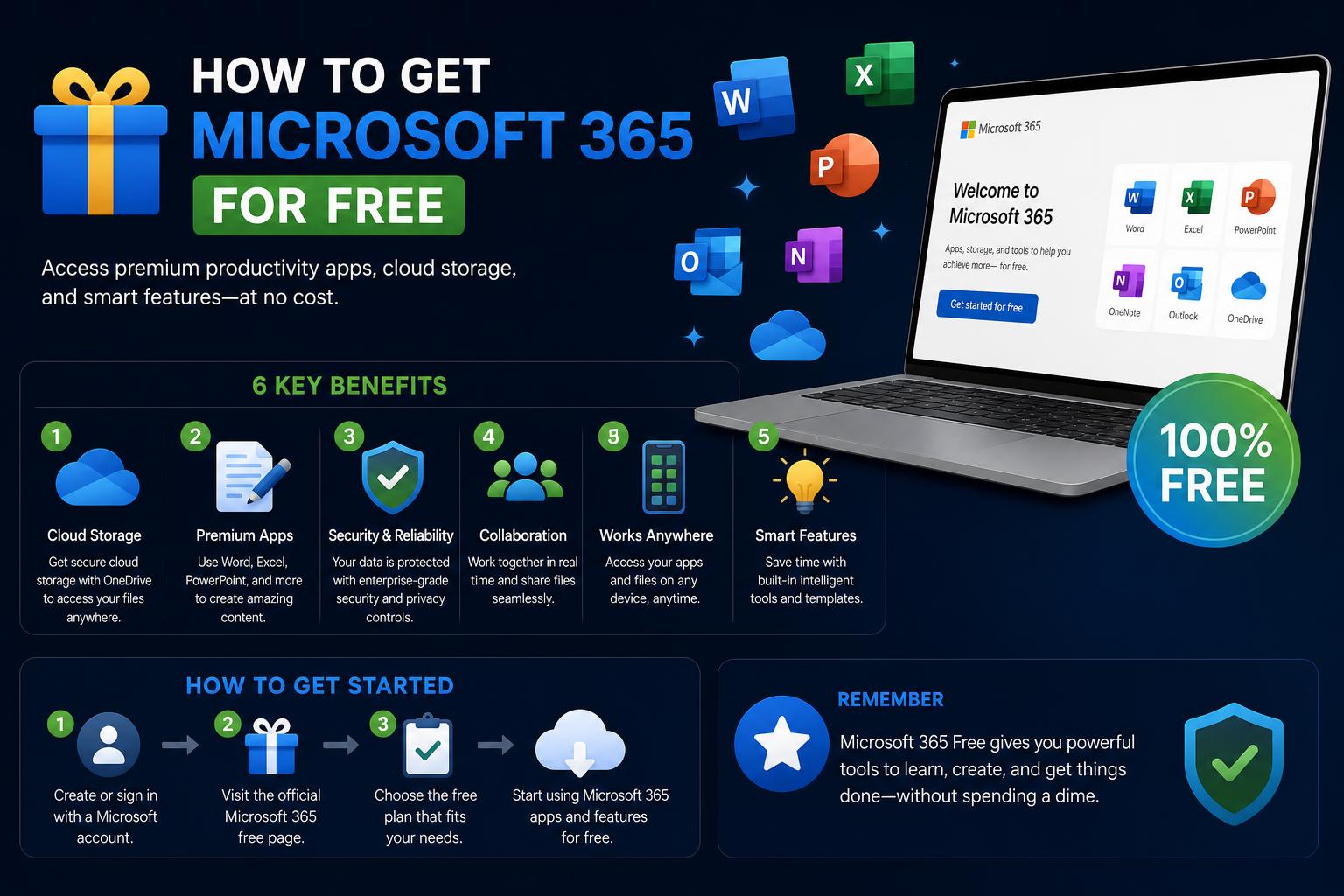
- Microsoft 365 offers free access for students, teachers, and via online apps.
- The main limitations of the free version relate to features and offline usage.
- Free trials and education programs can unlock premium functionality for some users.
- Choosing the right option depends on individual needs for features and access.
Microsoft 365 has become an essential toolkit for millions of people worldwide, offering a suite of productivity apps like Word, Excel, PowerPoint, Outlook, and more. Most users know it as a paid service—after all, a premium subscription is the standard option at home, in businesses, and at educational institutions. But did you know there are legitimate ways to access many of these tools without paying a dime? If you’re budget-conscious, a student, teacher, or just someone exploring your tech options, you might be wondering: Is it actually possible to get Microsoft 365 for free?
Good news: Not only is free access to Microsoft 365 possible, but it’s available to more people than you might expect—and through more than one method. The key? There are some important limitations, and the best option will depend on your situation. In this guide, we’ll explore all the reliable ways to use Microsoft 365 for free in 2024, detailing who qualifies, what you actually get, and what you should keep in mind to make an informed decision about your productivity needs.
The Essentials: What Is Microsoft 365 and Why Do People Want to Get It for Free?
Microsoft 365, formerly known as Office 365, is Microsoft’s flagship productivity suite. It includes classic applications like Word, Excel, PowerPoint, and Outlook, alongside cloud storage with OneDrive and advanced collaboration tools. The suite is available via a recurring paid subscription for individuals, families, and businesses, with monthly or annual plans.
Many users opt for free alternatives like Google Docs because Microsoft subscription costs—which usually range from $70 to $100 or more per year—can add up. However, countless users prefer Microsoft 365 for its familiar interface, advanced features, and broad compatibility. So, how can you gain access if you don’t want to pay?
Option 1: Microsoft 365 Education – Completely Free for Students and Teachers
If you are a student, teacher, or school staff member, you might be eligible for full, free access to Microsoft 365 through the Microsoft 365 Education program. Here’s how it works:
- Requirements: You need a valid and active email address from a qualified educational institution. Usually, that means your email ends in .edu or is recognized by Microsoft’s system.
- What’s included: Free access to web versions of Word, Excel, PowerPoint, Outlook, and OneNote, plus classroom tools like Teams. In many cases, you will also be able to install the premium desktop apps on your computer, depending on your institution’s agreement with Microsoft.
- How to sign up: Go to the official website, enter your institutional email, and Microsoft will verify your eligibility. Some users are verified instantly, while others may take up to 30 days.
This is by far the most complete free option for Microsoft 365—if you qualify, you get access to the full power of the suite at no cost. It is a huge help for students learning digital skills and teachers managing classrooms.
How to Fix “Try Connecting Your Device Again” Bluetooth Error on Windows 11
Option 2: Microsoft 365 Web Apps – Completely Free (with Some Limitations)
Anyone with a free Microsoft account can use Microsoft 365 web apps at no cost. Although you don’t get every single feature, the basic capabilities are fully functional in your browser, replicating key functions of traditional desktop applications.
- Main available apps: Word, Excel, PowerPoint, OneDrive, Outlook, and Clipchamp can be used online for free.
- Simple access: Visit the official Microsoft page, create or log in with your Microsoft account, pick the app, and start working right away—no downloads required!
- Save and collaborate: All your documents are stored in OneDrive, and you can collaborate in real time with other users, similar to Google Docs.
What’s the catch? These web versions are “stripped-down,” meaning they only work in browsers and lack the advanced features found in full Microsoft 365 licenses. You will need an active internet connection to work, and certain integrations (especially for advanced formatting, macros, or offline access) are unavailable.
However, for many home users, students, or anyone who just needs the basics, they offer plenty of power for word processing, making presentations, and managing spreadsheets without paying a cent.
Complete Windows 11 Printer Setup Guide: Installation, Drivers and Troubleshooting
Option 3: Microsoft 365 Free Trials – Experience Premium Features Temporarily
Want to test all the features of the full suite before committing? Microsoft typically offers a one-month free trial of Microsoft 365 Family, which unlocks all premium desktop and mobile features.
- How to use it: Sign up for the free trial on the Microsoft 365 page. You will need to provide payment details, but you won’t be charged as long as you cancel before the month ends.
- After the trial: If you don’t cancel on time, you will be charged (usually between $100 and $130 for a year of Microsoft 365 Family). Remember to set a reminder!
- Who is it ideal for? For anyone needing full capabilities for a short period, while traveling, or to test new features before subscribing.
Note: Occasionally, you can get additional trial months through promotions, especially if you are a university student with a valid school email.
What Is Microsoft PowerToys? The Ultimate In-Depth Guide for Windows Users
Option 4: Special Student Offers – Extended Free Access
In some regions, Microsoft offers university students additional perks, such as Microsoft 365 Personal free for three months, after which the subscription can be maintained at a heavily discounted rate. For instance, students using a verified school email can unlock several months of premium access at no cost and then pay as little as $5 per month—well below the standard $10 monthly price.
For higher education students: Check your eligibility and keep an eye out for regional or university-specific promotions. This can yield significant savings throughout your studies.
How to Show Outlook Calendar on Desktop in Windows 11: The Complete Guide
How Do the Free Options Compare? Features, Limitations, and What to Expect
Before skipping payment, make sure you understand what free versions offer and what they don’t. Here is a quick breakdown:
- Free Web Apps: Ideal for editing, collaborating, and sharing in Word, Excel, PowerPoint, and more. They include cloud storage on OneDrive (with limited space) and can be accessed from any device with a browser. However, they cannot be installed for offline use, and several advanced features are missing.
- Microsoft 365 Education: If you are a verified student or teacher, this is the most complete free experience—and you might be able to install desktop versions, depending on your institution’s agreement.
- Free Trial: Full access for a short duration. Afterward, you must pay or stop using it.
Key limitations for free users:
- No offline mode: They only work online, which is great for cloud collaboration but problematic if your connection is poor.
- Reduced features: Some advanced tools (such as macros, advanced data analysis, or specific integrations) are restricted to paid versions.
- Occasional ads: In some cases, free web versions may display ads.
- Storage: OneDrive storage space is limited on the free tier.
Are There Legitimate Ways to Get the Full Desktop Apps Entirely for Free?
Only students and teachers who qualify for Microsoft 365 Education can obtain the desktop apps for free. For everyone else, Microsoft no longer offers standalone versions of desktop applications for free to the general public, and methods found on unofficial sites are usually illegal or unsafe.
If you encounter a “free download” for the full Office suite outside the official Microsoft portal, exercise extreme caution: they are likely pirated versions or infected with malware. It is always recommended to use official and authorized channels.
Why Does Microsoft Offer Free Versions?
Free versions like Office for the web exist for a reason. Microsoft aims to compete with Google’s popular free tools, such as Google Docs, Sheets, and Slides. Offering basic online versions of Word, Excel, and PowerPoint for free keeps millions of users within the Microsoft ecosystem—even if they aren’t paying right now—and makes upgrading easier in the future.
For most people, the free versions are more than enough for basic tasks, schoolwork, or personal use. If you require more advanced capabilities (offline editing, advanced Excel formulas/macros, extended Teams calls, premium security, etc.), you will eventually need to subscribe or rely on your school’s license.
Real User Experiences and Frequently Asked Questions
Several users have shared their experiences and tips on forums like Reddit and the official Microsoft community. From university students taking advantage of campus deals to users who rely exclusively on web apps, the consensus is clear: for light work, the free Microsoft 365 experience is solid, especially when compared to Google Docs.
Common questions include:
- Will I ever have to pay? Only if you want to use the full desktop applications or advanced features. The free online version can be used indefinitely without payment, despite its limitations.
- Are there completely free full desktop versions? Legally, only if you qualify for specific educational programs. Otherwise, official options no longer include free full desktop versions.
- What if I’m not a student or teacher? Your best free route is using the web apps or taking advantage of short free trials.
- Do I need a Microsoft account? Yes, for all free options, you must sign in with a Microsoft, Xbox Live, or Windows account. You can create one for free if you don’t have one already.
Mastering Document Scanning in Windows 11: Complete Guide to Apps, Setup & Tips
Productivity Alternatives: If Microsoft 365 Doesn’t Meet Your Needs
For those who run into limits with Microsoft’s free offerings, there are free alternatives worth considering:
- Google Docs, Sheets, and Slides: Completely free, web-based, feature-packed, and exceptional for real-time cloud collaboration.
- LibreOffice: A free, open-source office suite that you install on your computer—great for offline use and advanced formats, though visually less polished than Microsoft apps.
Each alternative has its own strengths and weaknesses, so give them a try if you need to tackle work that Microsoft’s free web versions can’t handle.
Taking advantage of Microsoft 365 without spending much is entirely possible for students, teachers, or anyone content with cloud-based features. Whether through Microsoft’s education program or by using the free web versions, you can access a substantial portion of the Office experience without spending money. Power users or those needing offline access will eventually need to pay for a subscription or look for other tools. Knowing your options ensures you never overpay for productivity.