
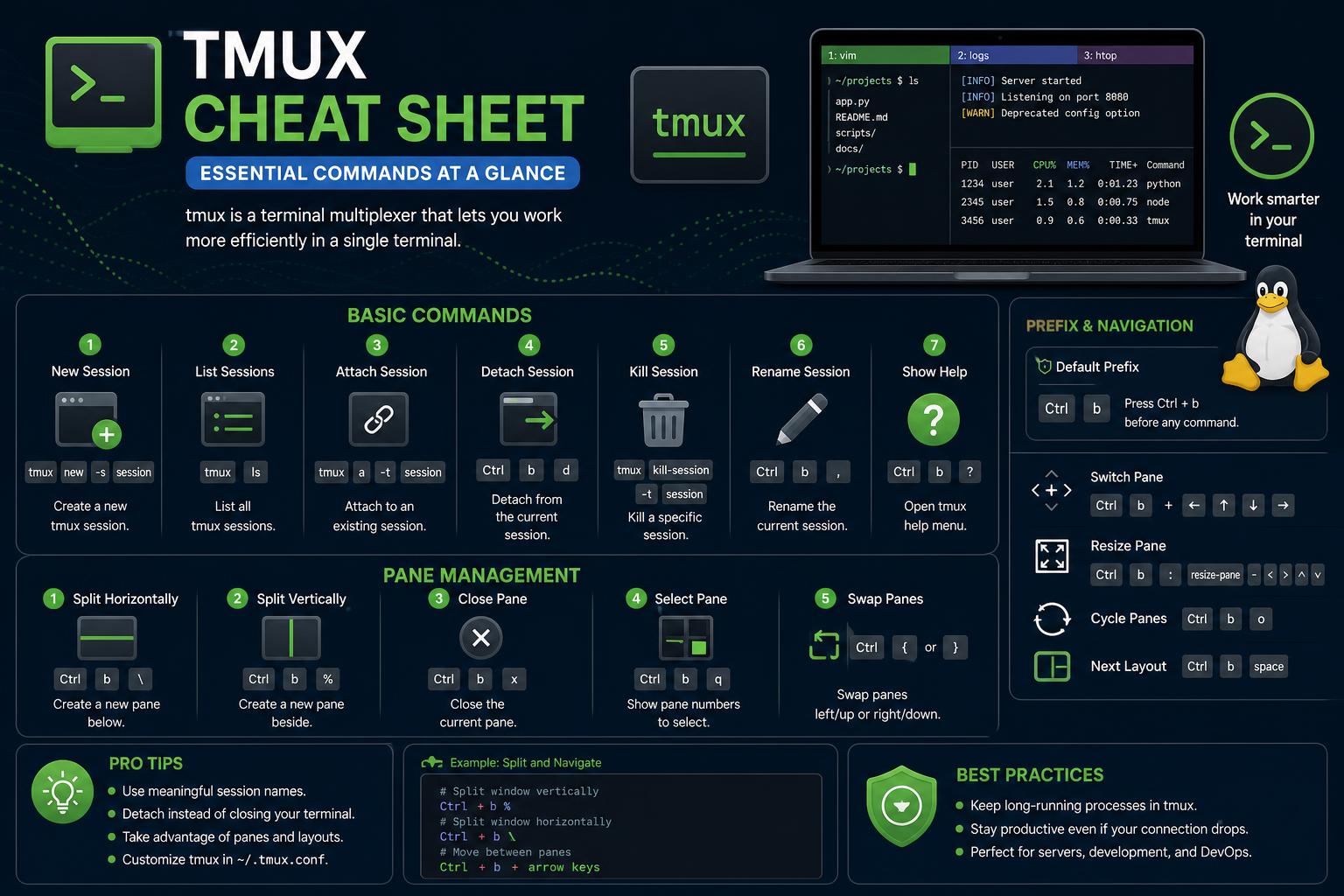
- tmux enables multitasking by managing sessions, windows, and panes efficiently.
- Advanced features like pane synchronization and session persistence prevent workflow interruptions.
- Custom configurations and plugins allow tmux to fit any workflow or environment.
Managing multiple terminal sessions can be a headache, especially when your workflow involves jumping between SSH sessions, running long processes, or collaborating across machines. Enter tmux, a must-have terminal multiplexer that enables you to work smarter, not harder, inside your command line.
If you’ve ever lost a terminal session due to a dropped SSH connection, or struggled to view multiple logs simultaneously, tmux is the answer. This cheat sheet goes far beyond the basics, giving you an updated, human-friendly overview of everything tmux can do—so you’ll never have to search for commands again.
What Exactly is tmux?
Tmux stands for “terminal multiplexer”—but what does that really mean for your daily work? In short, it lets you create, manage, and navigate multiple terminal environments from one window or over a single SSH connection. If you want to learn how to improve your terminal workflow, you might also be interested in this guide on Linux terminal features on Android.
With tmux, you can:
- Run multiple shells and programs without opening extra terminals or tabs.
- Detach from a session, log out, and reattach later—even from another machine—without losing any process.
- Split your terminal into several panes to watch logs, edit code, and monitor system resources all at once.
- Persist long-running jobs independently of your current connection or window.
- Customize your workflow with configurable key bindings, mouse support, and powerful scripting.
If you’re a developer, sysadmin, DevOps engineer, or anyone who thrives in the CLI world, tmux brings flexibility, resilience, and efficiency to your fingertips.
Why tmux Beats the Competition
Tmux is fast, stable, and works across every Unix-like OS (Linux, macOS, BSD, and even WSL for Windows). It’s ideal for remote work, collaborative coding, and managing servers without a GUI. Unlike graphical multiplexers, tmux doesn’t depend on an X server or a heavy desktop environment—making it perfect for headless servers or cloud VMs.
Key advantages include:
- Instant recovery from disconnected SSH sessions.
- Remote collaboration features for pair programming or team debugging.
- Scriptability for automating complex workflows.
- Highly customizable—theme your status bars, tweak key bindings, and enable plugins.
tmux Terminology: Get to Know the Key Concepts
- Session: Think of a “workspace” that keeps windows and panes together. Each session is persistent and exists independently of how you view it.
- Window: A single tab within a session, containing one or more panes. Each window usually represents a task (editing code, running a shell).
- Pane: A split area within a window—think side-by-side or stacked shells you can move between. Panes are excellent for multitasking.
- Client: The specific terminal you’re interacting with. You can have multiple clients attached to the same session (e.g., for collaboration).
- Server: The background process tmux runs in, managing all sessions, windows, and panes.
Installing tmux Across Platforms
Most modern Linux distros and macOS versions either include tmux or make installation easy using your preferred package manager:
- Debian/Ubuntu/Kali:
sudo apt update && sudo apt install tmux - Fedora:
sudo dnf -y install tmux - CentOS/RHEL7:
sudo yum -y install tmux - Arch Linux:
sudo pacman -S tmux - Alpine:
sudo apk add tmux - macOS (with Homebrew):
brew install tmux
Check the installed version: tmux -V. Always confirm your version when working in environments where features may vary (versions prior to v3.0 lack some advanced features such as pane synchronization).
Launching tmux: Your First Session
Launch tmux with: tmux
This launches a new session and takes you straight into it. You’ll see a colored status bar—congratulations, you’re now in tmux!
Pro tip: To create a session with a specific name, making it easier to manage:
tmux new -s mysessionFrom here, the real magic begins.
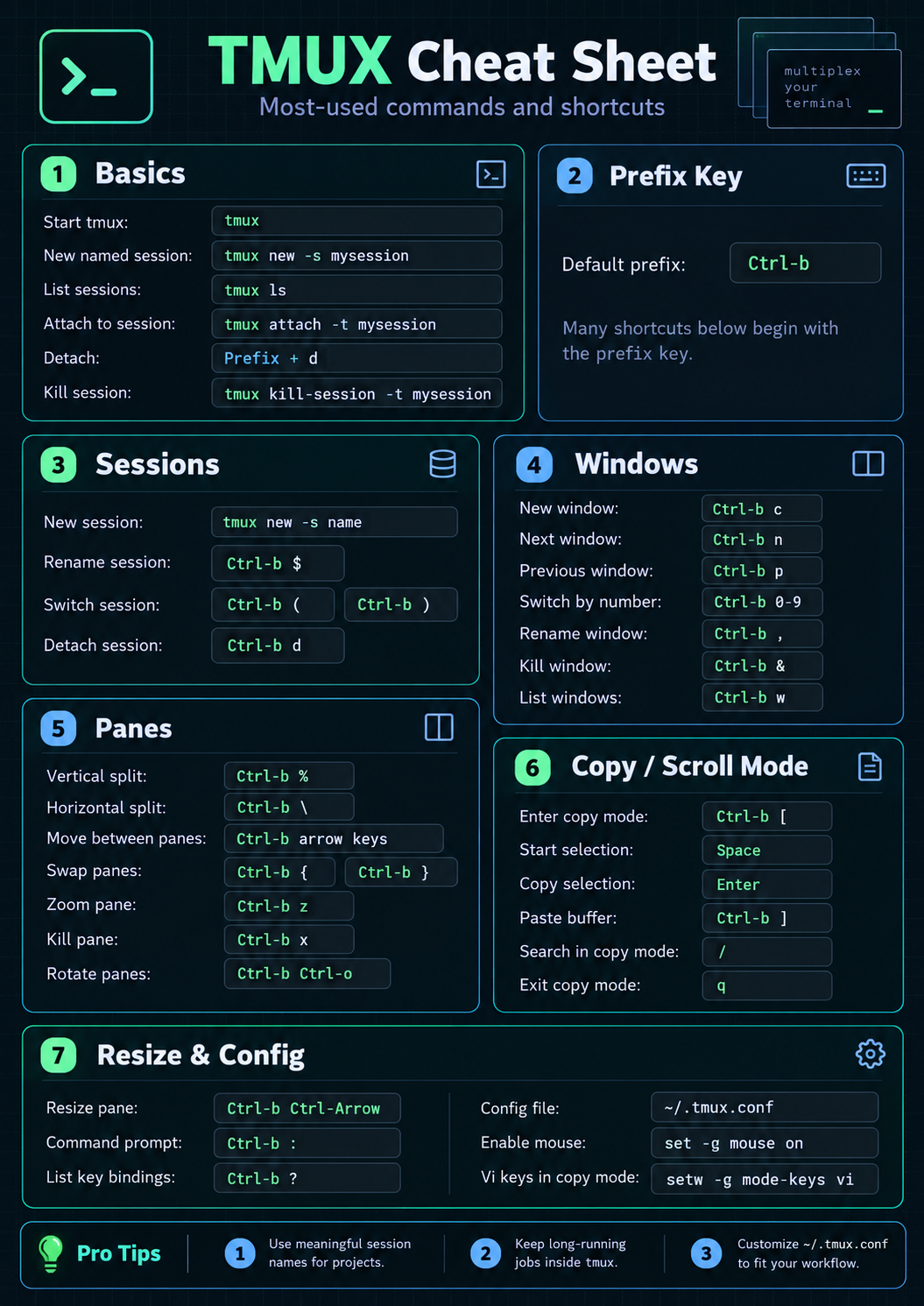
tmux Session Management: All the Moves You Need
Sessions are at the heart of tmux. Here’s everything you need to easily create, list, attach to, and delete sessions.
- Create a session:
tmuxortmux newortmux new-session - Create a named session:
tmux new -s <name> - List all sessions:
tmux ls - Attach to the last session:
tmux aortmux attach - Connect to a specific session:
tmux a -t <name> - Rename the current session (from within tmux):
Ctrl+b $(then enter the new name) - Detach from a session:
Ctrl+b d - Kill a session:
tmux kill-session -t <name> - Kill all but the current one:
tmux kill-session -a - Kill all but a specific one:
tmux kill-session -a -t <name>
View all information: tmux info (shows sessions, windows, panes)
List of shortcuts: tmux list-keys | less
Android 17’s Linux Terminal: Complete Guide to New Features, Customizations, and Power User Updates
Panes, Windows, and Layouts: tmux’s Secret Sauce
Windows: Organize Your Workflow
- Create a window:
Ctrl+b c - Rename the current window:
Ctrl+b , - List windows:
Ctrl+b w - Go to previous/next window:
Ctrl+b p(previous),Ctrl+b n(next) - Close active window:
Ctrl+b &(will ask for confirmation) - Swap/move windows:
Ctrl+b :swapw -s 0 -t 2(swap windows 0 and 2),Ctrl+b :swapw -t -1(move left)
Best practice: Give windows meaningful names (e.g., nmap, notes, logs) for extra clarity.
Panes: Ultimate Multitasking
- Vertical split:
Ctrl+b % - Horizontal split:
Ctrl+b " - Cycle through panes:
Ctrl+b o - Next/previous pane:
Ctrl+b ;(toggle the last active one),Ctrl+bwith arrow keys to move around - Show pane numbering and switch:
Ctrl+b q, then enter the number - Toggle pane zoom:
Ctrl+b z - Turn the current pane into a new window:
Ctrl+b ! - Kill a pane:
Ctrl+b x - Move pane left/right:
Ctrl+b {(left),Ctrl+b }(right) - Toggle layouts:
Ctrl+b spacebar - Resize panes:
Ctrl+b :resize-pane -L 5(-L/-R/-U/-D for direction and number of steps)
Additional layouts: Use the “Meta” key (usually Alt or Esc) plus numbers to switch between predefined layouts: Meta 1 (vertical), Meta 2 (horizontal), Meta 3 (main pane on top), Meta 4 (main pane on the left), Meta 5 (tiled).
Copy Mode & Buffers: Supercharge Your Terminal Clipboard
tmux makes it easy to copy and paste within the terminal, even with a lot of text scrolling by.
- Enter copy mode:
Ctrl+b - Search forward/backward:
/or?, repeat withnorN - Show all buffers:
Ctrl+b :list-buffers - Save buffer to a file:
Ctrl+b :save-buffer - Delete a buffer:
Ctrl+b :delete-buffer -b
Tip: For vi-style navigation in copy mode, add this to ~/.tmux.conf: setw -g mode-keys vi
To capture text from a pane directly: https://www.ikkaro.net/how-to-program-arduino-with-python/
This feature is invaluable for grabbing logs, saving command output, and copying text between panes or windows without any hassle.
tmux Configuration: Personalize Your Workflow
The ~/.tmux.conf configuration file lets you take full advantage of tmux’s power. Some common settings include changing the prefix key, remapping splits, and customizing the status bar. Here are a few essential examples:
- Change the default prefix from
Ctrl+btoCtrl+a(useful if you’re coming from GNU Screen):unbind C-bset -g prefix C-a - Remap splits:
unbind '"'bind - split-window -v(use-vfor a vertical split) - Set vertical split to
|and horizontal to-:unbind %bind | split-window -h - Enable vi keys in copy mode:
setw -g mode-keys vi - Customize the status bar:
set -g status-justifyset -g status-left '...'(session name or info) - Format window titles (for example, with colors):
setw -g window-status-format '##I' - Reload configuration live:
tmux source-file ~/.tmux.conf
If you need to go back to the default settings, just delete ~/.tmux.conf and restart tmux.
Advanced Features: Synchronizing Panes and Remote Access
Synchronize Panes
This feature lets you send the same keystrokes to all panes at once. Ideal for running the same command across several remote machines:
- Enable:
Ctrl+b :setw synchronize-panes on - Disable:
Ctrl+b :setw synchronize-panes off
How to use it: Split your window, SSH into each pane, turn on synchronization, and whatever you type will appear in all of them at once. To better manage your workflow, you can also check out information about TFT displays.
Careful: Check which panes are active to avoid accidental commands, since they’ll be sent to all of them.
Remote Access & Collaboration
tmux sessions can be shared across different terminals, even over the network. If you start a session on your server, you can detach, go home, and reconnect later from another machine, picking up exactly where you left off.
Real-time collaboration: Multiple users can connect to the same session, which is useful for shared debugging, teaching, or pair programming. You can also isolate sessions using custom sockets for privacy on shared systems.
Isolated Sockets
- Start a session on a custom socket:
tmux -S /tmp/.mysocket new -s mysession - Connect using that socket:
tmux -S /tmp/.mysocket a
This is very useful for operational security in penetration testing, multi-user environments, or when you don’t want your sessions to show up on piso WiFi.
Pairing tmux with SSH: Uninterrupted Workflow
Detachable sessions are a real advantage. Managing multiple SSH sessions becomes simple:
- Create one window per SSH target:
tmux new -s engagement -n host1 - In each window, open your SSH connection:
ssh user@remotehost - Add more windows (Ctrl+b c) as needed, renaming each one after its host for clarity.
- Detach (
Ctrl+b d) whenever you want to return to your shell. All SSH sessions remain, safely kept inside tmux. - Reconnect later with:
tmux a -t engagement
Mouse Support and User Experience Upgrades
You can enable mouse support to select text, resize panes, and switch between windows or panes:
- Add these commands to your ~/.tmux.conf as needed:
set -g mouse on(basic mouse support)set -g mouse-select-pane onset -g mouse-resize-pane onset -g mouse-select-window on
Common Workflow Examples
Starting and Resuming a Long-Running Task
- Create a session:
tmux new -s mytask - Run your script or program inside it.
- Detach when you need to close the terminal:
Ctrl+b d - Reconnect at any time:
tmux a -t mytask
Managing Multiple Projects
- One session per project:
tmux new -s webapp,tmux new -s mlpipeline - Within each one, multiple windows and panes for code, logs, and monitoring.
Session Cleanup: No Trace Left Behind
- Remove unwanted sessions:
tmux kill-session -t oldsession - Remove all but the current one:
tmux kill-session -a - Remove old sockets:
rm /tmp/.oldsocket
Good OPSEC: Always clean up sessions and sockets, especially on shared systems or after sensitive work.
Security and Productivity Tips
- tmux is invaluable for security professionals: keeping reverse shells active, managing cracking jobs without fear of disconnections, and safely handling multiple jump hosts.
- Synchronize panes to broadcast commands or run audits across multiple machines, but turn it off immediately afterward to avoid mistakes.
- Use pipe-pane to continuously save a pane’s output to a log (for example, for compliance, reporting, or debugging):
Ctrl+b :pipe-pane 'cat >> ~/session.log' - Keep your
~/.tmux.conffile portable. Consider exporting it or managing it with dotfiles so you can recreate your workflow anywhere.
tmux Plugins: Extend Functionality Even Further
tmux supports plugins for everything from session management to sleek status bars. Install Tmux Plugin Manager (TPM) and browse plugins such as:
- tmux-sensible – sane defaults for beginners
- tmux-resurrect – restore your tmux environment after a restart
- tmux-continuum – continuous saving of your state
- tmux-yank – improves clipboard integration
Frequently Asked Questions
- How do I start tmux? Just type
tmuxin your terminal. - Can I share a session between two computers or with a colleague? Yes! Both users can connect to the same session and collaborate live.
- How do I remap keyboard shortcuts? By editing
~/.tmux.conf, you can redefine any key and reload. - How do I recover a session after an SSH disconnection? After reconnecting, run
tmux lsto list active sessions, thentmux attach -t. - How do I enable/disable mouse support? Add or remove
set -g mouse onin your config and reload.
Having a complete tmux cheat sheet can transform the way you work in the terminal. Whether you’re a sysadmin managing remote servers, a developer looking to streamline your workflow, or a cybersecurity professional responding to incidents, tmux offers unmatched flexibility and power. With the strategies, commands, and tips above, you’ll be ready to tackle any terminal task with confidence and speed.